
Google is replacing Google Assistant with Gemini across its entire device ecosystem. However, many Google TV users cannot find the new Gemini voice assistant on their televisions. Gemini for TV offers advanced artificial intelligence features. These features allow users to ask complex questions, adjust television settings, and generate images directly on the television screen.
Despite these new features, Gemini is not automatically available on every Google TV device. Availability depends on strict hardware requirements, your geographical location, and your account settings. For example, older televisions and non-supported streaming sticks will continue to use the standard Google Assistant.
This article explains the exact device requirements for Gemini on Google TV. You will learn why the artificial intelligence assistant might be missing from your television. We also explain how this update affects third-party streaming applications and IPTV players.
Réponse rapide
Gemini is missing from your Google TV because it requires specific hardware, a supported region, and an adult user profile. Currently, Gemini for TV only works on the Google TV Streamer, the 4K Chromecast with Google TV, and select premium televisions like the TCL QM9K series. Furthermore, Gemini requires an English or French language setting in the United States or Canada. Your Google account must belong to a user who is 18 years or older, and the television must be connected to the Google Home application.
What Is Gemini for TV?
Gemini for TV is Google’s newest artificial intelligence voice assistant for televisions. It replaces the older Google Assistant. Instead of only understanding simple voice commands, Gemini understands natural, complex conversations.
For example, users can ask Gemini: “Recommend a science fiction movie that is not too long.” Gemini will then provide specific movie recommendations. Gemini can also adjust television settings, troubleshoot picture problems, and provide spoken news summaries. Furthermore, Gemini can generate custom images. You can describe a picture with your voice, and Gemini will create that picture to display as a screensaver on your television.
Why Is Gemini Missing From Your Device?
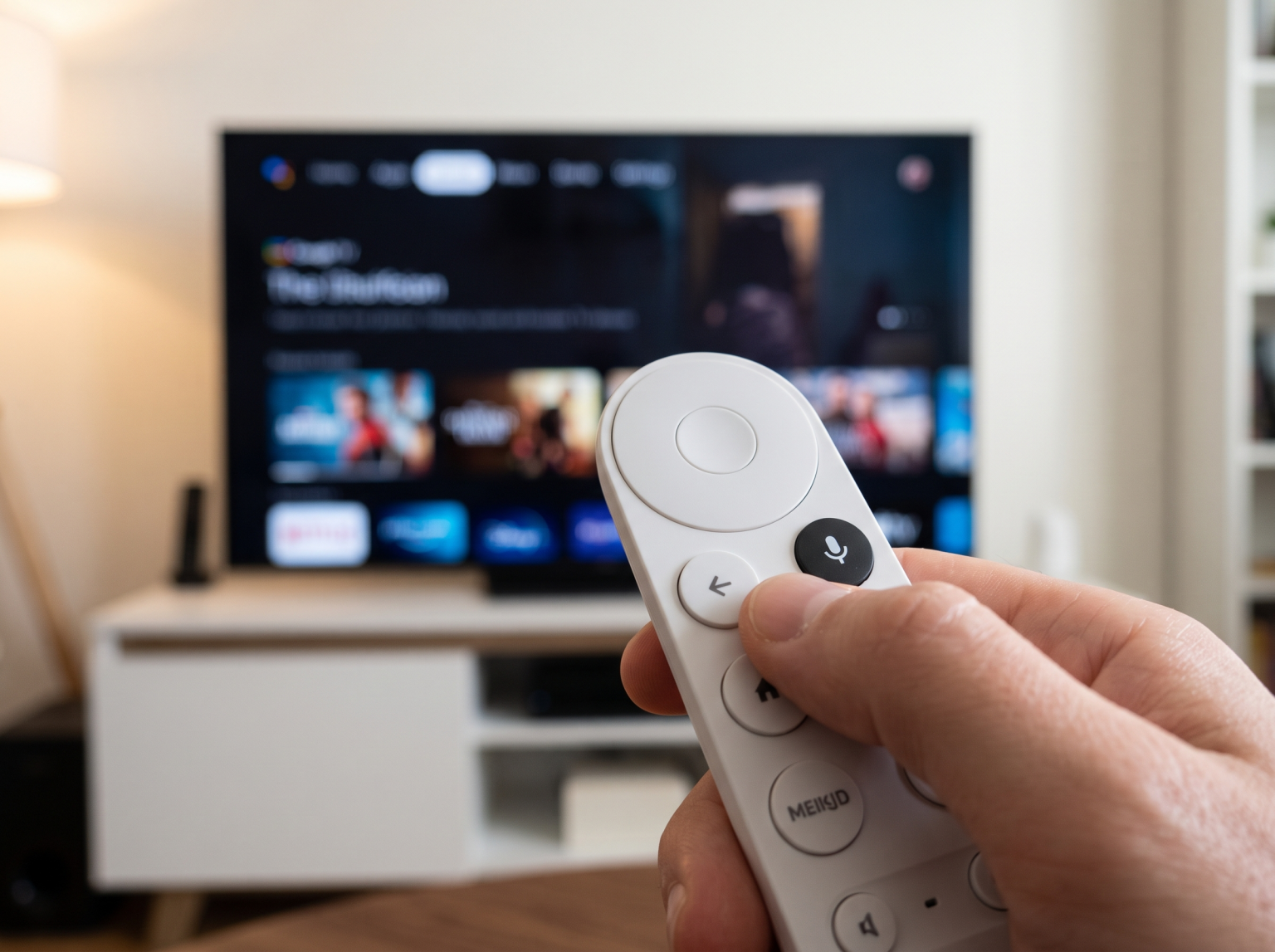
If you press the microphone button on your remote control and still see the old Google Assistant, your setup does not meet the new requirements. If you find Gemini not available, Google TV device requirements are usually the reason. Check the following hardware and software limitations.
1. Hardware and Model Restrictions
Not every Google TV device supports Gemini. Google requires modern processing power and sufficient computer memory (RAM) to run the new artificial intelligence features smoothly.
Currently, Gemini for TV is officially available on:
Google TV Streamer: This is Google’s premium streaming device that replaced the Chromecast in late 2024. It features an upgraded processor and more memory, making it fully compatible with Gemini.
Chromecast with Google TV (4K): The older 4K streaming stick began receiving the Gemini update in May 2026.
Select Smart TVs: Premium television models from specific manufacturers currently support Gemini. For example, TCL models such as the QM9K, X11L, and QM8L series include Gemini.
If you own a standard High Definition (HD) Chromecast, or an older television from Sony or Philips, your device will continue to use Google Assistant. The older hardware simply cannot process the advanced artificial intelligence tasks quickly enough.
2. Age and Profile Limitations
Google restricts its artificial intelligence features to adults. Your Google Account profile must be registered to a user who is exactly 18 years old or older.
Gemini is completely disabled on Google TV Kids profiles. It is also disabled on standard profiles for users who are under 18 years of age. If a child uses the television with a minor’s profile, the system automatically reverts to the standard Google Assistant. There is no setting to bypass this age restriction.
3. Region and Language Limits
Currently, Gemini for TV is only available in specific regions. If you live outside the supported areas, the update will not install on your television.
You must meet these language and location requirements:
United States: The television must be set to the English language.
Canada: The television must be set to the English or French language.
Google plans to expand Gemini to European countries and other languages later in 2026. Until your specific country receives official support, your television will continue to use the standard Google Assistant.
4. Google Home Integration Is Required
Gemini requires a connection to your smart home ecosystem. You cannot use Gemini if your television operates as a completely standalone device.
To activate the new artificial intelligence features, you must add your Google TV device to the Google Home mobile application. You must also add the television user profile as a Google Home member. Because Gemini can control smart lights, view security camera feeds, and manage household routines, the Google Home connection is strictly required.
How to Turn On Gemini on a Compatible Google TV
If you own a compatible device and live in a supported region, Gemini will replace Google Assistant automatically. However, you must enable certain settings to use all features.
Turn on your Google TV device.
Go to the Settings menu.
Select “Accounts & Profiles” and choose your user account.
Select “Voice assistant”.
Confirm that Gemini for TV is active.
To use the voice assistant without holding the remote control, you must turn on the hands-free microphone. You can turn on the hands-free microphone by finding the physical switch on the television or the Google TV Streamer device. When the switch is on, you can simply say “Hey Google” to start a conversation.
Gemini vs Google Assistant on Smart TVs
This table explains the main factual differences between the two voice assistants on Google TV.
| Fonctionnalité | Assistant Google | Gemini for TV |
| Voice command style | Simple and direct commands | Complex and natural conversations |
| Age requirement | Available for all ages | Requires an account for users 18 or older |
| Hardware availability | All Android TV and Google TV devices | Select modern Google TV devices only |
| Smart TV settings control | Basic controls (turn television on or off) | Advanced troubleshooting and picture adjustments |
| Image generation | No native image generation | Yes, creates custom images on the screen |
Using Google TV for IPTV: Does Gemini Help?
Many users connect a Google TV device to their television to watch IPTV (Internet Protocol Television). Because this article is written for TV Shadow IPTV, we will explain how Gemini affects your IPTV experience.
If you use an IPTV service, you probably use a third-party application downloaded from the Google Play Store. Popular IPTV applications use M3U playlists or Xtream Codes to load live television channels. These applications also download an Electronic Program Guide (EPG). The Electronic Program Guide is a digital text menu that shows current and upcoming television programs.
Gemini provides excellent voice search for official streaming applications like YouTube, Netflix, or Amazon Prime Video. However, Gemini cannot search inside third-party IPTV players. You cannot say, “Hey Google, play the sports channel on my IPTV app.” Gemini does not have access to your private M3U playlist data, because this data is not indexed by Google’s global search engine.
For IPTV users, the operating system is much more important than the voice assistant. Google TV remains an excellent choice for IPTV because the Google Play Store offers hundreds of compatible IPTV players. If you want to compare Google TV to other operating systems, read our guide on Meilleur système d'exploitation pour Smart TV dédié à l'IPTV en 2026.
Live Football and Sports Briefs with Gemini
Sports fans often buy high-quality televisions specifically to watch live football. Gemini introduces a new feature called “Sports Briefs.” You can ask Gemini to give you a spoken summary of recent football results or sports news directly on your television screen.
However, Gemini cannot improve the actual picture quality of a live football broadcast. If you watch live sports through an IPTV application, the visual quality depends entirely on your television’s hardware and your internet connection. Important hardware features include motion handling, picture processing, and the screen’s refresh rate.
If you want the smoothest picture for live football, you must understand the difference between a 60Hz and 120Hz display. A higher refresh rate reduces motion blur when the football moves quickly across the screen. You can learn more about this technology in our article about choosing a Téléviseurs 60 Hz ou 120 Hz pour le football en direct. Additionally, you should always ensure your Google TV device uses a stable Wi-Fi or Ethernet connection to prevent the live stream from buffering during a match.
Conclusion
Gemini brings powerful artificial intelligence to your living room, but Google is releasing it slowly. If Gemini is missing from your Google TV, the most common reasons are hardware limitations, regional restrictions, and age requirements. Only modern devices like the Google TV Streamer, the 4K Chromecast, and specific premium televisions support the new voice assistant today.
For users of TV Shadow IPTV, Gemini is an interesting extra feature, but it is not essential. Third-party IPTV applications do not integrate deeply with Google’s voice search. Therefore, a fast device with a good internet connection is much more important for watching live television than having the newest artificial intelligence voice assistant.
Foire aux questions (FAQ)
Can I install Gemini on an older Android TV?
No, you cannot install Gemini on older Android TV devices. Gemini is exclusive to the newer Google TV interface and requires modern hardware specifications. Older televisions simply do not have the processing power for artificial intelligence, so they will continue to use Google Assistant.
Does Gemini cost money on Google TV?
No, Gemini for TV is free to use. You do not need a paid Google One Premium subscription to use the standard Gemini features on your supported television.
Why does my Google TV still use Google Assistant?
Your television still uses Google Assistant because it does not meet the strict Gemini requirements. Your device might be too old, your account might belong to a minor, or your region might not be supported by Google yet.
Can Gemini open my IPTV application?
Yes, Gemini can open your IPTV application if you say the application’s exact name. For example, you can say, “Hey Google, open TV Shadow IPTV.” However, Gemini cannot search for specific television channels or movies inside your private IPTV playlist.
Do I need a new television to use Gemini?
You do not necessarily need to buy a new television. You can buy the external Google TV Streamer device and connect it to your current television using an HDMI cable. This will give your old television the new Gemini features. You can compare this hardware option to other systems by reading our guide about the Tizen vs Google TV pour les applications IPTV : quelle est la différence ?.