
Ga je lekker zitten voor een filmavond, om er vervolgens achter te komen dat je TiviMate-kanalen worden niet geladen? Je bent niet de enige die deze frustrerende ervaring meemaakt. Aangezien dit de meest gebruikte IPTV-speler is voor talloze huishoudens in de VS, zijn incidentele afspeelproblemen onvermijdelijk. Gelukkig zijn deze streamingproblemen meestal binnen een paar minuten eenvoudig op te lossen.
TiviMate is slechts een mediaspeler en biedt geen inhoud aan. Het oplossen van deze laadproblemen komt daarom meestal neer op het aanpassen van een paar instellingen of contact opnemen met je serviceprovider. Laten we eens kijken wat de snelste manieren zijn om je streams weer soepel te laten verlopen.
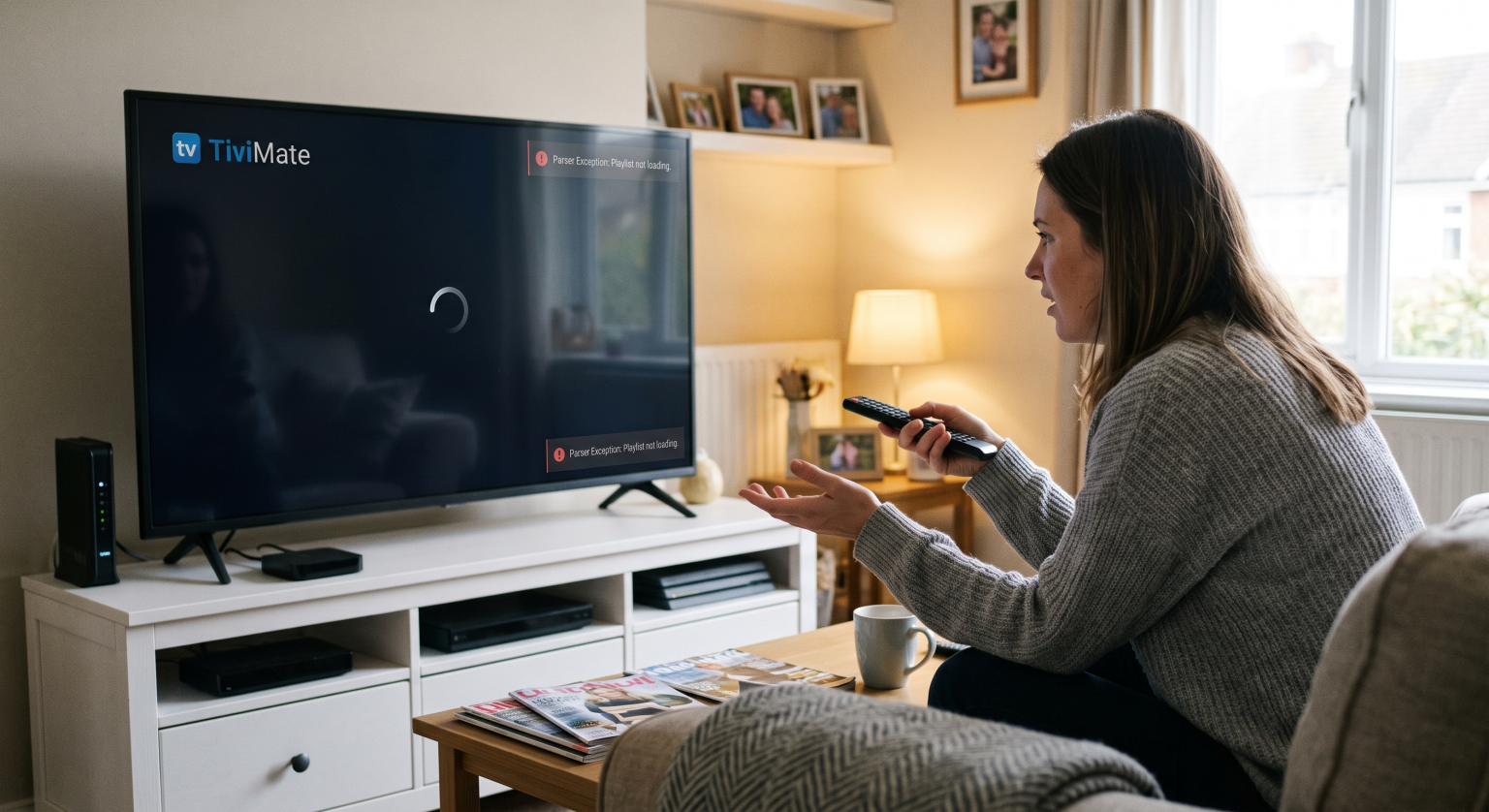
Waarom worden de TiviMate-kanalen niet geladen?
Voordat we meteen naar de oplossingen gaan, is het handig om de onderliggende oorzaken te begrijpen. Veel Amerikaanse internetproviders beperken het streamingverkeer actief tijdens de avondspits, wat leidt tot eindeloos bufferen. Als je naar een leeg scherm staart, ligt het misschien niet aan de app zelf.
Veelvoorkomende oorzaken zijn onder meer M3U-afspeellijstfouten, verlopen abonnementen en verouderde EPG-gegevens (Electronic Program Guide). Soms raakt het achtergrondgeheugen van je streamingapparaat gewoon op, waardoor de app crasht. Als je de exacte foutmelding kunt achterhalen, bijvoorbeeld een parser-uitzondering, kom je zo op het juiste spoor om het probleem op te lossen.
Bewezen oplossingen voor het niet laden van TiviMate-kanalen
De cache leegmaken en het proces geforceerd stoppen
Na verloop van tijd kunnen gegevens in de cache beschadigd raken en het afspelen verstoren. Ga naar de instellingen van je apparaat, zoek de TiviMate-app en selecteer Cache leegmaken. Voer daarna een “Force Stop” uit en start de toepassing opnieuw op, zodat deze een schone lei krijgt.
De User-Agent-header wijzigen
Sommige internetproviders en IPTV-servers blokkeren standaard onbekende mediaspelers. Je kunt deze beperking omzeilen door de identiteit van je apparaat te vervalsen. Ga naar de afspeellijstinstellingen van de app en wijzig de User-Agent naar iets standaards zoals “VLC” of een populaire webbrowser.
Problemen met M3U-afspeellijsten en EPG-synchronisatie oplossen
Als er bij je gids “Geen informatie” staat, zullen je kanalen waarschijnlijk moeite hebben om te laden. Probeer je EPG handmatig bij te werken of stel de verversingsinterval in op 24 uur. Als je een parser-uitzondering, controleer nogmaals of er geen typefouten in je M3U-link staan of vraag een nieuwe URL aan bij je IPTV-aanbieder.
De buffergrootte aanpassen
Netwerkinstabiliteit vormt een enorme hindernis voor live-televisie. Je buffergrootte in de afspeelinstellingen zorgt ervoor dat de speler meer tijd krijgt om streamsegmenten te downloaden. Een andere mogelijkheid is om het uitvoerformaat te wijzigen van MPEG-TS naar HLS; dit kan de verbinding onmiddellijk stabiliseren.
Vergelijking van de beste oplossingen voor streamingproblemen
Als je niet goed weet waar je moet beginnen, gebruik dan deze beknopte handleiding om je symptoom te koppelen aan de beste oplossing.
| Functie voor het oplossen van problemen | Optie A: App-optimalisatie | Optie B: Netwerkoplossingen | Optie C: Controles van zorgverleners |
| Belangrijkste symptoom | De gebruikersinterface loopt vast of de app crasht | Voortdurend bufferen of vertraging | Het laden van lijsten is volledig mislukt |
| De beste maatregel die onmiddellijk kan worden genomen | De cache van de app wissen en een geforceerde herstart uitvoeren | Schakel een betrouwbare VPN in | Controleer de link naar de M3U-afspeellijst |
| Geavanceerde aanpassing | Instellingen van de videodecoder wijzigen | De grootte van de UDP-streambuffer aanpassen | Werk de User-Agent-header bij |
| Benodigde tijd | Minder dan 2 minuten | 3 tot 5 minuten | Verschilt per reactie van de aanbieder |
Geniet weer van naadloos streamen in de VS
Laat een klein technisch probleempje je weekendplezier niet verpesten. Door je cache te beheren, de buffergrootte aan te passen en ervoor te zorgen dat de URL’s van je afspeellijsten kloppen, kun je voorgoed een einde maken aan de ergernis van TiviMate-kanalen worden niet geladen.
Klaar om je home entertainment-systeem te upgraden? Schrijf je vandaag nog in voor onze premium tech-nieuwsbrief voor exclusieve streaminggidsen voor 2026, VPN-kortingen en insider-tips die speciaal zijn afgestemd op kijkers in de VS!
De instellingen van TiviMate aanpassen en veelvoorkomende problemen oplossen
Deze video biedt een handige visuele uitleg over de optimale instellingen die je in TiviMate moet configureren om veelvoorkomende problemen met bufferen en laden op te lossen.
Veelgestelde vragen
Waarom geeft mijn TiviMate een ‘Parser Exception’ weer?
Er treedt meestal een parser-uitzondering op wanneer de app het opgegeven M3U- of XMLTV-bestand niet kan lezen. Dit kan vaak worden opgelost door typefouten in de URL van de afspeellijst te corrigeren of door contact op te nemen met uw IPTV-aanbieder voor een bijgewerkte link.
Heb ik een VPN nodig om te voorkomen dat TiviMate blijft bufferen?
Ja, een VPN wordt ten zeerste aanbevolen, vooral in regio’s waar internetproviders het internet strikt afknijpen. Door je internetverkeer via een beveiligde server te leiden, voorkom je dat je internetprovider je livestreams vertraagt.
Hoe vaak moet mijn EPG worden bijgewerkt?
Voor oudere streamingsticks is het ideaal om de EPG zo in te stellen dat deze elke 24 uur wordt bijgewerkt. Dit voorkomt overbelasting van het achtergrondgeheugen, waardoor je apparaat niet vastloopt tijdens het ophalen van metagegevens.