
Nothing ruins a big game or an intense movie scene quite like the dreaded spinning wheel of death. If you have a solid internet connection and a premium subscription, dealing with constant stuttering feels incredibly frustrating. Most people immediately blame their provider, but the reality is that the root cause often sits quietly in your living room within your app settings, your home network, or your streaming device.
If you’re tired of interruptions, here is a complete, step-by-step guide on how to fix IPTV buffering and get your streams running flawlessly.
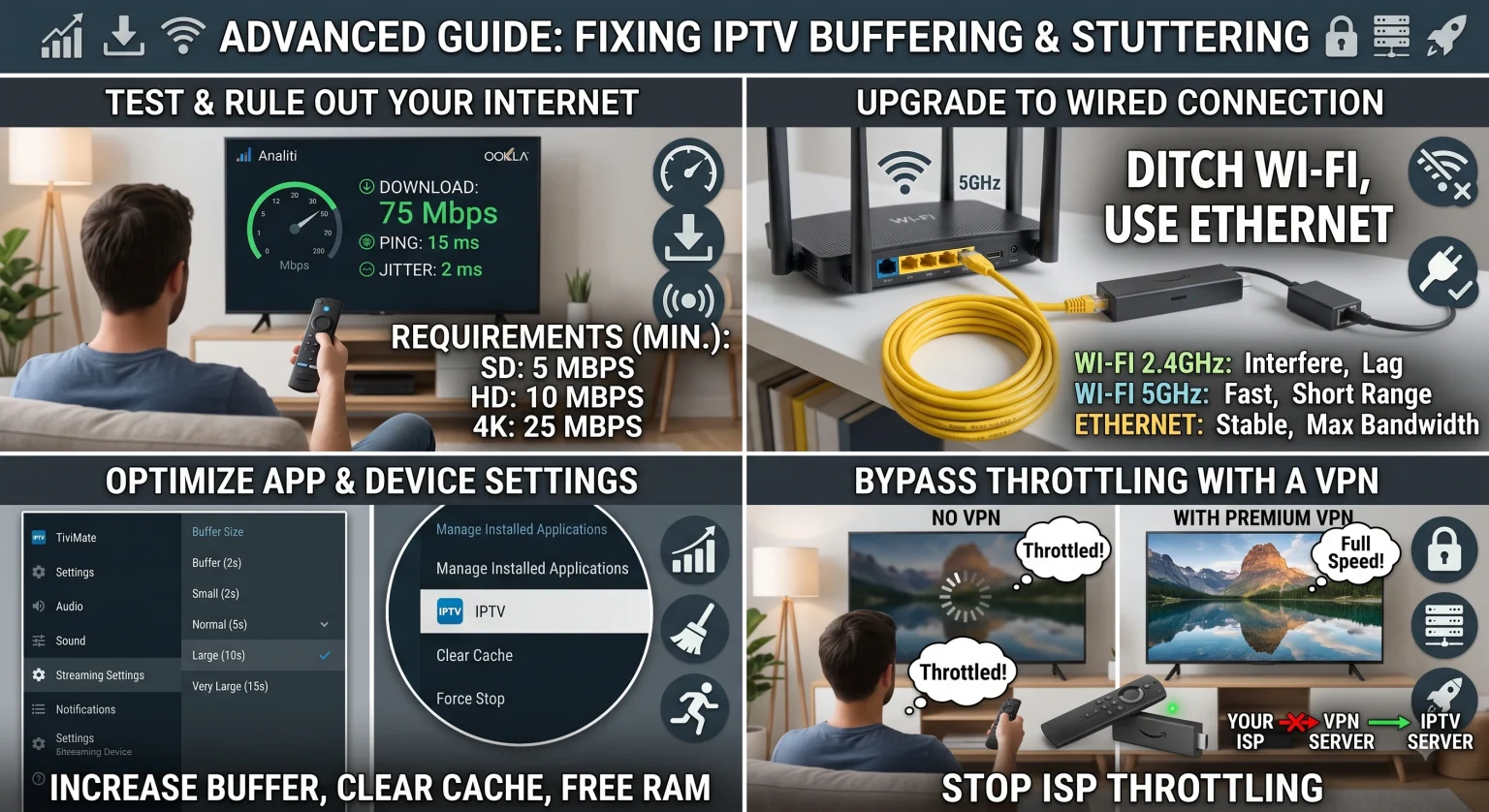
1. Upgrade Your Connection: Wired Over Wireless
The single most effective fix for IPTV buffering is ditching your Wi-Fi. Wireless networks are highly susceptible to interference from other devices, walls, and even your neighbor’s router. This interference causes packet loss, meaning bits of the video data go missing in transit, forcing your app to pause and buffer while it waits for the missing pieces.
If you must use Wi-Fi, ensure your streaming device is connected to the pasmo 5 GHz rather than the crowded 2.4GHz band. The 5GHz band handles high-bandwidth tasks like HD and Transmisja strumieniowa w rozdzielczości 4K much better, provided your device is in the same room as the router.
Wi-Fi vs. Ethernet for IPTV
| Funkcja | Wi-Fi (2.4 GHz) | Wi-Fi (5 GHz) | Ethernet (Wired) |
| Speed/Bandwidth | Low to Medium | Wysoki | Maksymalna |
| Interference Risk | High (Microwaves, Bluetooth, etc.) | Niski | Zero |
| Stability for Live TV | Biedny | Dobrze | Świetnie |
| Latency/Ping | Wysoki | Średni | Lowest |
2. Adjust the Video Buffer Size in Your App
Your IPTV app stores a few seconds of video in advance (the buffer) to keep the stream smooth if your internet speed temporarily dips. If this setting doesn’t match your internet speed, you will experience constant pauses.
If you use popular apps like TiviMate or Smarters Pro, you can usually find this under Settings > Playback:
For connections under 25 Mbps: Increase the buffer to Large (around 10 to 15 seconds). This gives the app plenty of runway to handle data delays.
For connections over 50 Mbps: Set the buffer to Small or None (2 to 5 seconds). Fast connections refill data instantly; a large buffer just wastes memory and slows down channel zapping.
Note for Firestick users: Amazon Firesticks have limited RAM. Setting your buffer too high will overload the device’s memory and cause the app to crash completely. Stick to a maximum of 5 to 8 seconds.
Find your ideal buffer setting using the interactive calculator below.
3. Enable Hardware Acceleration
Streaming live 1080p or 4K video is heavy lifting for a small streaming stick. Most modern apps feature a setting called Akceleracja sprzętowa lub Hardware Decoder.
Enabling this shifts the workload from the device’s main processor (CPU) to its dedicated graphics chip (GPU). This usually results in a much smoother picture and less strain on your hardware. However, if turning it on causes your screen to go black or display weird green glitches, disable it immediately and stick to software decoding.
4. Clear Background Apps and Cache
Streaming devices aren’t full-blown computers. When you leave a dozen apps running in the background, they eat up your device’s RAM and CPU power, leaving very little processing juice for your IPTV app.
Force close unused apps regularly.
Clear the cache of your IPTV app through your device’s settings menu.
Reboot your device and router at least once a week. A simple restart clears out temporary memory leaks and forces your router to find a cleaner, less congested Wi-Fi channel.
5. Bypass ISP Throttling with a VPN
Does your stream work perfectly at 2 PM but turn into a stuttering mess at 8 PM during a big football match? You are likely being throttled by your Internet Service Provider (ISP).
ISPs often monitor user traffic and deliberately slow down bandwidth-heavy activities (like IPTV streaming) during peak evening hours to manage overall network congestion. To bypass this, route your connection through a premium Virtual Private Network (VPN). A VPN encrypts your traffic so your ISP can’t see what you’re doing, preventing them from selectively slowing down your video streams.
Podsumowanie
Fixing IPTV buffering rarely requires buying a whole new TV setup or immediately dumping your provider. By hardwiring your connection, tweaking your app’s buffer settings to match your internet speed, and keeping your device’s memory clean, you can eliminate the vast majority of playback issues. Start with the easiest fix plugging in an Ethernet cable and work your way through the software settings until your stream runs smoothly.