
Har du startat din streamingenhet idag och då upptäckt att din IPTV-appen har försvunnit från Android TV? Du är inte ensam. Oavsett om du använder en vanlig Chromecast, en Nvidia Shield eller Walmarts populära Onn 4K-box är oväntade förändringar på startskärmen ett vanligt irritationsmoment för streamare i USA.
Uppdateringar av TV:ns firmware eller startprogram kan ändra inställningar, återkalla behörigheter eller tillfälligt dölja dina favoritappar för strömning. Den goda nyheten är att din app sällan försvinner för gott. Nedan går vi igenom exakt vad som orsakar detta problem och hur du kan återställa dina försvunna kanaler på några minuter.
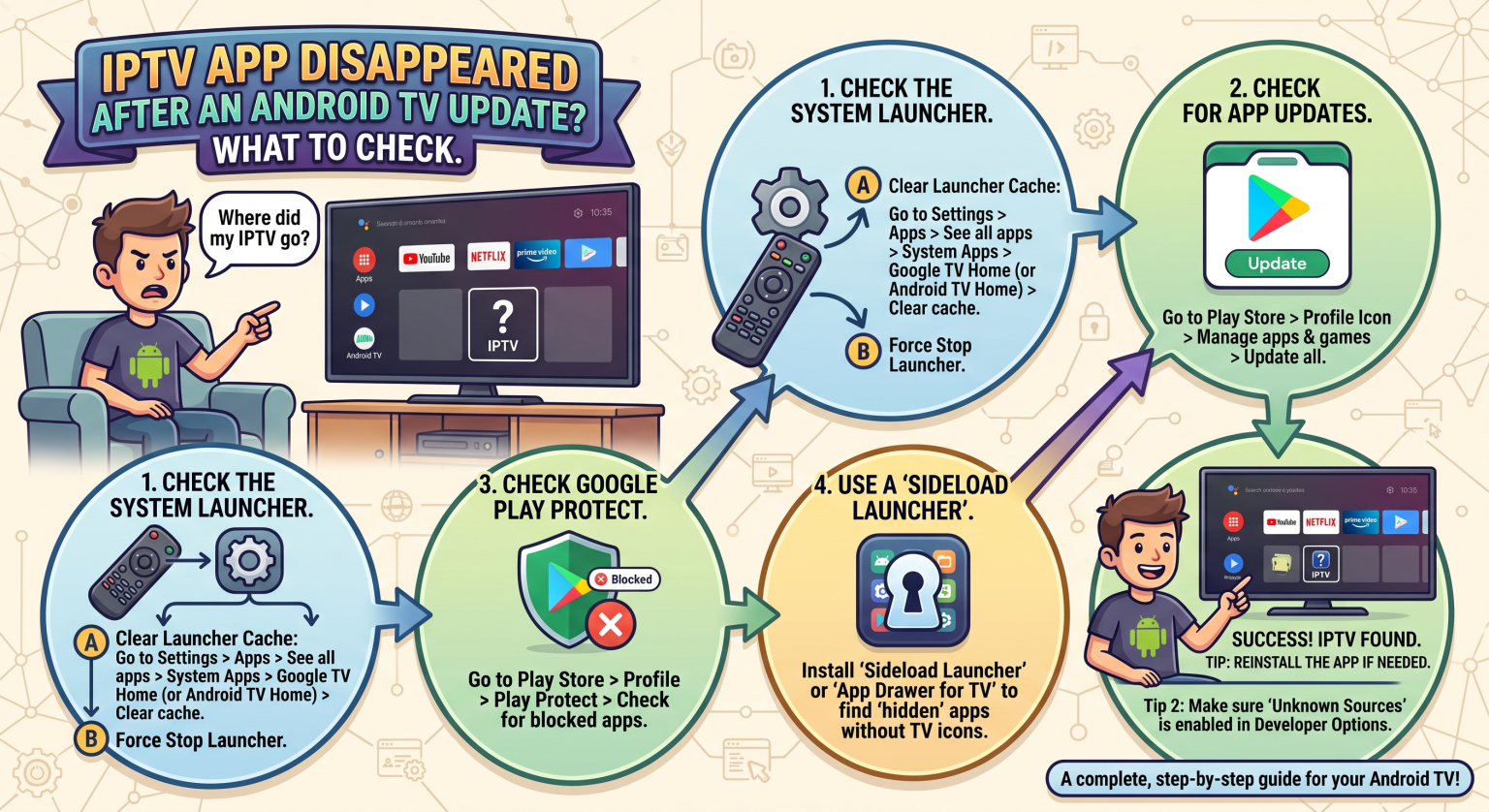
Varför din IPTV-app försvann från Android TV efter en uppdatering
När en firmwareuppdatering släpps för enheter i hela USA förändras ofta hur ikonerna visas i gränssnittet på Google TV eller Android TV. Om din streamingapp inte längre finns på huvudskärmen har vanligtvis något av följande tre hänt:
Saknade Leanback-ikoner: Appar som är utvecklade för mobiltelefoner har ingen standardikon för “Leanback”-TV. När systemstartprogrammet uppdateras kan Google TV dölja dessa icke-standardappar från huvudkarusellen.
Åtgärder inom Play Protect: Google Play Protect skannar kontinuerligt din enhet för att upptäcka säkerhetsrisker. Om du använder anpassade APK-filer kan det hända att du upptäcker Appar som installerats manuellt saknas efter en Android-uppdatering eftersom Play Protect aktivt inaktiverade eller tog bort dem.
Återställning av behörigheter: Större uppdateringar av firmware leder ofta till att behörigheter för bakgrundsaktiviteter återkallas. Din enhet kan ha stängt av funktionen automatiskt. Behörighet för okända källor på Android TV, vilket gör att anpassade appar inte kan startas som de ska.
Snabba lösningar för att återställa IPTV på din Android TV-box
Gör inte en fabriksåterställning direkt. Oftast kan du återställa dina försvunna streamingverktyg genom några enkla justeringar i menyn.
1. Gå in i menyn “Visa alla appar”
Det kan hända att appen har tagits bort från din startrad. Gå till Inställningar > Appar > Visa alla appar. Om din IPTV-spelare finns med i listan här, välj den, klicka på “Öppna” och kontrollera om den fungerar som den ska. Ofta kan du lägga till den på startskärmen igen från den här menyn.
2. Ladda ner en sidladdningsstartapp för Android TV
Om din app är installerad men helt osynlig saknar den troligen rätt TV-ikonkod. Öppna Google Play Store och ladda ner en Startprogram för sidladdning på Android TV (till exempel “Sideload Launcher” av Chainfire). Detta verktyg skapar en särskild mapp som visar alla appar som är installerade på din enhet, inklusive dolda mobil-APK-filer.
3. Granska inställningarna för Google Play Protect
Är Play Protect blockerar din IPTV-app? Gå till Google Play Store på din TV, klicka på din profilikon och öppna inställningarna för Play Protect. Om du tillfälligt inaktiverar den här funktionen kan du förhindra att systemet automatiskt tar bort strömningstjänster från tredje part, men du bör endast göra detta om du har fullständigt förtroende för appens källa.
Jämförelse: De bästa metoderna för appåterställning
Vet du inte vilken lösning du ska prova först? Använd den här snabba översikten för att välja rätt strategi för din enhet.
| Återställningsmetod | Bästa användningsfall | Framgångsgrad | Krävs det en extra nedladdning? |
| Lista över systeminställningsappar | Appar som av misstag har tagits bort från den översta raden på startskärmen. | Hög | Nej |
| Sideload-startprogram | APK-filer för mobiler som har installerats via sidladdning och saknar en korrekt Leanback TV-ikon. | Mycket hög | Ja (gratis via Play Store) |
| Justeringar av Play Protect | Tredjepartsappar som raderas automatiskt i samband med Googles säkerhetsgenomgångar. | Måttlig | Nej |
Säkra din streamingupplevelse redan idag
Att ha din IPTV-appen försvinner på Android TV är irriterande, men att behöva stå ut med en opålitlig streamingtjänst är ännu värre. Tittare i USA förtjänar en stabil, buffringsfri anslutning som fungerar smidigt på alla Android-enheter.
Om du är trött på att felsöka buggiga appar och vill ha en förstklassig tittarupplevelse, [Klicka här för att utforska våra högst rankade IPTV-abonnemang] och njut av kristallklara HD-kanaler redan idag!
Vanliga frågor (PAA)
Varför saknas det appar på min Google TV-startskärm?
Startskärmarna på Google TV byter ofta ut sin layout efter programuppdateringar. Detta kan leda till att dina fästa ikoner blandas om, att menyinställningarna flyttas eller att appar som inte är officiellt optimerade för tv-skärmar döljs.
Hur återställer jag IPTV på min Android TV-box?
Kontrollera först listan “Hantera appar” i dina inställningar för att se till att appen inte bara har tagits bort från fästlistan. Om appen saknas helt måste du återaktivera alternativet “Installera från okända källor” och installera om APK-filen.
Kommer en fabriksåterställning att återställa mina försvunna appar?
Nej. En fabriksåterställning raderar alla data på din enhet, vilket innebär att alla anpassade inställningar, nedladdade appar och inloggningsuppgifter tas bort. Försök alltid att använda en sideload-launcher eller rensa launcher-cachen innan du gör en hård återställning.