
Are you staring at a blank screen because your IPTV channels not loading? There is nothing more frustrating than sitting down to watch your favorite show, only to be met with endless buffring or connection errors. Fortunately, getting your stream back up and running is usually a quick fix.
Whether you are streaming locally or dealing with aggressive regional ISP restrictions, this issue affects users worldwide. Network congestion, expired subscriptions, and outdated apps are often the main culprits behind these playback failures. In this complete 2026 guide, we will walk you through the most effective ways to diagnose and resolve your IPTV streaming issues fast.
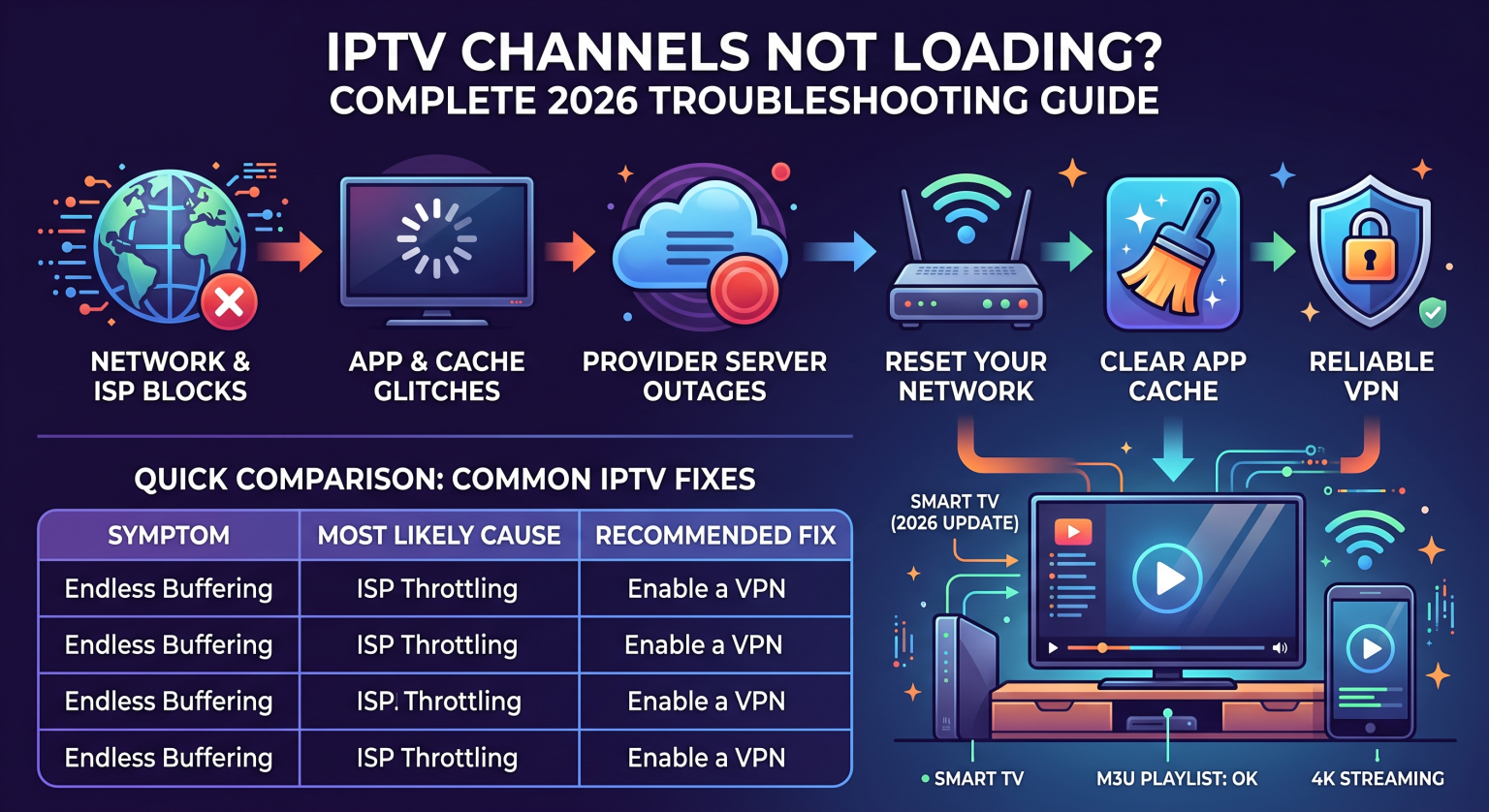
Top Reasons Your IPTV Channels Are Not Loading
When your IPTV channels not loading, it is essential to identify the root cause before tweaking your setup. Most streaming errors fall into three main categories: internet connection issues, app glitches, or provider outages.
ISP Throttling & Network Blocks: Many local internet service providers intentionally throttle IPTV traffic during peak hours. This causes sudden black screens and endless buffering.
Corrupted TV Guide Data: If your Electronic Program Guide (EPG) fails to sync properly, the channels will often refuse to load.
Overloaded Provider Servers: IPTV providers sometimes oversell their bandwidth, leading to massive latency and frequent 12-second timeouts.
How to Fix IPTV Channels Not Loading Instantly
Ready to get back to your favorite content? Follow these proven troubleshooting steps to fix your connection.
1. Reset Your Network and Device Connection
The simplest fix is often the most effective. If you find your IPTV channels not loading, turn off your streaming device and unplug it from the power source. Wait 30 seconds before plugging it back in, and restart your router to clear out any hidden network congestion.
2. Clear App Cache and Force Stop
Over time, apps like TiviMate eller IPTV Smartare accumulate corrupted cache files. Navigate to your device’s settings, find your IPTV application, and select “Clear Cache”. If the issue persists, try force-stopping the app or completely reinstalling it to ensure you have the latest 2026 updates.
3. Use a Reliable VPN to Bypass Restrictions
If your local internet provider is blocking your streaming traffic, a VPN is your best friend. A premium VPN masks your activity, stopping ISP throttling dead in its tracks. Connect to a fast, local server in your region to instantly stabilize your m3u playlist anslutning.
4. Verify Your Subscription and M3U Link
Sometimes the fix is as simple as checking your account status. An expired subscription or a broken M3U playlist link will stop channels from launching entirely. Log into your provider’s dashboard to confirm your account is active, or use a playlist validator tool to check for malformed syntax.
Quick Comparison: Common IPTV Fixes
Use this quick diagnostic table to find the best solution for your specific streaming issue.
| Issue / Symptom | Most Likely Cause | Recommended Fix |
| Endless Buffering / Slow Load | ISP Throttling or Low Bandwidth | Enable a premium VPN or use an Ethernet cable. |
| Blank Screen / App Crash | Corrupted App Data | Force close the app and clear the device cache. |
| “Connection Lost” Error | Overloaded Provider Servers | Contact your provider or upgrade to a premium service. |
Keeping Your Stream Stable in Your Region
Att hantera IPTV channels not loading doesn’t have to ruin your weekend. By maintaining a hardwired ethernet connection, using a trusted VPN to bypass local network blocks, and keeping your apps updated, you can enjoy flawless viewing. Always ensure your internet speed meets the minimum 5 Mbps requirement for standard streaming, or higher for 4K resolutions.
Upgrade Your Viewing Experience Today!
Are you tired of constantly troubleshooting IPTV channels not loading due to a cheap, unreliable provider? Stop settling for black screens and lag. [Click here to explore our top-rated, buffer-free premium IPTV subscriptions for 2026!] Get instant access to high-speed servers, reliable customer support, and uninterrupted 4K streaming today.
Vanliga frågor (FAQ)
Why does my IPTV say connection lost?
A “connection lost” error usually means your stream has timed out due to your provider’s servers being overloaded or your internet connection dropping. Try restarting your router or switching to a less congested server using a VPN.
How do I clear my IPTV cache?
To clear the cache, go to your streaming device’s Settings menu, select Apps, and find your specific IPTV application. Click on the app and select “Clear Cache” to remove corrupted temporary files.
Does a VPN really stop IPTV buffering?
Ja. If your Internet Service Provider is intentionally slowing down (throttling) your IPTV traffic, a VPN hides your streaming activity. This forces your ISP to treat your connection normally, instantly reducing buffering and loading times.