
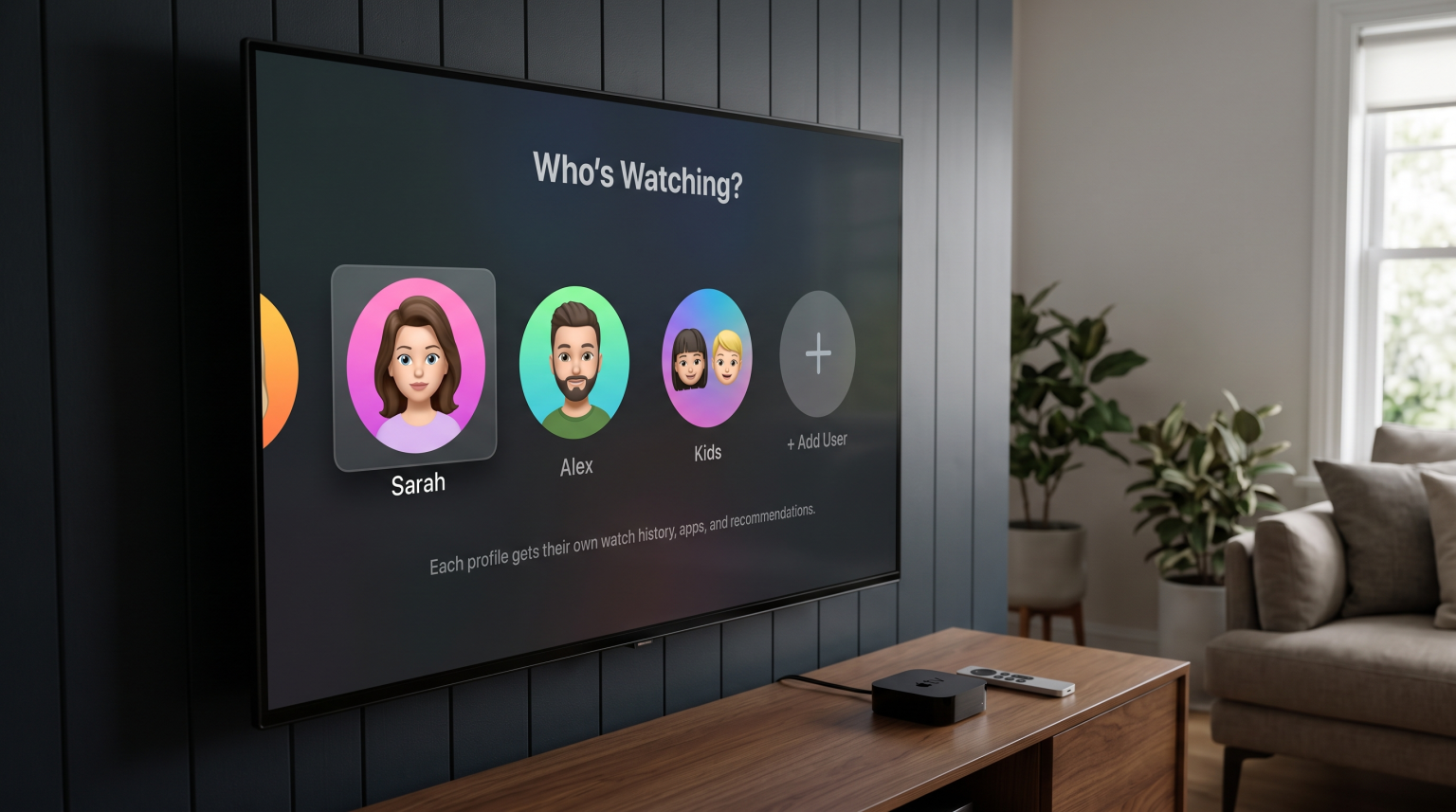
Apple TV allows you to add multiple user profiles using the tvOS operating system. Many users expect Apple TV profiles to work exactly like profiles on a computer or an Android smartphone. However, Apple designed tvOS profiles differently. When you change the active profile on an Apple TV, the operating system changes the active Apple Account. This action separates data for official Apple services. The profile switch changes your watch history, music library, and game progress. But the profile switch does not create separate spaces for third-party applications. Every user shares the same installed applications and the same Home Screen layout. This article explains exactly what Apple TV profiles separate, what information remains shared, and how the profile system affects IPTV applications for TV Shadow IPTV users.
Quick Answer
Apple TV profiles separate data for official Apple applications. Each user gets a personal watch history in the Apple TV application. Each user gets personal recommendations in Apple Music. Each user gets separate Game Center progress. However, Apple TV profiles do not separate third-party applications. If you download an application like Netflix or an IPTV player, every user sees that same application on the Home Screen. The login data inside third-party applications also remains shared. You must use the internal profile system inside the specific application to separate your third-party watch history.
How Apple TV Profiles Work
The Apple TV 4K uses an operating system named tvOS. Apple built tvOS around a single main Apple Account. You can add extra Apple Accounts to create additional user profiles. You can also create managed profiles for children.
What Is Separated Between Profiles
When you switch profiles on the Apple TV, the operating system updates specific Apple services.
The Apple TV Application: The “Up Next” list changes to show the active user’s movies and television shows. The watch history is completely separate for each user.
Apple Music: The music recommendations and saved playlists update to match the active user’s Apple Account.
Game Center: The game progress and game achievements switch to the active user’s account.
App Store: The active user can make purchases using their own Apple Account payment method.
What Remains Shared Between Profiles
Apple TV profiles do not create a separate sandbox for every user. Many system elements remain identical for everyone.
The Home Screen: Every user sees the exact same application icons in the exact same order.
System Settings: Video settings, audio settings, and network settings apply to the entire Apple TV device.
Installed Applications: If one user downloads an application, the application becomes visible to all users.
Storage Space: All profiles share the internal storage capacity of the Apple TV device.
| Feature | Changes with Profile Switch | Remains Shared for All Users |
| Apple TV application history | Yes | No |
| Apple Music library | Yes | No |
| Game Center progress | Yes | No |
| Home Screen layout | No | Yes |
| Installed third-party applications | No | Yes |
| System video settings | No | Yes |
| Wi-Fi and Ethernet connection | No | Yes |
Do Apple TV Profiles Separate Third-Party Apps?
Many users wonder how Apple TV profiles affect third-party applications like Netflix, Hulu, or Disney+. Apple TV profiles do not separate the data inside these applications.
When you open Netflix on an Apple TV, the Netflix application does not know which Apple TV profile is active. The Netflix application uses the exact same account for every Apple TV user. To see separate watch histories in Netflix, you must open the Netflix application and select a different Netflix profile inside the application menu. This limitation applies to almost all third-party streaming applications on the Apple TV.
If you are comparing different television systems, our guide to Best Smart TV OS for IPTV in 2026 explains how other systems like Google TV and Tizen handle user accounts.
Apple TV Profiles and IPTV Apps
If you use TV Shadow IPTV, you need an IPTV player application. Popular Apple TV IPTV applications include UHF, iPlayTV, IPTVX, and TiviMax.
Because Apple TV profiles do not separate third-party application data, your IPTV application is shared among all users. When you add an M3U playlist or enter Xtream Codes credentials into the IPTV application, every Apple TV profile can access that live television stream.
The Electronic Program Guide (EPG) and the IPTV watch history are also shared. If one user saves a television channel as a favorite, that channel becomes a favorite for every Apple TV user. If you want separate IPTV favorites for different family members, you must choose an IPTV application that has its own internal profile system. The Apple TV operating system will not separate the IPTV data for you.
To learn more about which television is best for streaming live channels, read our comparison of the Best Smart TVs for IPTV in 2026: Samsung, Sony, LG & TCL Compared.
Live Football and Sports Viewing
Watching live football requires a good picture and smooth motion. The Apple TV profile system includes a dedicated sports section inside the official Apple TV application. Each Apple TV profile can select favorite football teams. The Apple TV application will send notifications to the active profile when a favorite team starts playing a match.
However, the picture settings for live football are shared across all profiles. If you configure the Apple TV to use “Match Frame Rate” for smooth football motion, that setting applies to every user. You cannot create one profile with 50Hz settings for European football and another profile with 60Hz settings for American sports. The hardware settings belong to the device, not the profile.
For a deeper understanding of motion handling during sports matches, read our guide explaining a 60Hz vs 120Hz TV for Live Football.
How to Switch Between Apple TV Profiles
Apple makes profile switching very fast. You do not need to restart the Apple TV device.
Turn on the Apple TV device.
Press and hold the “TV” button on the Siri Remote.
The Control Center menu will appear on the right side of the screen.
Select the user icon at the top of the Control Center menu.
Choose the desired user profile from the list.
The Apple TV will immediately switch to the selected profile and update the Apple TV application recommendations.
Conclusion
Apple TV profiles provide a convenient way to separate watch histories and recommendations for official Apple services. By switching profiles, each family member receives personalized content in the Apple TV application and Apple Music.
However, Apple TV profiles do not provide complete privacy for third-party applications. The Home Screen, the installed applications, and the system settings remain shared across all users. For IPTV users connecting to TV Shadow IPTV, this means the IPTV application and the channel lists are visible to everyone who uses the Apple TV. Understanding these limitations helps you configure your Apple TV correctly for the whole family.
FAQ
Can I lock my Apple TV profile with a password?
Yes. You can require a four-digit passcode for your specific Apple TV profile. This passcode prevents other users from viewing your personal watch history in the Apple TV application.
Do third-party applications switch accounts automatically on Apple TV?
No. Applications like Netflix or YouTube do not switch accounts automatically when you change the Apple TV profile. You must manually switch profiles inside each third-party application.
Can I hide applications from specific Apple TV profiles?
No. All installed applications appear on the Home Screen for every user. You cannot hide an IPTV application or a streaming application from a specific profile.
Does TV Shadow IPTV work with Apple TV profiles?
Yes. You can use TV Shadow IPTV through a third-party IPTV application on your Apple TV. However, all Apple TV profiles will share the same IPTV application and the same playlist data.
How many user profiles can I add to an Apple TV?
You can add up to six user profiles to a single Apple TV device. This limit includes the main Apple Account and five additional family members.