
Hvis du nogensinde har følt dig frustreret over at skulle håndtere rodede, mile-lange M3U-afspilningsliste-URL’er, er du ikke alene. Udviklingen inden for streamingverdenen har bevæget sig i retning af noget, der er langt mere overskueligt og nemmere at administrere: Xtream Codes API. At finde en pålidelig Xtream-koder Download af spiller er det første skridt på vejen mod en bedre oplevelse, når du ser live-tv, film og serier.
I stedet for at skulle rode med enorme filer, der ikke kan opdateres, forenkler Xtream Codes det hele til tre enkle oplysninger: en server-URL, et brugernavn og en adgangskode. Her er præcis, hvad du skal vide om, hvordan du finder, downloader og konfigurerer den rigtige afspiller til dine enheder.
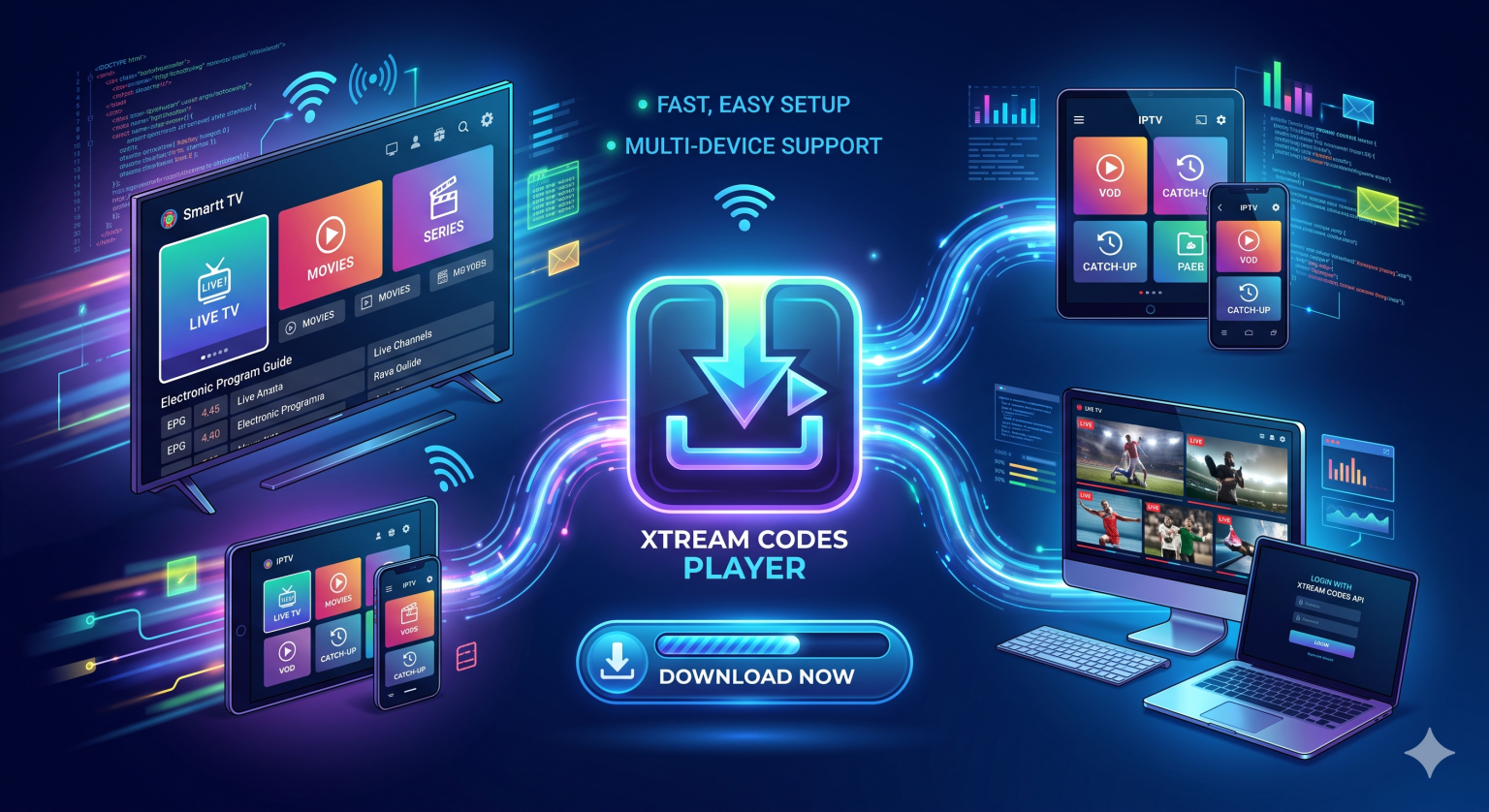
Hvad er en Xtream Codes-afspiller egentlig?
For straks at afklare en udbredt misforståelse: En Xtream Codes-afspiller giver dig ikke adgang til noget indhold. Det er ganske enkelt en tom medieafspiller – et stykke software, der er udviklet til at afspille og organisere de streamede data, som du selv leverer IPTV-tjeneste.
Når du downloader en dedikeret afspiller (som f.eks. Smart IPTV Xtream Player, IPTV Smarters Pro eller Xtream IPTV Player), får du en brugergrænseflade, der inddeler din udbyders strømme i kategorierne Live-tv, Film og Serier, komplet med elektroniske programoversigter (EPG) og indhentningsfunktioner.
Hvorfor vælge Xtream API frem for M3U?
Hvis din udbyder tilbyder både et M3U-link og Xtream Codes-loginoplysninger, bør du altid vælge Xtream. Her er hvorfor:
Nem opsætning: Det er et mareridt at indtaste et kæmpe M3U-link på en tv-fjernbetjening. Xtream Codes opdeler login-processen i en kort portal-URL og grundlæggende loginoplysninger.
Hurtigere indlæsning: M3U-filer indlæser hele kanallisten på én gang, hvilket kan få enheder med begrænset hukommelse, såsom ældre modeller, til at gå ned Firesticks. Xtream API indlæser data dynamisk, hvilket gør det betydeligt hurtigere.
Bedre organisering af VOD: Xtream håndterer metadata langt bedre. Filmplakater, oplysninger om medvirkende, IMDb-vurderinger og episodebeskrivelser indlæses problemfrit i forhold til almindelige M3U-afspilningslister.
Sådan downloader og konfigurerer du din afspiller
Fremgangsmåden kan variere en smule afhængigt af din hardware, men de vigtigste trin er de samme uanset hvad.
Til Android og Android TV (Nvidia Shield, Chromecast)
Android er det mest fleksible økosystem for IPTV-afspillere. Der findes snesevis af muligheder direkte i den officielle butik.
Åbn Google Play Store på din enhed.
Søg efter Xtream IPTV-afspiller eller Smart IPTV Xtream Player.
Klik på »Download« og åbn appen.
Vælg indstillingen for at Log ind med Xtream Codes API.
Indtast server-URL’en, dit brugernavn og din adgangskode.
Klik Tilføj bruger eller Log ind. Det tager et øjeblik for appen at downloade kanalerne og dataene til video-on-demand (VOD).
Til Windows-pc og Mac
At se tv på en stationær computer kræver en lidt anden fremgangsmåde. Selvom nogle udviklere tilbyder direkte desktop-klienter (som f.eks. IPTV Player Zero), foretrækker mange brugere at køre Android-emulatorer for at få adgang til deres foretrukne mobilgrænseflader.
Den direkte rute: Download et desktopprogram fra Microsoft Store (søg efter »Xtream IPTV Player«) eller hent en dedikeret MacOS-klient.
Emulator-metoden: Download en Android-emulator, f.eks. BlueStacks. Når programmet er installeret, skal du logge ind på Google Play Store i BlueStacks, søge efter den Xtream-afspiller, du foretrækker, og installere den på nøjagtig samme måde, som du ville gøre på en telefon.
Til Amazon Firestick
Da Amazon jævnligt fjerner IPTV-apps fra deres officielle butik, bliver du sandsynligvis nødt til at installere din afspiller manuelt.
Gå til indstillingerne på din Firestick > Min Fire TV > Udviklerindstillinger, og aktiver Apps fra ukendte kilder.
Download den Downloader appen fra Amazon Appstore.
Åbn Downloader, og indtast den direkte APK-URL eller kortkoden for den app, du vil installere (disse oplysninger findes ofte på appudviklerens officielle hjemmeside).
Installer APK-filen, åbn appen, og indtast dine Xtream-loginoplysninger.
Egenskaber, man skal kigge efter hos en spiller i topklasse
Ikke alle medieafspillere er ens. Når du leder efter en app, du kan downloade, skal du sørge for, at den indeholder følgende vigtige funktioner:
EPG-support: Det er afgørende, at den elektroniske programguide fungerer. Her kan du se, hvad der kører lige nu, og hvad der kommer bagefter.
Funktionalitet på flere skærme: Hvis du er sportsfan, er muligheden for at dele skærmen og se op til fire livebegivenheder på samme tid en sand revolution.
Forældrekontrol: Se efter afspillere, hvor du kan indstille en PIN-kode for at låse bestemte kategorier eller kanaler med voksenindhold.
Indbygget hastighedstest: Problemer med streaming skyldes næsten altid netværket. En indbygget hastighedstester hjælper dig med straks at finde ud af, om buffering skyldes din forbindelse eller udbyderens server.
Undertekster og lydspor: Hvis du ser internationale VOD-tjenester, har du brug for en afspiller, der gør det nemt at skifte mellem dubbet lydspor og undertekstfiler.
Et par ord om sikkerhed ved streaming
Husk, at disse afspillere udelukkende er værktøjer. Når du streamer indhold via internettet, kan din internetudbyder overvåge din trafik. Hvis du oplever kraftig buffering i spidsbelastningsperioder (f.eks. søndag aften eller under store sportsbegivenheder), kan det være, at din internetudbyder begrænser din forbindelse. Det anbefales på det kraftigste at bruge en pålidelig VPN til at omdirigere din trafik og forhindre begrænsning af båndbredden, så dine streams kører jævnt og uden buffering i HD eller 4K.