
Are you sitting down to watch your favorite show, only to find your TiviMate playlist not updating? It is incredibly frustrating when you are dealing with missing channels or outdated TV guides. Fortunately, getting your IPTV stream updating properly again usually only takes a few simple steps.
Whether you are streaming locally in the US or traveling abroad, maintaining an up-to-date channel list is essential for a smooth viewing experience. Let’s dive into the most effective ways to troubleshoot and fix your TiviMate app so you can get back to watching what you love.
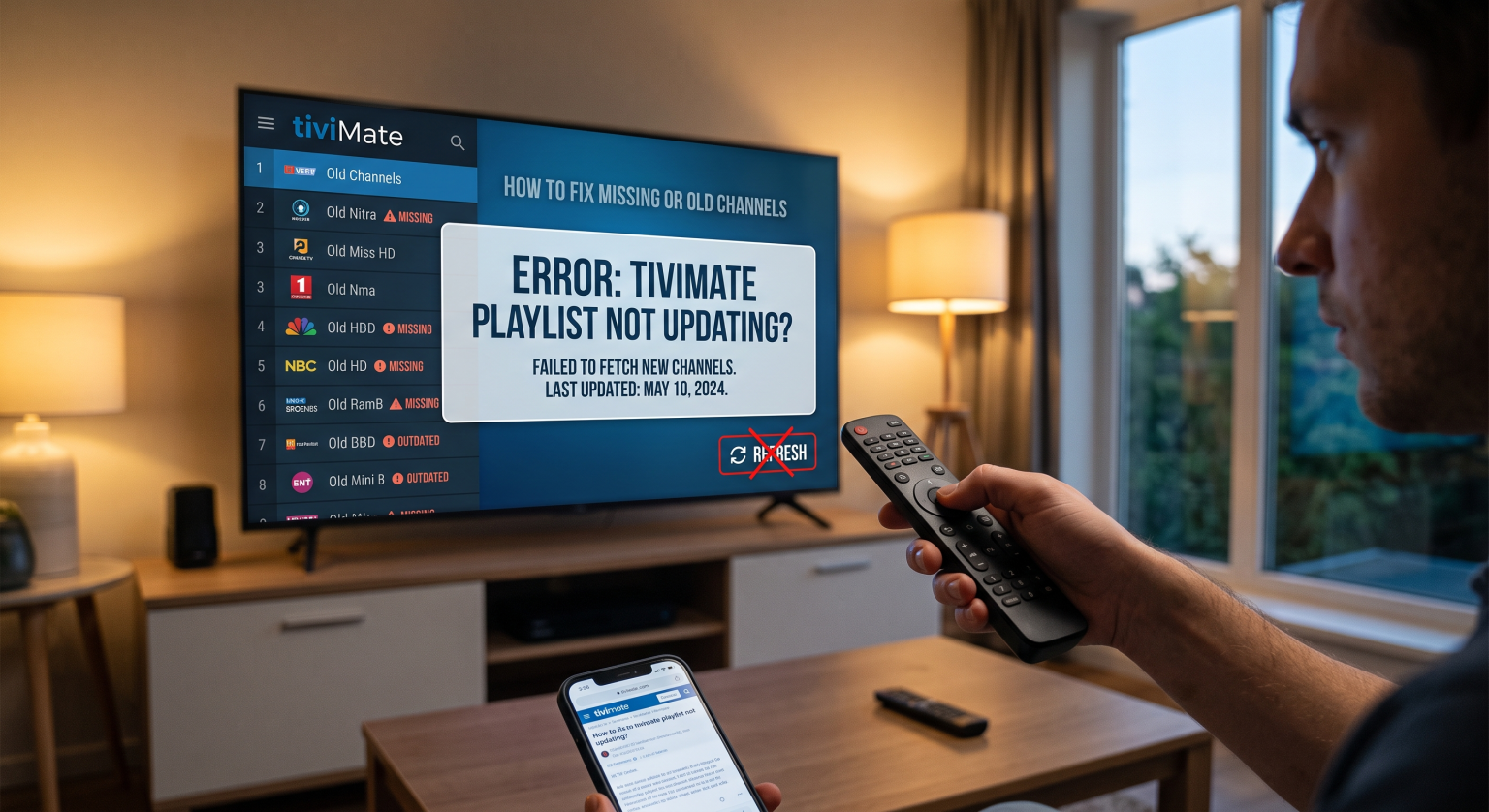
Why Is My TiviMate Playlist Not Updating?
Several factors can prevent your app from fetching the latest streams. Often, the issue lies with a temporary server glitch from your IPTV provider. If their servers are down or overloaded, your playlist simply won’t refresh.
Another common culprit is corrupted app data. Over time, your streaming device accumulates junk files that can block TiviMate from recognizing new channels. Additionally, incorrectly formatted M3U links, expired subscriptions, or aggressive ISP blocking can easily disrupt the update process.
Step-by-Step Fixes for TiviMate Missing Channels
When your TiviMate playlist not updating issue persists, try these proven troubleshooting methods. These steps will help you quickly restore your live TV and VOD content.
1. Manually Update IPTV Playlist and EPG
Sometimes, the application just needs a manual push. You can easily force a refresh right from the main menu.
Open TiviMate and long-press the OK button on your remote to open the right-side menu.
Navigate down to Einstellungen, then select Playlists.
Choose your primary playlist and click Update Playlist.
If your schedule information is blank, make sure you also manually update the EPG (Electronic Program Guide) within the same settings menu.
2. Clear TiviMate Cache and Force Stop
If a manual update fails, clearing the app’s cache is your next best bet. This safely removes temporary bugs without deleting your custom settings or favorites.
Go to your Android TV or Firestick home screen and open Einstellungen.
Auswählen Apps, find TiviMate, and click Beenden erzwingen.
Scrollen Sie nach unten und wählen Sie Cache leeren (be careful not to click “Clear Data” unless you want a complete factory reset).
Once finished, relaunch the app to see if the missing channels reappear.
3. Verify Your Xtream Codes or M3U URL
A tiny typo in your URL or a changed password will completely halt background updates. If your provider recently changed their server domain, your old link is now effectively dead.
Double-check your login credentials in the Playlists menu. Also, ensure that the parameters for “Include TV Channels” and “Include VOD” are toggled on, as accidental changes here will hide your content.
4. Bypass ISP Blocking with a VPN
Many internet service providers actively throttle or block IPTV connections. If your playlist update continuously stalls, network interference might be the root cause.
Try toggling a VPN on (or off, if it is currently causing connectivity drops) and attempt the playlist refresh again. Changing your server location can instantly resolve these frustrating routing errors.
Comparison: Best IPTV Playlist Formats
To minimize the chances of your TiviMate playlist not updating, it is crucial to use the most reliable format for your subscription. Here is a quick breakdown of the three main integration options.
| Playlist Format | Ease of Setup | Reliability & Updates | Am besten geeignet für |
| Xtream Codes API | Very Easy (Requires URL, Username, Password) | High – Updates automatically and loads incredibly fast. | Users wanting organized VODs and fast, stable loading. |
| M3U-URL | Moderate (Long URL string required) | Medium – Prone to manual typos, but highly customizable. | Using external editors (like m3u4u) for custom channel sorting. |
| Stalker Portal | Easy (Requires MAC address integration) | Low – Can be buggy when paired with third-party apps. | Older MAG boxes or strict provider requirements. |
Ensuring Seamless Auto-Updates in the US
If you want to completely avoid the headache of a TiviMate playlist not updating, take full advantage of the app’s premium features. Upgrading to TiviMate Premium allows you to schedule automated background updates.
Gehen Sie zu Settings > Playlists > Update Playlist on App Start. Turning this on ensures that every time you launch TiviMate in the US, it instantly pulls the freshest channel list directly from your provider’s server without any manual effort.
Final Thoughts: Get Your TiviMate Streaming Again
A TiviMate playlist not updating doesn’t have to ruin your movie night. By manually refreshing the app, clearing your device cache, and ensuring your login details are perfectly accurate, you can restore your missing channels in minutes. Whether you are watching local US news or international sports, staying on top of your playlist settings ensures a flawless, buffer-free experience.
Ready to supercharge your streaming setup? Make sure you are using a top-tier VPN to prevent ISP throttling, and consider unlocking TiviMate Premium to automate your daily playlist updates for good!
Häufig gestellte Fragen (FAQ)
Why does TiviMate say "Updated" but show no channels?
This usually means your login credentials (username/password) are incorrect, or your IPTV subscription has officially expired. TiviMate may register a server connection attempt as a “success” even if the provider rejects the login, resulting in an empty list.
How do I fix EPG not loading in TiviMate?
If your live channels work but the TV guide is completely empty, go to Settings > EPG and click EPG aktualisieren. If it still fails, verify if your provider has issued a new EPG URL or try using a VPN to bypass local ISP blocks.
Should I use an M3U link or Xtream Codes?
Xtream Codes API is highly recommended. It is significantly easier to type out, loads data faster, and generally experiences far fewer update errors compared to bulky M3U links.