
Du sätter dig för att titta på ditt favoritsändning, men det finns ett stort problem: bilden är kristallklar, men du har problem med en IPTV – inget ljud Problem. Det är oerhört frustrerande när ljudet uteblir. Lyckligtvis brukar det bara krävas några få klick för att åtgärda detta vanliga problem.
För streamingentusiaster över hela Förenta staterna, om ljudet försvinner under en direktsändning av NFL eller ett lokalt nyhetsinslag förstör det upplevelsen helt. Oavsett om du använder en Firestick eller en Android TV-box, i den här guiden visar vi dig exakt hur du får tillbaka ljudet. Nu ska vi se till att din hemmabio fungerar som vanligt igen!
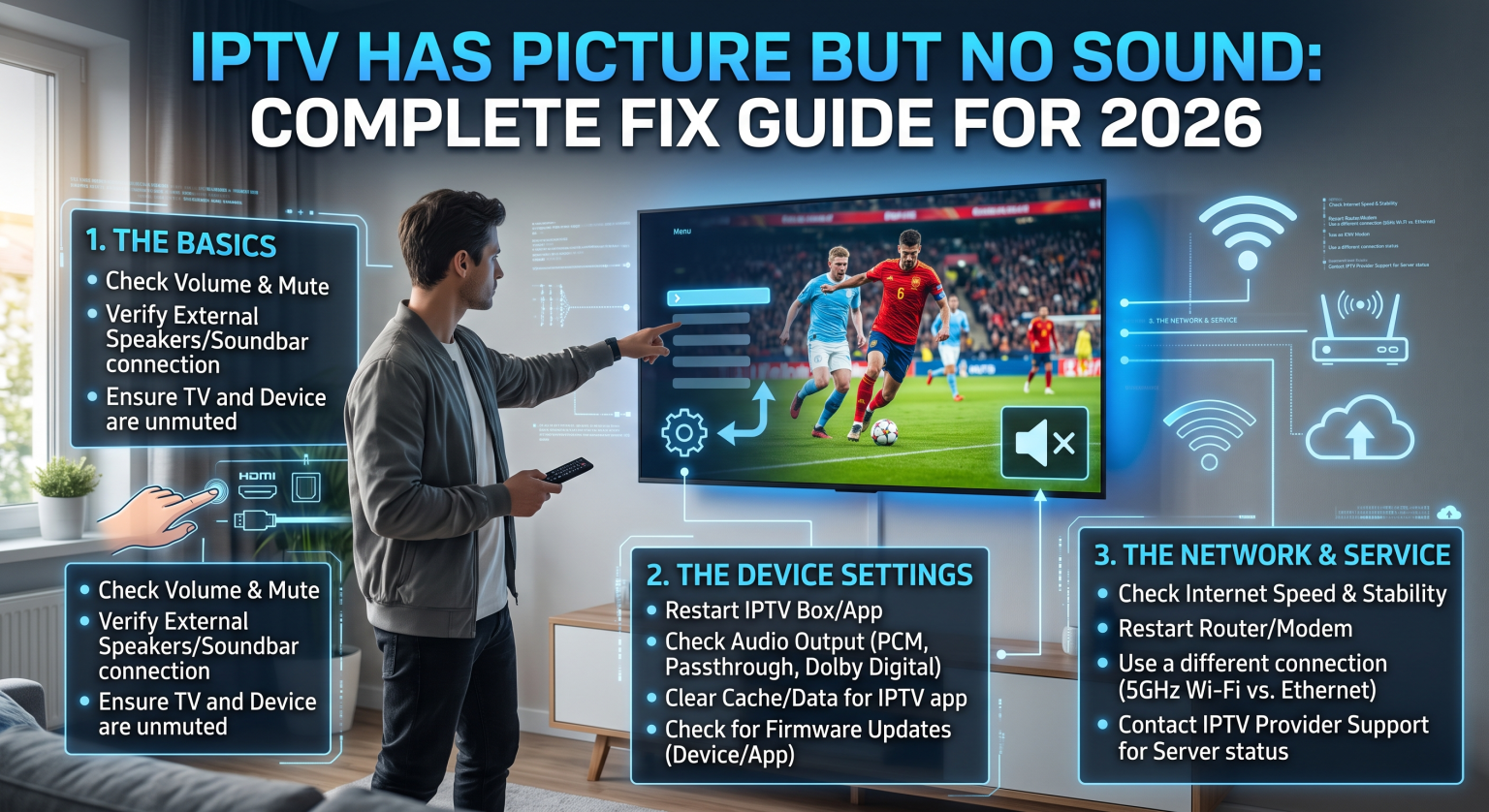
Varför du har problem med att det inte hörs något ljud på din IPTV i USA
Många användare tror att deras tjänsteleverantör har problem när de upplever Ljudproblem med IPTV. I själva verket beror problemet ofta på enkla inställningskonflikter på din lokala enhet. På grund av det stora utbudet av Android-boxar och smart-tv-apparater som är populära i Förenta staterna, det är extremt vanligt att ljudkodekarna inte stämmer överens.
Inkompatibilitet mellan ljudkodekar
De flesta livestreamar sänds i särskilda ljudformat. Om din streamingenhet inte har inbyggt stöd för strömmen ljudkodek, kommer du att få en video utan ljud. Detta inträffar ofta vid 5.1-surroundljud eller AC3-format på äldre tv-apparater.
Avkodning med hårdvara kontra avkodning med mjukvara
Som standard använder de flesta streamingappar enhetens fysiska hårdvara för att bearbeta ljudet. Om hårdvaran inte känner igen ljudspåret kan du byta till avkodning med hjälp av programvara tvingar själva applikationen att bearbeta ljudet. Detta är den mest effektiva lösningen för Inget ljud på IPTV.
Jämförelse av ljudinställningar i de populäraste apparna
Innan vi går in på de stegvisa lösningarna är det bra att förstå hur olika program hanterar ljudbearbetning. Här följer en kort översikt över hur populära spelare hanterar ljudavkodning.
| Streaming-spelare | Standardljudavkodare | Bästa inställning vid ljudavbrott | Stöd för externa spelare |
| TiviMate | Hårdvara | Programvara (endast ljud) | Ja (VLC, MX Player) |
| IPTV Smarters Pro | Hårdvara | Programvara | Ja (VLC, MX Player) |
| VLC Media Player | Programvara | Inbyggda kodekar | Ej tillämpligt (det är en extern spelare) |
Steg-för-steg-lösningar vid ljudproblem med IPTV
Om du just nu tittar på en sändning utan ljud kan du följa dessa praktiska steg. Dessa lösningar fungerar för nästan alla större streamingappar på marknaden.
1. Byt från hårdvaruavkodning till mjukvaruavkodning
Det snabbaste sättet att lösa ett IPTV – inget ljud Lösningen är att byta ljudavkodare. I TiviMate går du till Inställningar > Uppspelning > Ljudavkodare och ändrar inställningen från Hårdvara till Programvara. Om du använder IPTV Smartare, gå till Spelarinställningar och välj alternativet för programvarudekoder.
Öppna appens inställningar.
Leta reda på uppspelnings- eller spelarmenyn.
Ställ in ljudavkodaren på ”Software”.
Starta om kanalen för att tillämpa korrigeringen.
2. Inaktivera ljudgenomströmning
Ljudgenomkoppling skickar råa ljuddata direkt till din soundbar eller hemmabioreceiver. Det fungerar utmärkt för avancerade system, men kan ofta leda till att ljudet uteblir i vanliga TV-högtalare. Gå till appens ljudinställningar och se till att genomkopplingsfunktionen är avstängd.
3. Prova en extern mediaspelare
Om den inbyggda spelaren fortfarande inte spelar upp ljud måste du använda en extern mediaspelare. Appar som VLC eller MX Player har redan inbyggda omfattande bibliotek med ljudkodekar. Ladda helt enkelt ner VLC från appbutiken och ställ in din IPTV-app på “Använd extern spelare” för de kanaler som ger problem.
Lokala faktorer som påverkar ljudproblem med IPTV
Även om de flesta problemen beror på avkodningen, kan din lokala inställning i Förenta staterna kan också spela en roll. Nätverksbegränsningar från lokala internetleverantörer kan leda till att ljudströmmen bryts medan videon fortsätter att buffras. Att använda ett högkvalitativt VPN kan förhindra dessa begränsningar och hålla både video- och ljudströmmarna stabila.
Avslutande tankar till tittarna i USA
Åtgärda ett IPTV – inget ljud Det krävs ingen examen i datavetenskap för att lösa det här problemet. Genom att justera avkodningsinställningarna, hantera passthrough eller använda en extern spelare kan du kringgå de flesta ljudbegränsningarna. Njut av avbrottsfri streaming i Förenta staterna har aldrig varit enklare när man väl känner till dessa viktiga felsökningssteg.
Är du redo att uppgradera din streamingupplevelse? Om du är trött på ständiga buffringar och ljudavbrott, ta en titt på våra rekommenderade premiumlösningar för streaming redan idag. Prenumerera på vårt nyhetsbrev för veckovisa felsökningsguider, exklusiva teknikrabatter och för att se till att ditt system fungerar felfritt!
Vanliga frågor (PAA)
Varför har min IPTV bild men inget ljud?
Detta beror oftast på att enhetens hårdvara inte stöder ljudkodeken för livestreamen. Om du byter din apps ljudavkodare från hårdvara till mjukvara brukar problemet lösas direkt.
Hur ändrar jag ljudkodeken i TiviMate?
Du kan ändra detta genom att öppna TiviMate, gå till Inställningar och välja Uppspelning. Bläddra ner till alternativet ”Ljudavkodare” och ändra inställningen från ”Hårdvara” till ”Programvara”.
Löser det problemet med saknat IPTV-ljud om man använder en extern spelare?
Ja. Externa spelare som VLC har egna inbyggda mediekodekar som kringgår enhetens begränsningar. Att använda VLC som extern spelare är ett av de mest pålitliga sätten att återställa ljudet.