
Seien wir ehrlich: Das Kabelfernsehen zu kündigen und zu einem neuen Streaming-Dienst zu wechseln, klingt meist nach einer tollen Idee – bis man vor einem komplizierten Einstellungsbildschirm sitzt. Niemand möchte seinen Freitagabend damit verbringen, mit einer klobigen Fernbedienung eine 60 Zeichen lange Webadresse einzugeben, nur um ein Fußballspiel anzuschauen.
Wenn Sie auf der Suche nach dem besten IPTV-Dienst sind, haben Sie wahrscheinlich schon festgestellt, dass eine stabile IPTV-Anbieter ist erst die halbe Miete; die andere Hälfte besteht darin, die App selbst reibungslos zum Laufen zu bringen. Aber hier ist die gute Nachricht: Die Einrichtung TV Shadow IPTV Man braucht dafür keinen Abschluss in Informatik. Dank moderner Streaming-Infrastruktur dauert der gesamte Vorgang – vom Öffnen der Willkommens-E-Mail bis zum Streaming in voller 4K-Auflösung – weniger lang, als eine Tüte Mikrowellen-Popcorn zuzubereiten.
In dieser Anleitung werden wir die veralteten, nervigen Methoden umgehen und den ultraschnellen “3-Minuten-Sprint” durchgehen, um TV Shadow zum Laufen zu bringen.
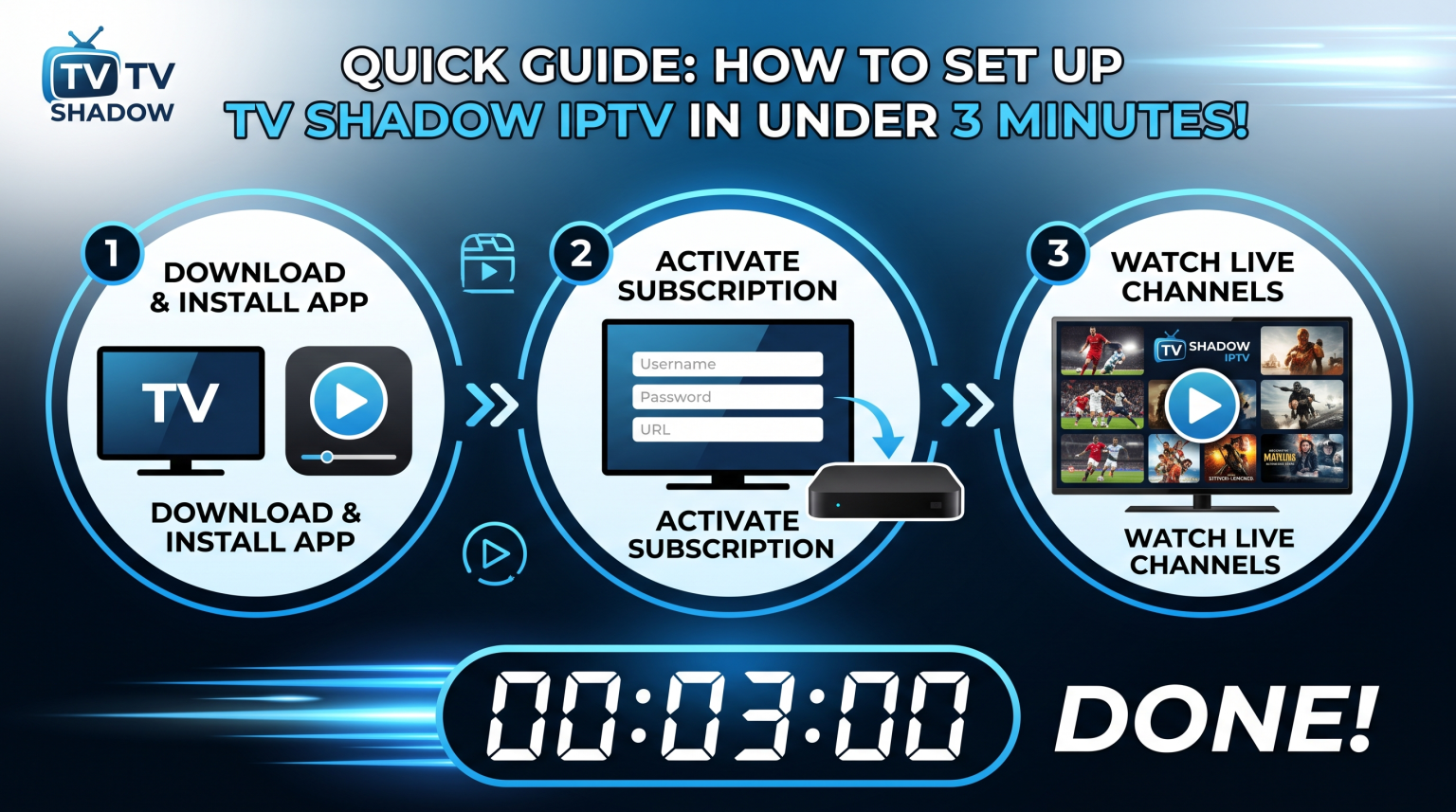
Die Voraussetzungen: Bevor wir die Uhr starten
Um unser 3-Minuten-Ziel zu erreichen, stellen Sie bitte sicher, dass Sie Folgendes bereit haben:
Ihre Abonnementdaten: Halten Sie Ihre TV Shadow-Willkommens-E-Mail bereit (unabhängig davon, ob Sie einen kostenpflichtigen Tarif oder einen Kostenlose IPTV-Testversion). Sie benötigen Ihren Benutzernamen, Ihr Passwort und die Server-URL.
Ihr Gerät: Dieser Leitfaden gilt in allen Fällen. Ganz gleich, ob Sie Amazon nutzen Firestick, sei es beim Streamen von IPTV auf einem Smart-TV (Samsung/LG) oder bei der Einrichtung von Apple TV IPTV – die wichtigsten Schritte bleiben dieselben.
Ausreichende Internetverbindung: Für einen nahtlosen 4K-Streaming Um die grundlegenden Bandbreitenanforderungen zu erfüllen, stellen Sie sicher, dass Ihre Verbindung eine Geschwindigkeit von mindestens 25 Mbit/s aufweist.
Hast du alles? Dann starten wir die Uhr.
Minute 1: Die richtige App auswählen und installieren
Die Geschwindigkeit Ihrer Einrichtung hängt vollständig von dem Mediaplayer ab, für den Sie sich entscheiden. Sie benötigen eine Anwendung, die auf Geschwindigkeit optimiert ist, umfangreiche Senderlisten ohne Abstürze verarbeitet und vor allem die Xtream Codes-API unterstützt.
Auch wenn man technisch gesehen fast alles verwenden kann, sind hier die wichtigsten Apps, nach denen Sie im App Store Ihres Geräts (oder über die Downloader-App auf dem Firestick) suchen sollten:
TiviMate IPTV-Player: Gilt weithin als der Goldstandard für Android- und Firestick-Geräte. Es bietet eine hochwertige Benutzeroberfläche, die der von Kabelfernsehen ähnelt.
IPTV Smarters Pro (oder Lite): Der Branchenstandard. Er ist unglaublich zuverlässig, benutzerfreundlich und kann völlig kostenlos heruntergeladen werden.
IBO-Spieler: Eine fantastische, äußerst stabile Alternative, die auf Smart-TVs von Samsung und LG außergewöhnlich gut funktioniert.
Maßnahme: Gehen Sie in Ihren App-Store, suchen Sie nach einer dieser Apps (wir verwenden in diesem Beispiel „IPTV Smarters Pro“) und klicken Sie auf „Herunterladen“. Öffnen Sie die App, sobald sie installiert ist.
Minute 2: Die Anmeldung (Überspringe die umständliche M3U-Datei)
An dieser Stelle kommen die meisten Leute normalerweise ins Stocken, aber wir nehmen die Überholspur. Wenn Sie die von Ihnen ausgewählte App öffnen, werden Sie möglicherweise gefragt, wie Sie möchten sich anmelden.
Wählen Sie immer “Mit Xtream Codes API anmelden” aus.”
Tun nicht Wählen Sie die Option zum Laden einer “M3U-Playlist-URL”. M3U-Dateien sind riesige, veraltete Textdateien, die Ihr Gerät dazu zwingen, bei jedem Öffnen der App Tausende von Links herunterzuladen, was den gesamten Vorgang verlangsamt. Xtream Codes hingegen stellt sofort eine direkte Verbindung zur TV Shadow-Datenbank her.
Es erscheint ein Bildschirm mit vier einfachen Feldern. Füllen Sie diese genau wie folgt aus:
Name: Gib “TV Shadow” ein (oder was auch immer du möchtest; das ist nur ein Spitzname).
Benutzername: Geben Sie den Benutzernamen aus Ihrer Willkommens-E-Mail ein (Groß- und Kleinschreibung beachten).
Passwort: Geben Sie Ihr Passwort ein (Groß- und Kleinschreibung beachten).
URL: Geben Sie die genaue Adresse des Serverportals ein, die in Ihrer E-Mail angegeben ist (z. B. http://example.tv-shadow.com verfügbar ist.:8080).
Maßnahme: Überprüfen Sie Ihre Rechtschreibung noch einmal – schon ein einziger Tippfehler kann hier den Vorgang unterbrechen. Sobald Sie alles überprüft haben, klicken Sie auf “Benutzer hinzufügen” oder “Anmelden.”
Minute 3: Datensynchronisierung und EPG-Download
Sobald Sie auf „Anmelden“ klicken, ist der manuelle Aufwand vollständig erledigt. Die App führt nun einen Handshake mit den Servern von TV Shadow durch.
Es erscheint ein Ladebildschirm, während die App automatisch drei Dinge abruft:
Live-TV-Sender: Nach Land und Genre geordnet.
Der VOD-Katalog: Alle deine Filme und Serien ordnen.
Der EPG (Elektronischer Programmführer): Dadurch wird Ihr Fernsehprogramm mit den aktuell laufenden und den nächsten Sendungen gefüllt, einschließlich Daten für das Catch-up-TV, sodass Sie Live-Sendungen zurückspulen können.
Maßnahme: Warten Sie, bis der Fortschrittsbalken 100% erreicht hat. Klicken Sie auf den Ordner “Live-TV”, wählen Sie einen Sender aus und klicken Sie auf „Wiedergabe“.
Bumm. Du schaust gerade fern. Du hast gerade dein gesamtes Unterhaltungssystem in weniger als drei Minuten eingerichtet.
Vergleich verschiedener Einrichtungsmethoden: Warum wir Xtream Codes verwenden
Um Ihnen genau zu zeigen, warum wir die oben beschriebene Methode empfehlen, werfen wir einen Blick auf die Daten. Hier sehen Sie, wie die verschiedenen Verbindungsprotokolle im Vergleich zueinander abschneiden.
| Anschlussart | Durchschnittliche Einrichtungszeit | Einfache Eingabe | Leistung und Geschwindigkeit | Optimale Hardware-Anpassung |
| Xtream Codes API | Weniger als 3 Minuten | Am einfachsten (4 kurze Felder) | Blitzschnell (Direkte Datenbankverbindung) | Firestick, Android TV, TiviMate, Smarters |
| M3U-Playlist-URL | 5 – 10 Minuten | Frustrierend (lange, komplexe URLs) | Langsam (analysiert beim Systemstart sehr große Dateien) | VLC Player, Webbrowser, ältere Apps |
| MAG-/MAC-Adresse | Unterschiedlich | Einfach (erfordert die Angabe der MAC-Adresse gegenüber dem Host) | Sehr schnell (dedizierte Hardware) | MAG-Boxen, Formuler (MYTVOnline) |
Profi-Tipps: So sorgen Sie für ein makelloses Erlebnis
Selbst mit dem bester IPTV-Dienst, das Internet kann unberechenbar sein. Wenn Sie die 3-minütige Einrichtung abgeschlossen haben, Ihr Streaming aber absolut sicher machen möchten, beachten Sie bitte diese kurzen Tipps:
Die ultimative Lösung für IPTV-Pufferprobleme: Wenn es zu Verbindungsstörungen kommt, liegt das in 9 von 10 Fällen nicht am Anbieter, sondern daran, dass Ihr WLAN-Netzwerk Pakete verliert. Schließen Sie Ihr Gerät über ein Ethernet-Kabel direkt an Ihren Router an. Dadurch wird Ihre Verbindung sofort stabilisiert.
Umgehen Sie die Drosselung durch Ihren Internetanbieter mit einer IPTV-VPN-Konfiguration: Viele Internetdienstanbieter (ISPs) drosseln den Streaming-Datenverkehr aktiv (verlangsamen ihn), insbesondere zu den abendlichen Spitzenzeiten oder bei großen Sportveranstaltungen. Durch die Nutzung eines zuverlässigen VPNs wird Ihr Datenverkehr verschlüsselt, sodass er für Ihren Internetdienstanbieter unsichtbar bleibt und diese künstlichen Geschwindigkeitsbegrenzungen sofort umgangen werden.
Cache leeren: Sollte Ihre App nach einigen Wochen intensiver Nutzung langsam reagieren, gehen Sie in die Geräteeinstellungen und leeren Sie den Cache Ihrer IPTV-App, um Speicherplatz freizugeben.
Einpacken
So erhalten Sie Ihr TV Shadow IPTV Die Einrichtung eines Abonnements sollte kein Problem darstellen. Wenn Sie sich für eine erstklassige App wie TiviMate oder IPTV Smarters entscheiden und die Effizienz der Xtream Codes-API nutzen, umgehen Sie die veralteten, zeitaufwendigen Einrichtungsprozesse der Vergangenheit.
Nehmen Sie Ihre Fernbedienung zur Hand, befolgen Sie die dreiminütige Anleitung und tauchen Sie ein in Ihre neue, voll ausgestattete Unterhaltungszentrale.
FAQ: Schnelle Fehlerbehebung
Was ist die beste App für TV Shadow IPTV? Auch wenn die Vorlieben unterschiedlich sind, TiviMate IPTV-Player gilt weithin als die leistungsstärkste und optisch ansprechendste App für Android- und Firestick-Nutzer. Für Smart-TVs (Samsung/LG), IBO-Spieler oder XCIPTV sind hervorragende, äußerst stabile Alternativen.
Wie behebe ich das Puffern bei TV Shadow IPTV? Stellen Sie zunächst sicher, dass Ihre Internetverbindung die Bandbreitenanforderungen erfüllt (mindestens 25 Mbit/s für 4K-Streaming). Schließen Sie anschließend Ihr Streaming-Gerät über Ethernet direkt an Ihren Router an. Falls Ihr Internetanbieter Ihre Verbindung zu Spitzenzeiten drosselt, richten Sie schließlich ein Einrichtung eines IPTV-VPN wird diese Einschränkungen umgehen.
Kann ich TV Shadow IPTV auf mehreren Geräten nutzen? Ja, das hängt jedoch von Ihrem jeweiligen Abonnement ab. Bei den meisten Standardtarifen ist jeweils nur eine Verbindung zulässig. Wenn Sie bei einem Tarif mit nur einer Verbindung versuchen, gleichzeitig auf Ihrem Firestick und Ihrem iPhone zu streamen, wird eines der Geräte blockiert oder es kommt zu endlosen Pufferzeiten. In der Regel können Sie Ihren Tarif bei Ihrem Anbieter upgraden, um mehrere gleichzeitige Verbindungen zu ermöglichen.