
Tired of your favorite sports matches or movies freezing at the worst possible moment? Finding the best router settings for IPTV is the ultimate secret to eliminating lag, bufferbloat, and endless loading screens. Whether you are streaming in the USA or anywhere else, tweaking your router is absolutely essential for a flawless 4K viewing experience.
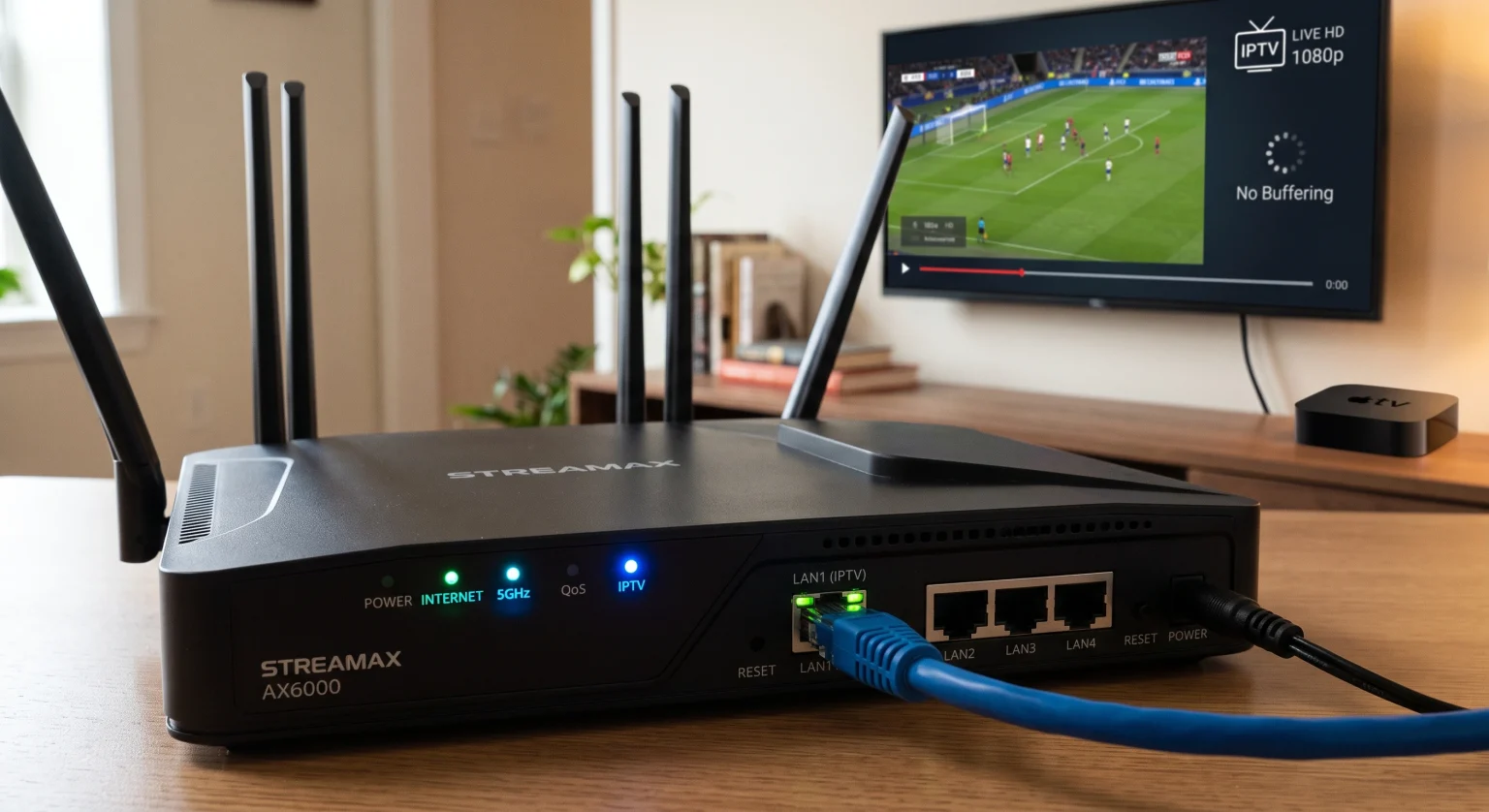
Why Your Router Matters for IPTV Streaming in the USA
When dealing with IPTV network congestion, most people blame their internet speed or their streaming provider. However, your router is the actual command center that handles all incoming and outgoing data traffic. If it isn’t properly optimized, even gigabit fiber connections can suffer from severe packet loss and stream drops.
In the USA, where internet service providers (ISPs) often throttle bandwidth during peak hours, having an IPTV-compatible router is non-negotiable. It dictates how data packets are prioritized in your home. Without the proper configuration, your smart TV is forced to fight for bandwidth against smartphones, gaming consoles, and smart home devices.
The Threat of Bufferbloat
Bufferbloat occurs when your router’s buffers become overly full, causing massive delays in data transmission. This is the primary culprit behind sudden freezing. Adjusting your router’s bandwidth limits slightly below your maximum speed can completely eliminate this issue.
Top 5 Best Router Settings for IPTV
To achieve buffer-free streaming, you need to make specific adjustments in your router’s admin panel. Here is exactly what you need to change.
1. Enable IGMP Snooping and Multicast
IGMP Snooping is arguably the most crucial setting for modern streaming. IPTV relies on multicast transmission, which sends a single stream of data to multiple users simultaneously.
What to do: Log into your router, find the Network or Advanced settings, and turn on IGMP Snooping (or IGMP Proxy).
Why it works: It prevents multicast traffic from flooding every device on your network, directing the video stream only to your set-top box or smart TV.
2. Configure Quality of Service (QoS)
Quality of Service (QoS) allows you to dictate which devices and applications get the lion’s share of your internet bandwidth.
What to do: Enable Adaptive QoS and set “Video and Audio Streaming” or your specific IPTV device as the highest priority.
Why it works: If someone else in the house starts a heavy download, the router will throttle their speed to ensure your stream never buffers.
3. Switch to 5GHz Wi-Fi or Use Ethernet
Interference is a massive problem for live video feeds. The standard 2.4 GHz band is highly congested and prone to signal drops from household appliances.
What to do: Always connect your streaming device to the 5GHz Wi-Fi band.
Why it works: The 5GHz band offers much faster data transfer rates and significantly less interference. For the absolute best results, bypass Wi-Fi entirely and use a wired Gigabit Ethernet connection.
4. Upgrade Your DNS Servers
Your ISP’s default DNS servers are often sluggish, leading to slow channel loading times. Switching to a premium public DNS can significantly improve routing efficiency.
What to do: Change your router’s primary and secondary DNS to Cloudflare (1.1.1.1 and 1.0.0.1) or Google (8.8.8.8 and 8.8.4.4).
Why it works: These servers resolve domain names faster, cutting down the initial delay when connecting to an IPTV server.
Comparison: Default vs. Optimized IPTV Router Configurations
To quickly visualize the changes you need to make, here is a breakdown of standard settings versus the ideal setup for seamless streaming.
| Feature / Setting | Standard Usage | Ideal for IPTV Optimization |
| Wi-Fi Band | 2.4 GHz (Good range, slower speed) | 5 GHz or Ethernet (Max speed, low interference) |
| Traffic Handling | Default / Unprioritized | QoS Enabled (Video streaming prioritized) |
| Multicast Protocol | IGMP Snooping Disabled | IGMP Snooping / Proxy Enabled |
| DNS Server | ISP Default DNS | Cloudflare (1.1.1.1) or Google (8.8.8.8) |
Conclusion: Transform Your Viewing Experience in the USA
Mastering the best router settings for IPTV is the easiest way to permanently eliminate lag and buffering. By enabling IGMP Snooping, configuring QoS, and optimizing your bandwidth, viewers in the USA and worldwide can enjoy flawless, theater-quality streaming at home. Don’t let a poorly configured router ruin your entertainment.
Ready to maximize your home network? Log into your router’s admin panel today to apply these settings, and consider upgrading to a high-performance, VPN-compatible router to secure your connection and unlock ultimate streaming freedom!
Frequently Asked Questions (PAA)
What is the best internet speed for IPTV?
For standard HD streaming, a stable connection of at least 15-20 Mbps is required. However, if you want uninterrupted 4K streaming, you should aim for a minimum of 50 Mbps. Consistency is far more important than peak speed.
Do I need a VPN for my IPTV router?
Yes, using a VPN can prevent your ISP from throttling your streaming traffic. Installing a VPN directly on your router ensures that all devices connected to it are protected and can bypass geographical restrictions seamlessly.
Why does my IPTV freeze in the evening?
Evenings are peak traffic hours, meaning your ISP’s network is heavily congested. Optimizing your router using QoS and IGMP Snooping helps, but you may also need a VPN to bypass ISP throttling during these high-traffic periods.