
Lorem ipsum
Getting TiviMate Premium running on an Amazon Fire TV Stick requires a slightly different process than a standard app because it isn’t available in the official Amazon Appstore. You have to “sideload” the free version first, and then unlock the Premium features.
Here is the exact, step-by-step process to get it done.
sit amet, consectetur adipiscing elit. Ut elit tellus, luctus nec ullamcorper mattis, pulvinar dapibus leo.
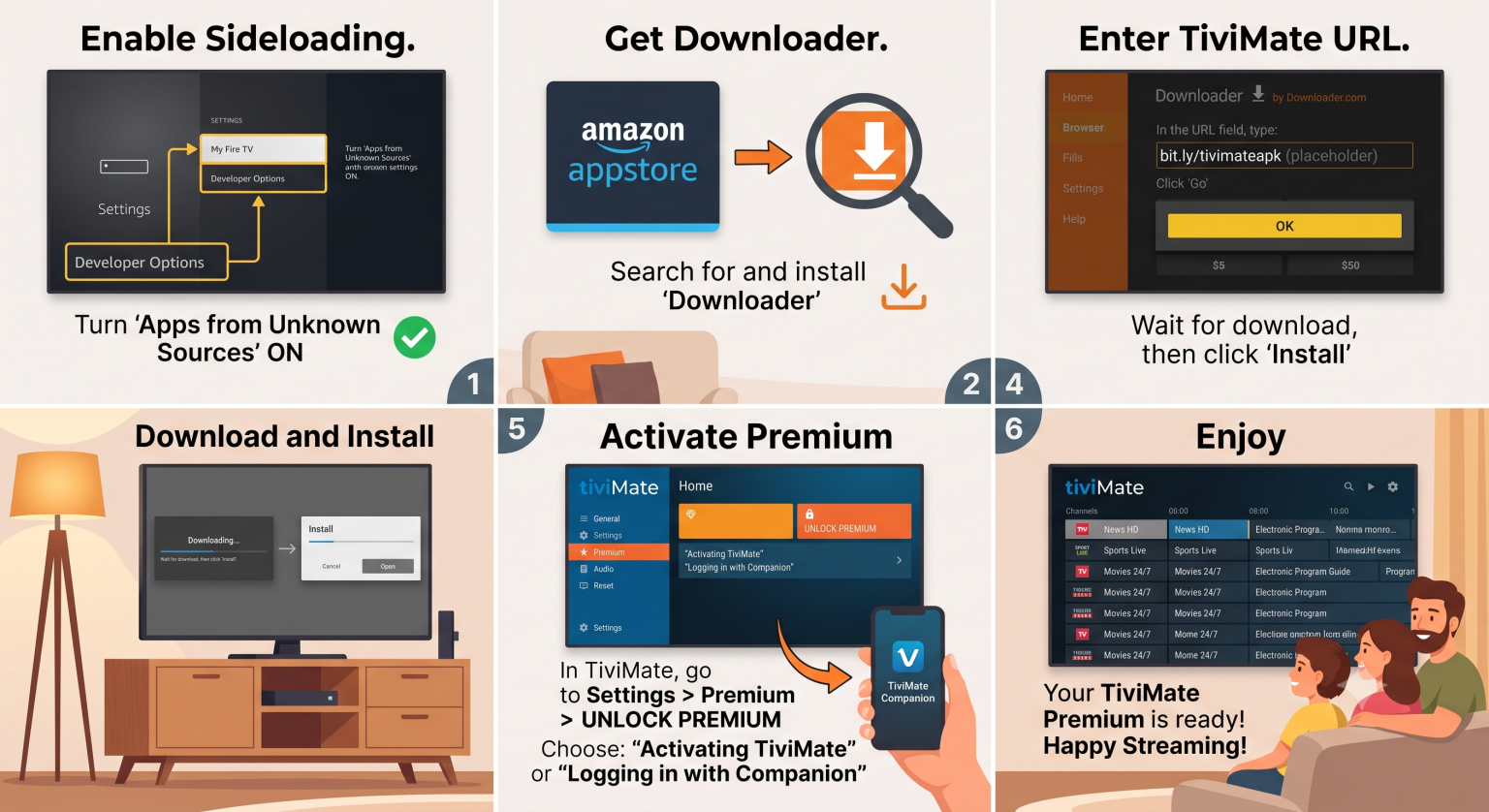
Part 1: Prepare Your Firestick
Before you can install outside apps, you need to tell your Firestick to allow them.
From your Firestick home screen, navigate to the Settings gear icon > My Fire TV. Scroll down and select Developer Options. Turn on Apps from Unknown Sources.
If Developer Options is missing, go to Settings > My Fire TV > About. Click on the name of your Firestick (e.g., “Fire TV Stick 4K”) 7 times quickly. A message will appear saying “You are already a developer.” Press back, and the menu will now be visible.
Part 2: Install the Downloader App
Since there is no web browser on the Firestick designed for downloading files, you need a utility app.
Go back to the Firestick Home screen.
Click the Search (magnifying glass) icon.
Type in Downloader and click on it.
Download and install the orange app.
Part 3: Sideload TiviMate
Now you will use Downloader to pull the TiviMate installation file (APK) directly from the developer’s website.
Launch the Downloader app. If prompted, allow it access to your photos, media, and files (it needs this to save the download).
Click on the URL search box in the center of the screen. Type in the official TiviMate shortcode: 272483. Click Go.
The app will redirect to the TiviMate website and automatically begin downloading the APK file. Once finished, an installation prompt will appear. Click Install.
After installation, click Done (do not click Open yet). You will be returned to the Downloader app. Click Delete to remove the APK file, and click Delete again to confirm.
Part 4: Purchase and Unlock Premium
You cannot buy Premium directly inside the Firestick app. You must create an account and pay for it separately, then log in on your TV.
Create an Account: The easiest method is to go to the official website at tivimate.com on your computer or phone. Create an account and choose your subscription (usually around $10/year or a ~$30 one-time lifetime fee for up to 5 devices).
Alternative Method: If you have an Android phone or tablet, you can download the TiviMate Companion app from the Google Play Store, create your account, and pay through the app.
Unlock on Firestick: Open the TiviMate app on your Firestick. Go to Settings > Unlock Premium. Enter the email and password you just used to create your account on the website or Companion app.
Your device is now activated and you have full access to Premium features.
Part 5: Add Your IPTV Service
Now that the app is installed and unlocked, you need to connect it to your IPTV provider.
Click Add Playlist on the main TiviMate screen.
Select Xtream Codes Login (this is highly recommended over M3U playlists as it auto-loads the TV guide/EPG).
Enter the Server URL, Username, and Password provided by your IPTV service.
Click Next and let the app process your channels and guide data.