
Setting up a new IPTV service can sometimes feel like solving a puzzle, especially when dealing with long, complicated stream URLs. Fortunately, getting your live TV channels up and running is remarkably straightforward once you understand how an M3U playlist operates.
If you have a subscription link from your provider and want to start streaming right away, this guide will walk you through the entire installation process on your favorite device in under five minutes.
What is an M3U Playlist URL?
Before diving into the configuration, it helps to understand what you are working with. An M3U playlist is essentially a text-based index file that tells your media player exactly where to find streaming video files on the internet.
When an IPTV provider sends you an M3U URL, they are giving you a direct map to thousands of live channels, movies, and TV series. The link itself usually looks something like a standard web address, containing a server link along with a unique username and password.
Instead of trying to open this link in a standard web browser, you need a dedicated IPTV player to read the data and organize it into a clean, navigable TV guide.
Step 1: Choose the Right IPTV Player for Your Device
An M3U playlist requires a compatible media application to function. Depending on the streaming device you own, some players perform significantly better than others. Here are the most reliable, high-performing apps available right now:
Amazon Firestick & Android TV: TiviMate or IPTV Smarters Pro are the gold standards for these platforms. They offer slick remote navigation and excellent electronic program guide (EPG) integration.
Samsung & LG Smart TVs: Look for Smart IPTV (SIPTV) or SS IPTV directly in your television’s official app store.
Apple Devices (iPhone, iPad, Apple TV): GSE Smart IPTV or Flex IPTV offer the cleanest performance on iOS and tvOS.
Windows PC & Mac: VLC Media Player handles M3U files perfectly for quick desktop streaming.
Go ahead and download your chosen player from your device’s app store before moving to the next step.
Step 2: Copy and Prepare Your M3U URL
Open the setup email or text layout provided by your IPTV provider.
Highlight the entire M3U playlist URL.
Copy it exactly as written.
Streamer Tip: IPTV links are highly sensitive to typos. A single missing character, accidental space, or wrong capitalization will cause a “Loading Error” or “Playlist Failed” message. If you are configuring a device like a Firestick where typing with a remote control is tedious, consider using a remote copy-paste app (like the Amazon Fire TV app on your smartphone) to paste the URL directly into your TV screen.
Step 3: Load the M3U Playlist Into Your App
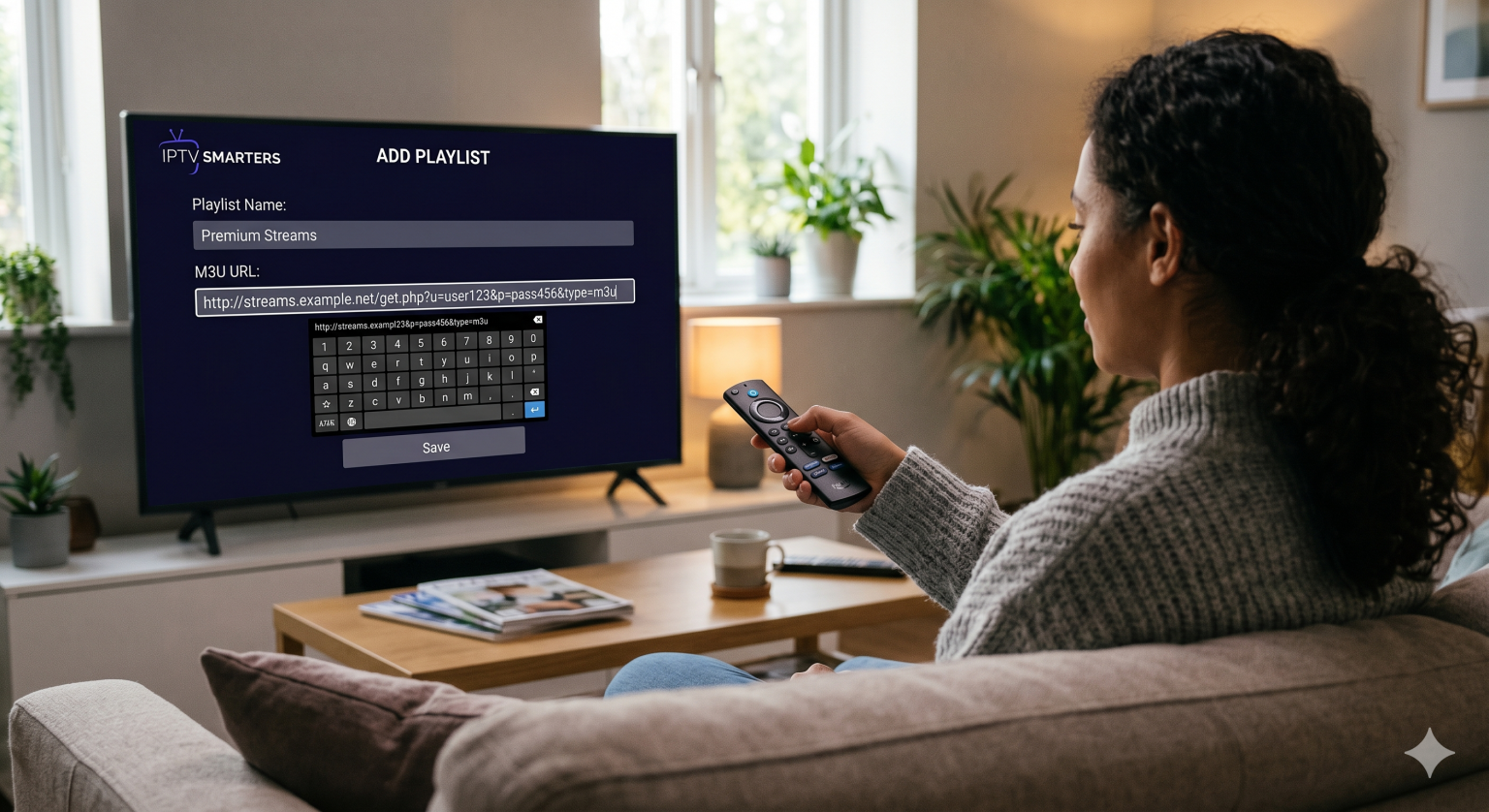
While every IPTV application has a slightly different interface, the fundamental logic behind adding a stream is identical across all of them. Here is exactly how to do it using a standard player interface like IPTV Smarters Pro:
1. Launch the Application
When you open the player for the first time, choose the option to log in or add a new user/playlist.
2. Select the M3U Option
Look for a button labeled “Load Your Playlist or File/URL” or “Add M3U URL.”
3. Enter Your Details
You will typically see two text fields:
Playlist Name: Type a simple name so you can identify it later (e.g., “My HD Streams”).
M3U URL: Paste the exact streaming link you copied from your provider.
4. Click “Add User” or “Save”
Hit the confirmation button. The application will immediately contact the provider’s server to download the channel index.
Your IPTV Player App
       │
       ├─► Name: "Premium Live TV"
       └─► URL: http://iptv-provider.com/get.php?auth=username&pass=password
Step 4: Let the Channels Load and Start Streaming
Once you hit save, you will see a loading bar or a spinning wheel. The application is processing the categories, TV guide data, and channel icons.
Depending on the size of your playlist (some premium providers bundle over 20,000 channels and on-demand movies), this initial synchronization can take anywhere from 10 to 45 seconds.
Once the data syncs, your screen will automatically update to reveal a fully organized dashboard. You can now dive directly into categories like Sports, News, Movies, or Documentary channels, select your stream, and enjoy lag-free viewing.
Quick Troubleshooting Tips
If your playlist isn’t pulling up channels right away, don’t panic. Check these three common issues:
Double-Check Hidden Spaces: When pasting URLs on mobile devices or TVs, systems often add an automatic space at the very end of the text string. Check the cursor position to ensure the link ends cleanly.
Network Stability: Live streaming requires a reliable internet connection. If you experience heavy buffering or zero loading, ensure you have at least 10–15 Mbps of download speed and consider switching to a hardwired Ethernet connection rather than Wi-Fi.
Check with Your Provider: IPTV playlists expire or require renewal. If the link worked previously but suddenly throws a data error, reach out to your provider to ensure your subscription credentials remain active.