
Getting your IPTV Smarters Pro subscription up and running shouldn’t require a degree in network engineering. Whether you are finally cutting the cord or just want a cleaner interface for your streaming media, this application has become the industry standard for a reason.
Let’s get one crucial detail out of the way first: IPTV Smarters Pro is just a media player. It does not host, sell, or provide any channels or movies on its own. To watch anything, you need to pair the app with an active subscription from an IPTV service provider.
Once you have your provider details ready, here is exactly how to get your dashboard fully configured.
Why Choose IPTV Smarters Pro?
If you have tried other generic streaming players, you likely noticed they can be incredibly slow or visually outdated. Smarters Pro dominates the market because it effectively mimics the premium cable experience on almost any device from Android TV and Firestick to iOS and Windows.
Unified Interface: It neatly separates Live TV, Movies (VOD), and Series into distinct, easy-to-navigate categories.
Integrated EPG: The Electronic Program Guide functions exactly like a traditional TV guide, showing you what is airing now and what is coming up next.
Multi-Screen Viewing: You can watch up to four live channels simultaneously on a split screen.
Broad Compatibility: It supports all major formats, though it works best with the Xtream Codes API.
How to Configure Your IPTV Subscription
Setting up your device takes less than five minutes. While the app allows you to upload an M3U playlist URL, logging in via the API is highly recommended because it loads faster and automatically syncs your TV guide.
1.Download the Application :Available on official app stores or via sideloading.
Search for “IPTV Smarters Pro” on your device’s official app store (Google Play, Apple App Store, or Samsung Smart Hub). If you are using an Amazon Firestick, you will need to sideload the APK using the Downloader app.
2.Select Your Login Method :
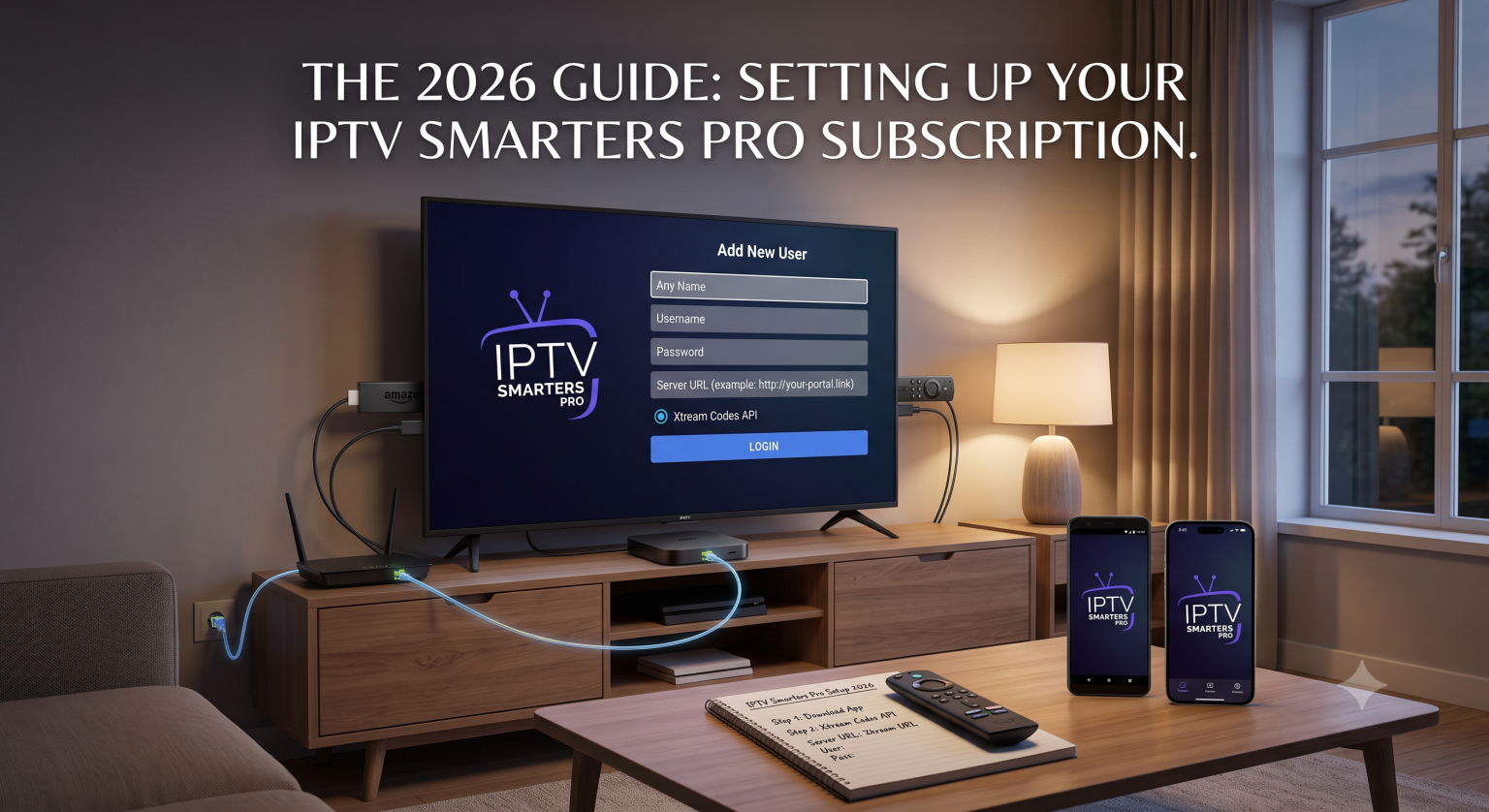
Upon opening the app, you will see a few options. Select “Login with Xtream Codes API”. This is the most stable method and requires the least amount of manual updating.
3.Enter Your Server Credentials :
Input the specific account details provided by your IPTV service in your welcome email. You will need to enter a profile name (you can make this up), your exact username, your password, and the server URL (sometimes called the portal link).
4.Load Content and Sync Data :
Click “Add User.” The app will connect to your provider’s server and begin downloading the channel playlists, movie databases, and EPG data. This usually takes about 30 seconds.
Optimizing Your Stream for 4K and Live Sports
If you are dealing with buffering during a major live event, do not immediately blame the application. High-definition streaming requires a stable pipeline.
To get the most out of your setup, hardwire your streaming device with an Ethernet cable instead of relying entirely on Wi-Fi. Wi-Fi signals fluctuate, which can cause frame drops when decoding heavy 4K video streams. Additionally, running a reputable VPN at the operating system level can prevent your Internet Service Provider (ISP) from throttling your bandwidth when they detect heavy streaming traffic.
Fixing the Most Common Setup Errors
Even with a premium IPTV subscription, you might run into a quick hiccup during the initial setup. Here is how to fix the most frequent issues.
| The Problem | Likely Cause | The Quick Fix |
| “Authorization Failed” | Incorrect login credentials | Double-check your details. Passwords are case-sensitive, and your server URL should never have a trailing slash at the end. |
| EPG Guide is Blank | Sync failure | Navigate to Settings > EPG and tap “Force Refresh” to pull the latest schedule from your provider. |
| App Freezes on Load | Device cache is full | Force close the app from your device settings, clear the application cache, and relaunch it. |
Take the time to explore the settings menu to adjust the player for your specific internet connection, and you will have a flawless, customized viewing hub.
If you want a visual walkthrough of the exact screens and menus you will encounter, check out How to Set Up IPTV Smarters Pro Step by Step (2026). This video is helpful because it shows you exactly where to click and how to input your server details to avoid common typing errors.