
If you’ve just grabbed an IPTV subscription and want the cleanest, most reliable way to watch your channels, you’ve probably heard of IPTV Smarters Pro. I get a lot of questions about this app, and for good reason it’s essentially the gold standard for managing your streaming playlists.
But here is the catch: IPTV Smarters Pro doesn’t actually provide any channels on its own. Think of it as an empty shell. You have to connect it to your IPTV service provider to get the live TV, movies, and series to show up.
In this guide, I’ll walk you through exactly how to set up IPTV Smarters Pro on any device whether you’re using a Firestick, an Android TV, an Apple device, or even your computer.
What You Need Before We Start
Before downloading anything, make sure you have your account details from your IPTV provider ready. You’re going to need either:
Xtream Codes API details: This is the best method. You need a Username, Password, and a Server/Portal URL.
An M3U Playlist URL: A really long web link that contains your channel data.
Let’s dive into the installation.
Installing IPTV Smarters Pro on Amazon Firestick
Firesticks are the most popular devices for this, but Amazon removed the app from the official store a while back. That means we have to “sideload” it using the Downloader app. It sounds complicated, but it takes about three minutes.
Get the Downloader App: Go to the search bar on your Firestick home screen, type in “Downloader,” and install it.
Allow Unknown Apps: Press the Home button, go to the gear icon (Settings), then choose My Fire TV. Click on Developer Options and turn on Install Unknown Apps for Downloader. (If you don’t see Developer Options, click on “About,” then click your device name seven times to reveal it).
Download Smarters: Open the Downloader app and click the URL bar. Type in
[smarterspro.com/smarters.apk](https://smarterspro.com/smarters.apk)(or the direct APK link your provider gave you) and hit Go.Install: Once the file finishes downloading, a prompt will pop up. Click Install.
Installing on Android TV and Google TV (Nvidia Shield, Chromecast)
Android makes this incredibly easy since the app is usually right there in the Play Store.
Open the Google Play Store on your TV interface.
Search for “IPTV Smarters Pro.”
Hit Install and open the app.
Installing on iOS (iPhone, iPad, Apple TV)
Apple users have it easy too. The official app is sitting right in the App Store.
Open the App Store.
Search for “Smarters Player Lite” (Apple recently forced a name change for the iOS version, but it’s the exact same interface).
Tap Get and launch the app.
Installing on Windows PC or Mac
If you prefer watching on a laptop, they have dedicated desktop clients.
Go to the official website (
smarterspro.com).Click the Downloads section and grab either the Windows
.exefile or the Mac.dmgfile.Run the installer just like any other desktop software.
How to Log In and Load Your Channels
Okay, you have the app installed. Now we need to link it to your IPTV service. When you open IPTV Smarters Pro for the first time, accept the terms of service.
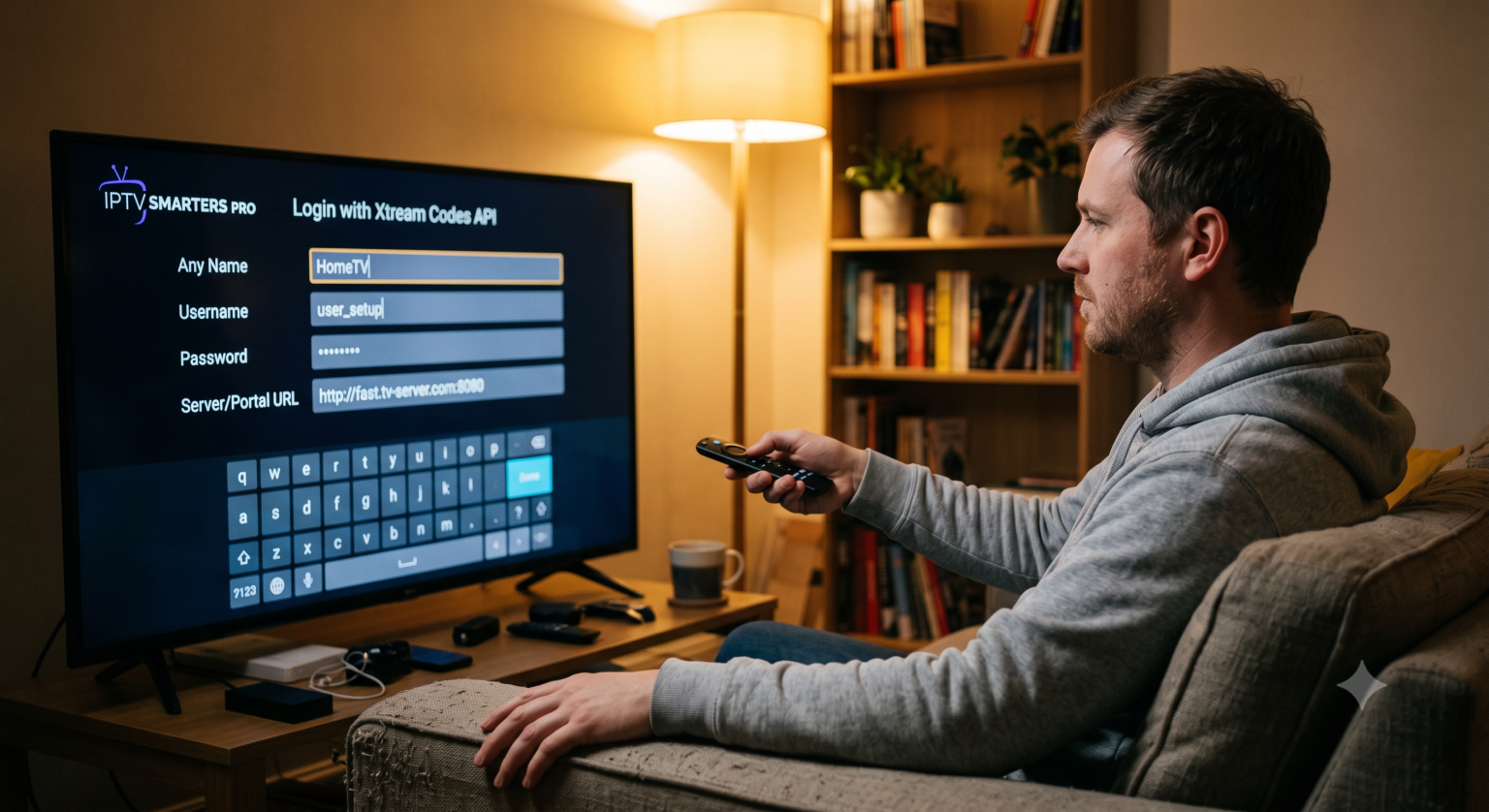
Next, you’ll see a menu with a few different login options. Ignore the others and click Login with Xtream Codes API. This is the most stable method, and it updates your TV guide (EPG) automatically.
You will see four blank boxes:
Any Name: Call this whatever you want (e.g., “Main TV”).
Username: Type the username your provider emailed you.
Password: Type your password. Keep an eye on capital letters.
URL: Enter the exact server URL your provider gave you. It usually looks something like
[http://example.com:8080](http://example.com:8080).
Once everything is filled out, click Add User. The app will take a minute to download all the live channels, movie databases, and TV guides. When it finishes, you’ll land on a dashboard showing Live TV, Movies, and Series.
Quick Troubleshooting Tips
Things don’t always go perfectly on the first try. If you run into issues, check these first:
Invalid Details Error: 99% of the time, this is just a typo. Go back and double-check your username, password, and URL. Pay close attention to zeroes (0) versus the letter O, and make sure there are no spaces at the end of your URL.
Blank TV Guide (No EPG): Go to the main dashboard, look for a “Refresh” or “Update Content” option. This forces the app to reload your playlist.
Buffering: If channels are freezing, try clearing the app cache. Go to your device’s settings, find IPTV Smarters Pro in your app list, and hit Clear Cache. Also, if you’re on a VPN, try switching servers.
Once you get past the initial setup, the app is incredibly intuitive. You can long-press on any channel to add it to your favorites, which saves you from digging through massive category lists every time you want to watch sports or the news.
Visual Walkthrough for Android TV Setup
This video walks you exactly through the on-screen steps of inputting your Xtream Codes API details if you need a visual reference for how the menu should look.