
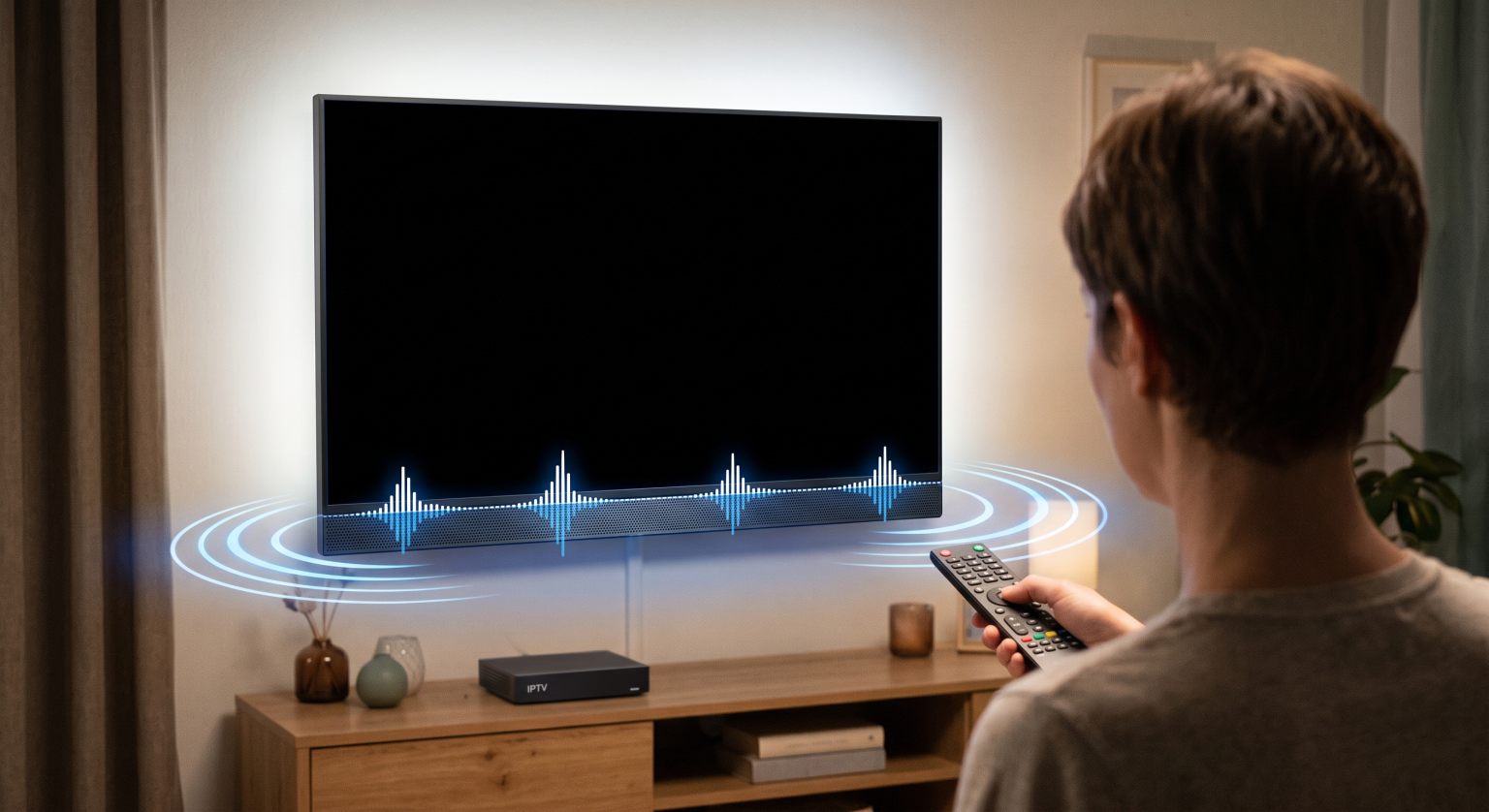
Czy właśnie szykujesz się na wieczór filmowy, ale nagle natrafiasz na… Czarny ekran w telewizji internetowej (IPTV) podczas gdy dźwięk odtwarza się bez zarzutu w tle? Nie jesteś jedyną osobą, która boryka się z tą irytującą usterką. Widzowie w całych Stanach Zjednoczonych często spotykają się z problemem “dźwięk jest, ale nie ma obrazu”, ale dobrą wiadomością jest to, że zazwyczaj można go niezwykle łatwo rozwiązać bez konieczności wzywania serwisanta.
Niezależnie od tego, czy przyczyną problemu są ustawienia aplikacji, połączenie internetowe czy sprzęt – możemy Ci pomóc. Oto dokładna instrukcja, jak zdiagnozować i naprawić ten uciążliwy problem z pustym obrazem w IPTV.
1. Uruchom ponownie odtwarzacz IPTV i urządzenia
Najstarsza sztuczka informatyczna jest często najskuteczniejsza. Błędy oprogramowania w twoim Odtwarzacz IPTV może spowodować awarię dekodera wideo, podczas gdy ścieżka dźwiękowa będzie nadal odtwarzana.
Wymuś zamknięcie aplikacji: Zamknij całkowicie aplikację IPTV na urządzeniu Firestick, telewizorze Smart TV lub urządzeniu z systemem Android.
Wyłącz i włącz urządzenie: Odłącz urządzenie do strumieniowego przesyłania treści oraz telewizor od gniazdka na co najmniej 60 sekund.
Ponowne uruchomienie: Podłącz wszystko z powrotem i uruchom ponownie aplikację, aby sprawdzić, czy film znów się wyświetla.
2. Zmiana ustawień odtwarzacza wideo lub kodeków
Jedną z najczęstszych przyczyn czarnego ekranu w serwisie IPTV jest niekompatybilny dekoder wideo. Jeśli aplikacja próbuje odtworzyć format wideo, którego Twoje urządzenie nie obsługuje natywnie, usłyszysz dźwięk, ale nie zobaczysz obrazu.
Przejdź do ustawień swojej aplikacji IPTV i poszukaj opcji Odtwarzacz multimedialny lub Odtwarzanie opcje. Przełącz się z domyślnego dekodera sprzętowego na dekoder programowy (lub odwrotnie). Możesz też spróbować skorzystać z zewnętrznego odtwarzacza, takiego jak VLC lub MX Player, które posiadają solidne, wbudowane kodeki, doskonale radzące sobie ze złożonymi problemami związanymi z przesyłaniem strumieniowym.
3. Wyczyść pamięć podręczną i dane aplikacji
Z biegiem czasu na urządzeniu do strumieniowego przesyłania treści gromadzą się pliki tymczasowe, które mogą zakłócać działanie strumienia. Jeśli korzystasz z urządzenia z systemem Android lub Firestick, usunięcie tych plików może natychmiast rozwiązać problem Czarny ekran w telewizji internetowej (IPTV).
Przejdź do ekranu głównego urządzenia Ustawienia, wybierz Zastosowania, a następnie znajdź swoją aplikację IPTV. Kliknij Wyczyść pamięć podręczną aby usunąć pliki tymczasowe. Jeśli to nie zadziała, spróbuj Wyczyść dane pamiętaj tylko, że po zakończeniu będziesz musiał ponownie zalogować się przy użyciu swoich danych logowania do IPTV.
4. Jak ominąć ograniczenia przepustowości nakładane przez dostawcę usług internetowych za pomocą sieci VPN
Dostawcy usług internetowych w USA są znani z tego, że ograniczają przepustowość, gdy wykryją intensywny ruch związany z transmisją strumieniową. Jeśli masz szybkie połączenie internetowe, ale kanały IPTV nie chcą załadować obrazu, być może Twój dostawca usług internetowych ogranicza Ci dostęp.
Korzystanie z wysokiej jakości wirtualnej sieci prywatnej (VPN) szyfruje Twoje dane. Dzięki temu Twój dostawca usług internetowych nie ma wglądu w Twoją aktywność związaną z odtwarzaniem treści strumieniowych, co zapobiega ograniczaniu przepustowości i często natychmiast rozwiązuje uporczywe problemy z pustym obrazem podczas odtwarzania filmów.
Co jest przyczyną tego problemu? Krótkie porównanie
Zanim spróbujesz zastosować bardziej zaawansowane rozwiązania, warto zrozumieć, skąd bierze się problem. Oto zestawienie trzech głównych przyczyn powodujących problemy z przesyłaniem strumieniowym:
| Rodzaj problemu | Objawy | Najlepsze szybkie rozwiązanie |
| Błąd aplikacji/kodeka | Menu działa, dźwięk jest odtwarzany, ale obraz jest całkowicie czarny. | Przełącz się na program VLC lub zmień wewnętrzny dekoder wideo. |
| Sprzęt / HDMI | Na ekranie telewizora pojawia się komunikat “Brak sygnału” lub obraz miga w sposób nieprzewidywalny. | Wymień kabel HDMI lub spróbuj podłączyć urządzenie do innego gniazda w telewizorze. |
| Ograniczanie przepustowości przez sieć/dostawcę usług internetowych | Kanał ładuje się powoli, zawiesza się, a potem ekran staje się pusty. | Zrestartuj router lub skorzystaj z niezawodnej sieci VPN z serwerami w Stanach Zjednoczonych. |
Gotowi na płynne streamowanie?
Nie pozwól, żeby... Czarny ekran w telewizji internetowej (IPTV) zepsuć Ci przyjemność z oglądania. Jeśli wypróbowałeś już wszystkie powyższe sposoby, a Twój obecny dostawca wciąż sprawia Ci niekończące się problemy z streamowaniem, być może nadszedł czas na zmianę.
[Kliknij tutaj, aby zapoznać się z naszymi planami IPTV klasy premium] i ciesz się płynnym, krystalicznie czystym streamingiem na terenie całych Stanów Zjednoczonych oraz niezawodną obsługą klienta dostępną 24 godziny na dobę, 7 dni w tygodniu!
Wpisz tutaj tekst nagłówka
Dlaczego na moim telewizorze z IPTV wyświetla się czarny ekran, ale słyszę dźwięk?
Zazwyczaj dzieje się tak z powodu nieobsługiwanego kodeka wideo, usterki odtwarzacza multimedialnego w aplikacji lub chwilowego zawieszenia się oprogramowania na urządzeniu do strumieniowego odtwarzania. Ścieżka dźwiękowa ładuje się poprawnie, ale urządzenie nie jest w stanie zdekodować ścieżki wideo.
Czy prędkość Internetu ma wpływ na jakość obrazu w telewizji IPTV?
Tak. Chociaż dźwięk wymaga bardzo niewielkiej przepustowości, wideo w wysokiej rozdzielczości wymaga silnego i stabilnego połączenia. W przypadku utraty połączenia sieciowego obraz może całkowicie zniknąć, podczas gdy dźwięk będzie nadal odtwarzany z bufora.
Czy powinienem ponownie zainstalować aplikację IPTV?
Jeśli wyczyszczenie pamięci podręcznej i zmiana ustawień odtwarzacza multimedialnego nie przyniosą oczekiwanych rezultatów, zdecydowanie zaleca się odinstalowanie i ponowne zainstalowanie aplikacji. Dzięki temu zyskasz pewność, że korzystasz z najnowszej wersji zawierającej zaktualizowane dekodery wideo.