
Kiedyś rezygnacja z telewizji kablowej wiązała się z zakupem prostej anteny cyfrowej. Obecnie transmisja programów telewizyjnych odbywa się niemal wyłącznie przez Internet. Telewizja internetowa (IPTV) umożliwia strumieniowe oglądanie programów telewizyjnych na żywo, wydarzeń sportowych oraz treści na żądanie bezpośrednio poprzez aktywne połączenie sieciowe.
Jednak pierwsze skonfigurowanie systemu IPTV może wydawać się przytłaczające. Wielu początkujących myli Odtwarzacze IPTV (interfejs oprogramowania) z Usługi IPTV (dostawca treści).
An Odtwarzacz IPTV nie przechowuje ani nie udostępnia żadnych treści we własnym zakresie. Pełni natomiast rolę silnika multimediów cyfrowych, podobnie jak odtwarzacz VLC Media Player czy przeglądarka internetowa. Aby odtwarzać kanały, należy wprowadzić do odtwarzacza dane dostępowe do listy odtwarzania dostawcy (zazwyczaj adres URL pliku M3U lub dane logowania do interfejsu API Xtream Codes).
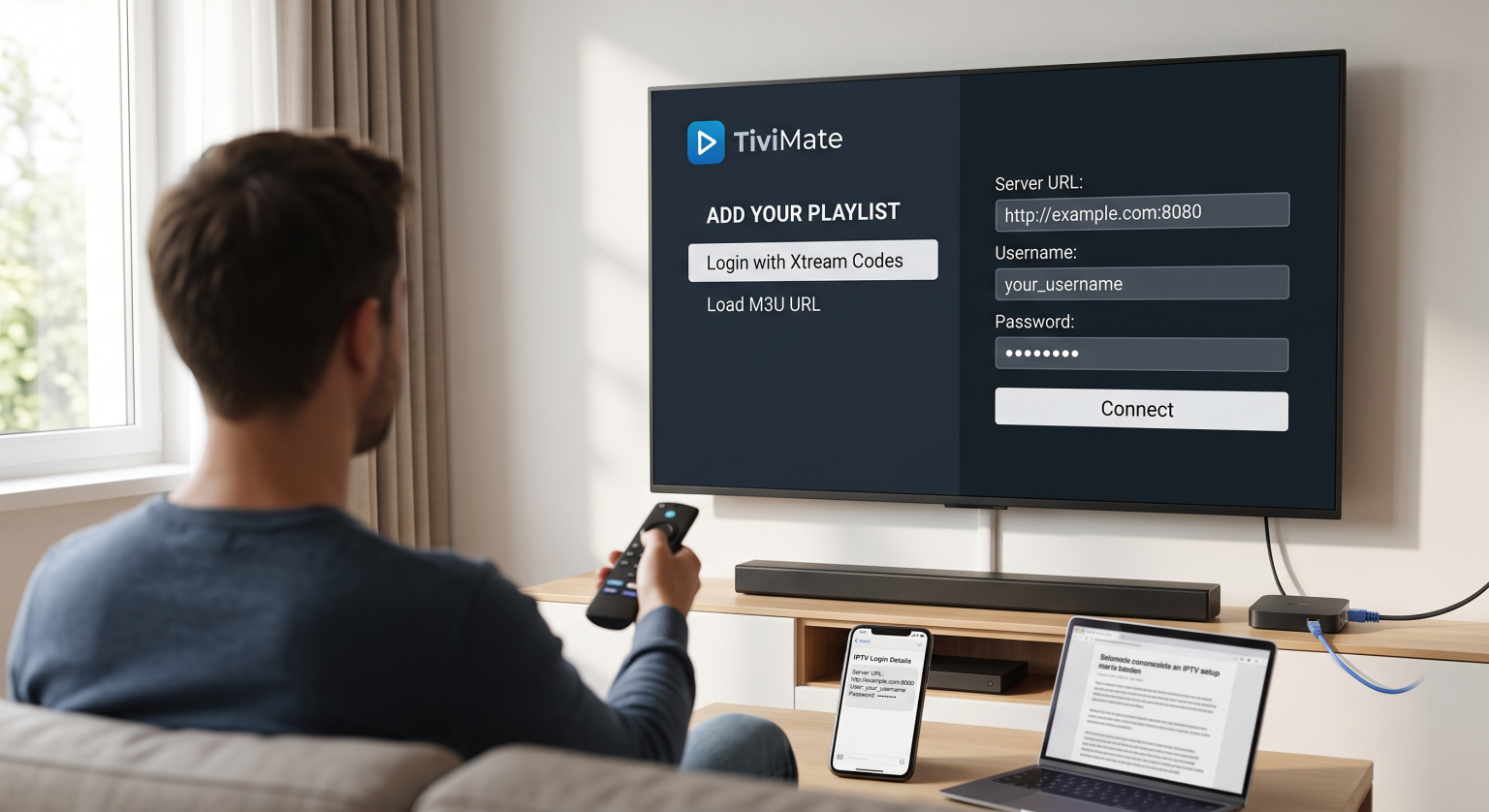
1. Omówienie formatów list odtwarzania: M3U a Xtream Codes
Przed zainstalowaniem aplikacji należy zapoznać się ze sposobem odczytywania danych kanałów przez odtwarzacze. Po wykupieniu subskrypcji usługi dostawca zazwyczaj udostępnia jeden z dwóch formatów danych uwierzytelniających:
API Xtream Codes (zalecane)
Jest to najbardziej stabilna i przyjazna dla użytkownika metoda połączenia. Zamiast wpisywać niemożliwie długi adres internetowy, wystarczy wpisać:
Adres URL serwera / portal: (np. (http://service-domain.com:8080))
Nazwa użytkownika: Przypisana Ci nazwa użytkownika konta
Hasło: Przypisane hasło do konta
Xtream Codes automatycznie porządkuje Twój elektroniczny przewodnik programowy (EPG), kategorie kanałów oraz wideo na żądanie (VOD) biblioteki w sposób uporządkowany.
Adres URL pliku M3U / Plik listy odtwarzania
Plik M3U to tekstowy format listy odtwarzania, zawierający bezpośrednie linki do strumieniowania oraz metadane dla każdego kanału w pakiecie. Otrzymasz:
Długi link internetowy (np. (http://service-domain.com/get.php?username=…&type=m3u_plus))
Plik w formacie .m3u lub .m3u8 do pobrania, który można bezpośrednio załadować do odtwarzacza
2. Wybór odpowiedniego odtwarzacza IPTV dla danego urządzenia
Różne systemy operacyjne obsługują różne odtwarzacze. Wybór aplikacji zoptymalizowanej pod kątem konkretnego sprzętu gwarantuje płynne odtwarzanie, szybkie przełączanie kanałów (zapping) oraz prawidłowe ładowanie EPG.
| Nazwa gracza | Najlepsze dla | Obsługiwane systemy operacyjne | Najważniejsze cechy | Model cenowy |
| TiviMate | Najwyższej jakości wrażenia telewizyjne | Android TV, Fire TV | Nowoczesny interfejs użytkownika, obsługa wielu ekranów, funkcja oglądania z opóźnieniem, niestandardowe grupy kanałów | Freemium (wersja premium płatna) |
| IPTV Smarters Pro | Wszechstronność i początkujący | Android, iOS, Windows, Mac, Firestick | Prosty proces logowania, obsługa wielu użytkowników, wbudowany odtwarzacz | Bezpłatna (zakupy w aplikacji) |
| Odtwarzacz IBO | Telewizory Smart TV | Samsung Tizen, LG webOS, Android | Lekka, szybko ładująca się, aktywacja poprzez bezpośredni adres MAC | 7-dniowy okres próbny, opłata jednorazowa |
| XCIPTV | Możliwości dostosowania i łatwość obsługi | Android TV, Fire TV | Przejrzysty domyślny układ, wbudowany test prędkości, dwa odtwarzacze | Bezpłatny |
| OTT Navigator | Zaawansowani użytkownicy i filtrowanie | Android, Firestick | Zaawansowana personalizacja kodeków, filtrowanie na poziomie studyjnym, PiP | Freemium |
3. Instalacja krok po kroku: Android TV i Amazon Firestick
Ponieważ urządzenia do strumieniowego przesyłania treści oparte na systemie Android stanowią zdecydowaną większość rozwiązań tego typu, poniżej przedstawiono standardowy przebieg pracy z wykorzystaniem dwóch najpopularniejszych metod wdrażania.
Metoda A: Bezpośrednia instalacja za pośrednictwem oficjalnych sklepów z aplikacjami
Otwórz plik Sklep Google Play (Android TV / Google TV) lub Sklep Amazon Appstore (Firestick).
Wyszukaj zweryfikowanego gracza, na przykład IPTV Smarters Pro lub TiviMate.
Wybierz Zainstaluj lub Pobierz.
Po zakończeniu instalacji uruchom aplikację.
Metoda B: Instalacja z zewnętrznego źródła za pomocą aplikacji Downloader (Firestick / Shield)
Niektóre dedykowane odtwarzacze IPTV nie są dostępne w standardowych sklepach z aplikacjami ze względu na ograniczenia regionalne.
Przejdź do Ustawienia > Moje Fire TV > Opcje programisty.
Włącz Instalowanie nieznanych aplikacji dla aplikacji Downloader.
Otwórz Program do pobierania plików, wpisz bezpośredni kod numeryczny lub adres URL wybranego odtwarzacza
.apkplik, a następnie naciśnij Start.Po zakończeniu pobierania kliknij Zainstaluj, a następnie Gotowe, a następnie usunąć instalację
.apkaby zwolnić miejsce w pamięci urządzenia.
4. Konfiguracja odtwarzacza (przewodnik krok po kroku)
Gdy aplikacja już działa, połącz swoją subskrypcję, postępując zgodnie z poniższą sekwencją czynności konfiguracyjnych:
[Otwórz odtwarzacz] ➔ [Dodaj użytkownika / nową listę odtwarzania] ➔ [Wybierz kody Xtream lub M3U] ➔ [Wprowadź dane serwera i dane logowania] ➔ [Zsynchronizuj EPG i kanały]
Uruchom aplikację: Na ekranie powitalnym wybierz Dodaj playlistę, Dodaj użytkownika, albo Zaloguj się za pomocą interfejsu API Xtream Codes.
Szczegóły dotyczące połączenia wejściowego:
Nazwa listy odtwarzania: Nadaj opisową nazwę (np. „Główny telewizor”).
Adres URL serwera: Wklej dokładny adres URL podany przez dostawcę (sprawdź, czy na końcu nie ma ukośników, spacji oraz czy adres zaczyna się od http:// czy https://).
Nazwa użytkownika i hasło: Wprowadź swoje dane logowania z należytą starannością (należy zwrócić uwagę na wielkość liter).
Pobierz dane: Kliknij Dodaj użytkownika lub Zapisz. Pobranie aktualnej listy kanałów, filmów, seriali oraz danych dotyczących programu telewizyjnego zajmie aplikacji od 10 sekund do kilku minut.
Skonfiguruj EPG (przewodnik telewizyjny): Jeśli Twój przewodnik nie wyświetla się automatycznie, przejdź do Ustawienia > EPG / Program telewizyjny w aplikacji i ustaw Częstotliwość aktualizacji EPG aktualizować co 24 godziny.
5. Optymalizacja wydajności i rozwiązywanie typowych problemów
Eliminowanie buforowania i zawieszania się
Podłącz kablowo: W miarę możliwości należy korzystać z kabla Ethernet zamiast sieci Wi-Fi 2,4 GHz. Jeśli korzystanie z Wi-Fi jest konieczne, należy przełączyć się na pasmo 5 GHz.
Dostosuj rozmiar bufora: W ustawieniach odtwarzania odtwarzacza zwiększ rozmiar bufora strumienia z Brak/Mały do Średni lub Duży (od 3 do 5 sekund). Dzięki temu strumień ma wystarczająco dużo czasu, by zrekompensować krótkotrwałe spadki przepustowości sieci.
Dekodowanie sprzętowe a dekodowanie programowe: Jeśli na kanale wyświetla się czarny ekran z dźwiękiem, przejdź do ustawień dekodera odtwarzacza i przełączaj między Sprzęt (HW) oraz Oprogramowanie (SW) dekodowanie.
Rozwiązywanie problemu “Nie udało się odświeżyć listy odtwarzania” lub przekroczenia limitu czasu połączenia
Sprawdź dokładnie datę wygaśnięcia oraz limity dotyczące aktywnych urządzeń u swojego dostawcy.
Upewnij się, że Twój dostawca usług internetowych (ISP) nie blokuje portów służących do przesyłania strumieniowego multimediów.
Zrestartuj zarówno router, jak i urządzenie do strumieniowego przesyłania treści, aby wyczyścić lokalne pamięci podręczne DNS.
Podsumowanie
Konfiguracja Odtwarzacz IPTV jest to prosta procedura, gdy tylko oddzielisz oprogramowanie odtwarzacza multimedialnego od źródła listy odtwarzania. Wybierając aplikację dostosowaną do twojego systemu operacyjnego – czy to TiviMate przeznaczoną dla dedykowanych interfejsów telewizyjnych, czy też IPTV Smarters zapewniającą elastyczność na różnych urządzeniach – oraz korzystając z API Xtream Codes, będziesz mógł cieszyć się płynnym przesyłaniem strumieniowym, porównywalnym z jakością telewizji kablowej, na swoim domowym sprzęcie.