
Fungerar din stream perfekt via en kabelanslutning, men slutar fungera direkt när du använder trådlöst? Om din IPTV fungerar via Ethernet, inte via WiFi, har du att göra med ett lokalt nätverkskonfigurationsfel. Det här specifika felet visar exakt var problemet ligger, och det är enklare att åtgärda det än du kanske tror.
För alla som har sagt upp sina kabel-tv-abonnemang i USA är en stabil internetanslutning grunden för hemunderhållningen. När din IPTV fungerar via Ethernet, inte via WiFi, vilket visar att din prenumeration och din internetleverantör fungerar som de ska. Problemet är uteslutande begränsat till routerns trådlösa nätverk eller den interna brandväggen. Låt oss gå igenom exakt vad som orsakar denna frustrerande nedgång.
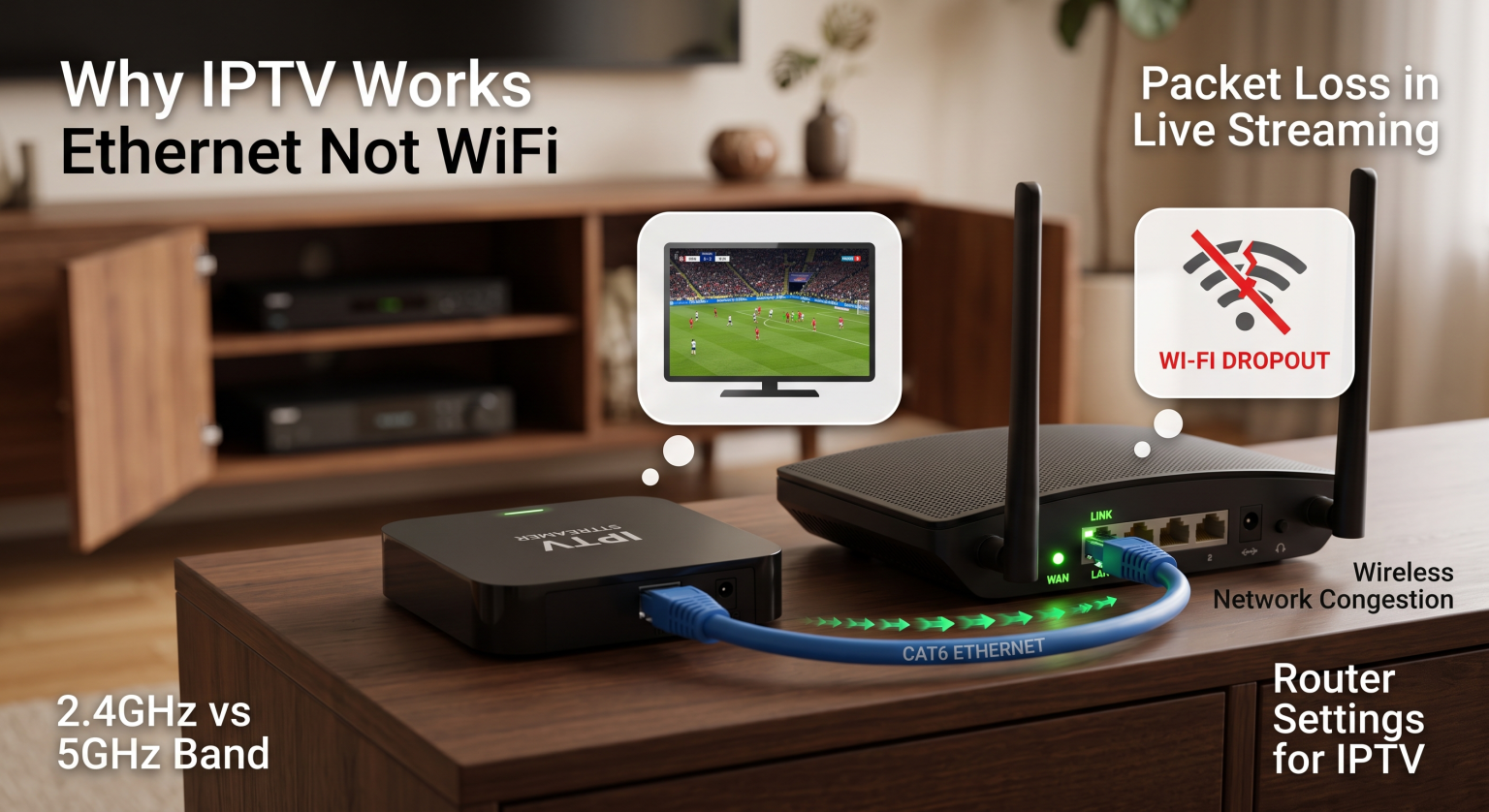
Varför din IPTV fungerar via Ethernet men inte via WiFi: De bakomliggande orsakerna
När man felsöker är det halva jobbet gjort om man förstår “varför”. Om din anslutning inte fungerar trådlöst beror det oftast på tre huvudsakliga orsaker som gömmer sig i ditt hemnätverk.
1. Överbelastning i det trådlösa nätverket
Livevideodata kräver en konstant, oavbruten ström för att undvika paketförlust vid livestreaming. De vanliga 2,4 GHz-banden för Wi-Fi är kända för att vara överbelastade av smarta hem-enheter, mikrovågsugnar och signaler från grannar. Denna allvarliga överbelastning i det trådlösa nätverket stör lätt de datapaket som krävs för att hålla din live-TV-app igång.
2. AP-isolering och säkerhetsregler för routrar
Många moderna routrar använder en funktion som kallas AP-isolering (Access Point) för att skydda användarna. Denna säkerhetsåtgärd förhindrar trådlösa enheter från att kommunicera med vissa nätverksprotokoll. Om din IPTV fungerar via Ethernet, inte via WiFi, är det mycket troligt att routerns AP-isolering blockerar just den trafik som din digitalbox behöver.
3. IGMP-snooping och multicast-trafik
De flesta tjänster för direktsänd TV använder multicast-trafik för att sända kanaler på ett effektivt sätt. Medan trådbundna portar hanterar detta utan problem har många routrar svårt att bearbeta multicast-data trådlöst. Utan att aktivera IGMP-snooping i din routerinställningar för IPTV, då släpper den trådlösa signalen helt enkelt de stora datapaketen.
Den amerikanska standarden för strömning: Ethernet vs. 5 GHz Wi-Fi vs. Powerline
För att förstå Stabilitet vid trådbunden respektive trådlös strömning, måste du undersöka hur olika anslutningar hanterar stora datamängder från videostreaming. Här följer en översikt över de vanligaste anslutningsalternativen för moderna hushåll i USA.
| Anslutningstyp | Fördröjning och paketförlust | Stabilitet vid strömning i verkliga förhållanden |
| Direkt Ethernet | Nära noll | Felfri; hanterar 4K-multicast utan problem. |
| 5 GHz Wi-Fi | Låg till måttlig | Bra, men mycket känslig för väggar och avstånd. |
| Powerline-adapter | Låg | Ett utmärkt alternativ om direkt Ethernet-anslutning inte är möjlig. |
Steg-för-steg-lösningar när IPTV fungerar via Ethernet men inte via WiFi
Är du redo att göra dig av med kablarna och få din trådlösa anslutning att fungera smidigt? Följ dessa snabba steg för att undanröja hindret och få tillbaka din anslutning.
Utöka ditt urval av band
Sluta förlita dig på den överbelastade 2,4 GHz-frekvensen. Dela upp routerns frekvensband och tvinga din streamingenhet att använda 2,4 GHz-bandet jämfört med 5 GHz-bandet. 5 GHz-kanalen erbjuder betydligt högre hastigheter och mindre störningar, vilket är avgörande för strömning i högupplöst format.
Justera routerns inställningar för IPTV
Logga in på routerns administratörspanel och leta reda på de avancerade trådlösa inställningarna. Gör följande snabba ändringar för att återställa din strömning:
Inaktivera AP-isolering: Se till att “Klientisolering” eller “Gästläge” är avstängt så att din enhet kan kommunicera smidigt med nätverket.
Aktivera IGMP-snooping: Denna viktiga inställning gör att multicast-trafik för direktsänd TV kan passera fritt genom ditt Wi-Fi-gränssnitt.
Stäng av trådlösa brandväggar: Inaktivera tillfälligt eventuella strikta föräldrakontroller som endast gäller trådlösa nätverk för att se om de blockerar streamingtjänsten.
Uppdatera dina DNS-inställningar
Ibland har ditt trådlösa nätverkskort svårt att hitta leverantörens serveradresser. Ändra DNS-inställningarna på din streamingenhet från “Automatisk” till en offentlig DNS-server, till exempel Google (8.8.8.8) eller Cloudflaree (1.1.1.1). Denna enkla justering kringgår internetleverantörens blockeringar och återställer ofta den trådlösa anslutningen omedelbart.
Slutsats: Säkra din streamingtjänst i USA redan idag
Att ta reda på varför din IPTV fungerar via Ethernet, inte via WiFi behöver inte vara ett problem. Genom att justera routerns inställningar, optimera dina trådlösa frekvensband och förstå hur data överförs kan du njuta av problemfri underhållning var som helst i USA. Låt inte ett felaktigt konfigurerat lokalt nätverk förstöra din filmkväll.
Är du redo att uppgradera din tittarupplevelse? Sluta slita med irriterande nätverksavbrott och byt till en förstklassig, buffertfri tjänst redan idag. [Klicka här för att utforska våra högst rankade, snabba IPTV-abonnemang och börja streama i 4K redan nu!]
Vanliga frågor (FAQ)
Varför buffras min IPTV via Wi-Fi men inte via Ethernet?
Wi-Fi är mycket känsligt för fysiska störningar, avståndsrelaterade signalförluster och delning av bandbredd. Ethernet erbjuder en dedikerad, skärmad dataförbindelse som garanterar att inga paket går förlorade och eliminerar den fruktade IPTV-buffring via Wi-Fi.
Behöver jag en speciell router för IPTV?
Även om du strikt sett inte behöver en “speciell” router, behöver du ändå en som klarar stora datamängder. Sök efter en dual-band- eller tri-band-Gigabit-router som officiellt stöder IGMP-snooping och multicast-routing.