
There is nothing more frustrating than kicking back to watch a highly anticipated live game or a new movie, only for your screen to freeze right at the best part. If you are dealing with constant IPTV buffering on your Smart TV, you aren’t alone. It is one of the most common issues cord-cutters face.
The good news? You usually don’t need to be a tech genius to fix it. Most lag and freezing issues boil down to four main culprits: your home network, your TV’s hardware, your Internet Service Provider (ISP), or the IPTV service itself.
Let’s break down exactly how to stop IPTV from lagging so you can get back to uninterrupted streaming.
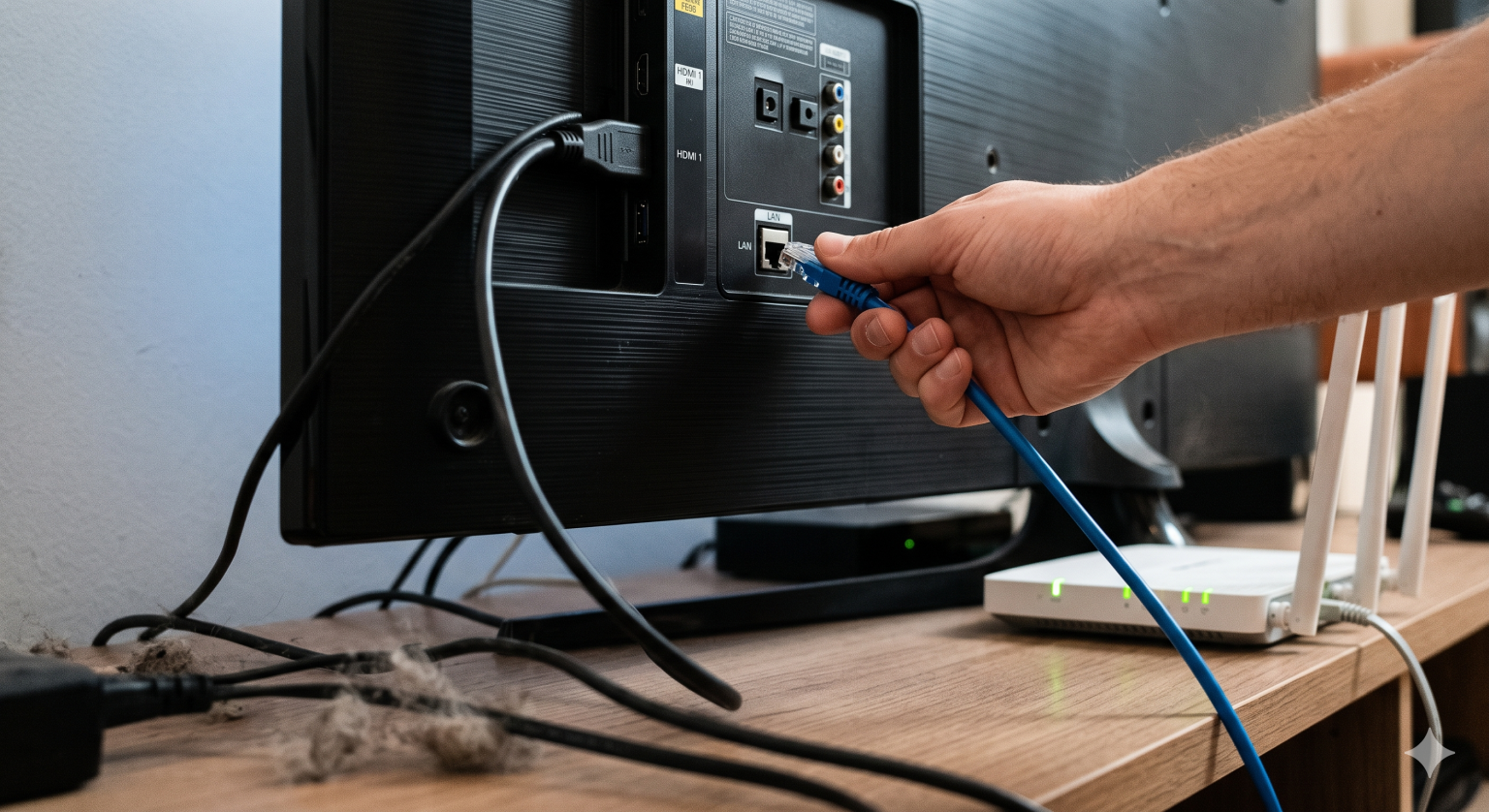
1. Ditch the Wi-Fi (Hardwire Your TV)
This is the number one fix for almost all smart TV streaming issues. Wi-Fi is incredibly convenient, but it is also prone to interference from walls, furniture, microwaves, and even your neighbor’s router. Live IPTV streams require a constant, unbroken packet of data. When Wi-Fi drops even for a microsecond, your stream buffers.
The Fix: Run a direct Ethernet cable from your internet router straight into the LAN port on the back of your Smart TV. If your router is too far away, consider buying a Powerline Adapter. These adapters use your home’s existing electrical wiring to send a hardwired internet signal from your router to your TV without running 50 feet of ugly cables across your living room.
2. Stop ISP Throttling with a VPN
If your internet speed tests show 200+ Mbps, but your IPTV stream is still stuttering like crazy, your Internet Service Provider might be the villain.
Many major ISPs actively monitor your traffic. When they detect heavy bandwidth usage from an IPTV server especially during major live sporting events they will intentionally slow down (throttle) your connection to that specific server to save bandwidth.
The Fix:
Use a reliable VPN (Virtual Private Network). A VPN encrypts your internet traffic, meaning your ISP can only see that you are downloading data, but they can’t see what you are downloading or where it’s coming from. Because they can’t identify the IPTV traffic, they can’t throttle it. Most modern Smart TVs (especially Android TV and Fire TV) allow you to download VPN apps directly from their app stores.
3. Clear Your Smart TV’s Cache
Smart TVs are essentially just giant smartphones, but they usually have much weaker processors and very little RAM (memory). As you open and close different apps over weeks and months, background data piles up and eats away at your TV’s available memory. Once the TV runs out of memory, your IPTV app struggles to process the live video feed, resulting in buffering.
How to fix it:
Go to your Smart TV’s Settings.
Navigate to Apps or Manage Applications.
Find your specific IPTV app (like Smarters, TiviMate, or Flix).
Select Clear Cache (Do not click “Clear Data,” or you will have to log back in).
Pro tip: While you are in the settings, delete any old apps you no longer use to free up valuable storage space. If your TV is completely full, it will run noticeably slower.
4. Tweak Your IPTV App Settings
Sometimes the problem isn’t your TV or your internet; it is the app you are using to play the stream. Live video needs a “buffer”—a few seconds of video that downloads ahead of time so the video doesn’t stop if your internet blinks.
If your app’s buffer size is too small, any minor network hiccup will freeze the picture.
The Fix: Go into the settings of your IPTV player app. Look for an option labeled Buffer Size or Playback Settings. If it is currently set to “Small” or “Zero,” change it to Large or Max. This forces the app to download more of the video in advance. It might take an extra 2 or 3 seconds for the channel to load when you first click it, but it will play much smoother once it starts.
5. Test a Different App (Or Provider)
Not all IPTV player apps are coded equally. Some are notoriously clunky and handle live streams poorly. If you are using a generic, free app, try switching to a premium player like TiviMate (for Android/Fire OS) or IPTV Smarters Pro. They handle massive playlists and live streams far better than basic players.
Finally, if you have tried hardwiring your TV, using a VPN, and clearing your cache, and it still buffers constantly the harsh reality is that your IPTV provider’s servers might just be overloaded. Cheaper providers pack too many users onto weak servers, which inevitably crash during peak viewing hours. If that’s the case, it might be time to test out a trial with a new service.