
Je hebt een snelle internetverbinding, het geavanceerde apparaat, en je hebt je eindelijk geabonneerd op een IPTV-dienst. De belofte van talloze zenders, live sport, en een eindeloze VOD-bibliotheek ligt binnen handbereik. Vervolgens ontvang je je welkomstmail. Het is een raadselachtige wirwar van URL’s, gebruikersnamen, wachtwoorden, en verwijzingen naar iets dat “Xtream Codes API“ heet.” Plotseling, dat “eenvoudige installatie” voelt overweldigend aan.
Als je dat bekend in de oren klinkt, Raak niet in paniek. Hoewel er in de wereld van IPTV (Internet Protocol Television) een aantal specifieke termen wordt gebruikt, Het installatieproces is ongelooflijk logisch. De moderne methode Xtream-codes heeft het ingewikkelde handmatige beheer van afspeellijsten vervangen, waardoor het aanpassen van de configuratie niet langer een hele klus is, maar een eenvoudige taak van twee minuten.
Deze gids zal het hele proces duidelijk maken. We zullen uitleggen wat Xtream Codes nu eigenlijk is, je precies laten zien hoe je het op elk apparaat kunt instellen, en de beste analyseren IPTV-speler-apps zodat je het juiste gereedschap voor jouw opstelling kunt kiezen.
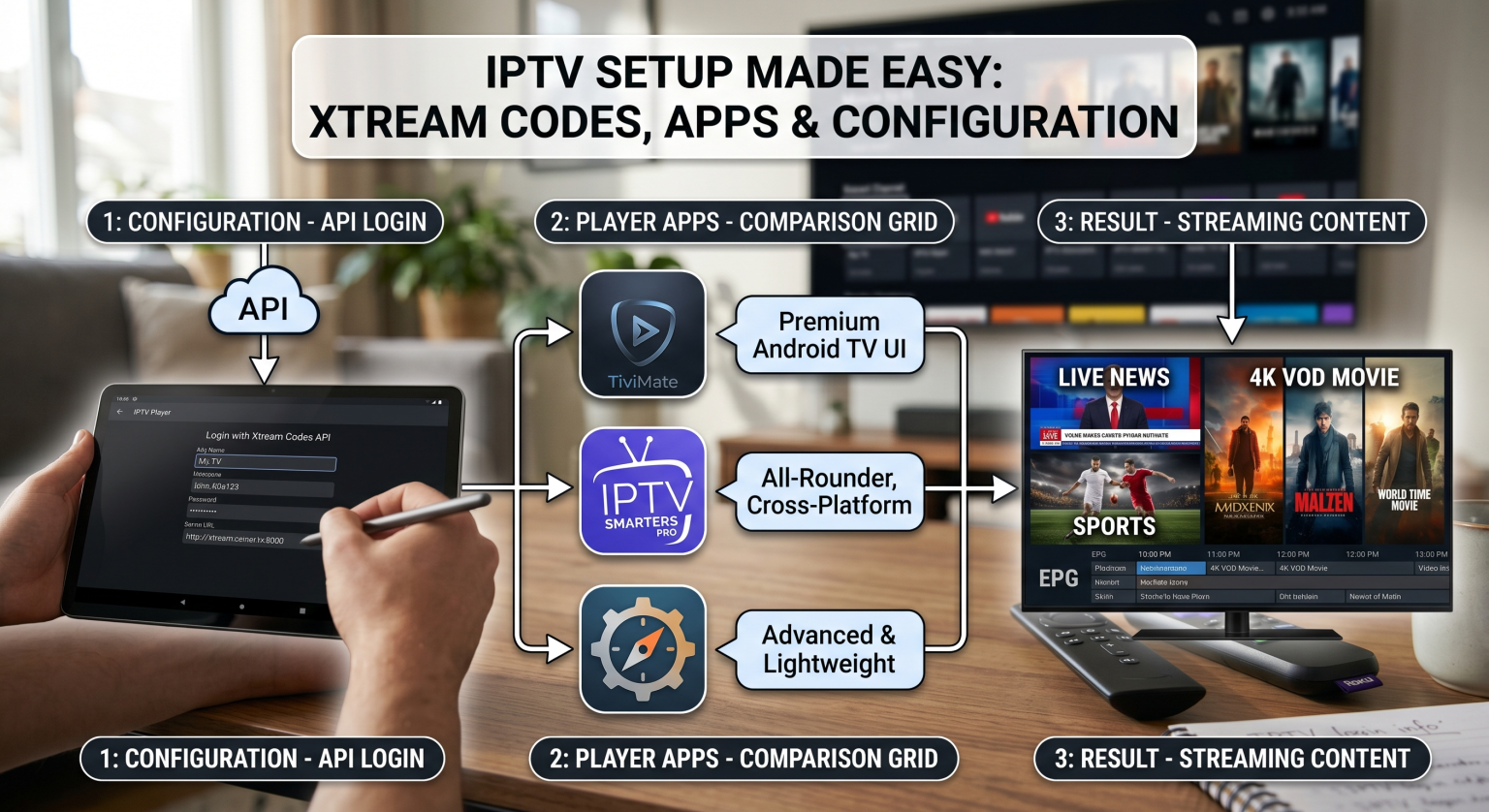
De magie van de Xtream Codes API
Voordat we aan het klikken en typen beginnen, je moet het precies begrijpen wat die u aan het configureren bent.
Wanneer IPTV-aanbieders voor het eerst populair werd, ze gaven gebruikers lange, complexe URL’s van “M3U-afspeellijsten”. Je moest deze nauwkeurig overschrijven, en als je provider de zenderlijst heeft bijgewerkt, moest je de M3U-link vaak handmatig bijwerken. Het was onhandig en foutgevoelig.
De Xtream Codes API is de oplossing voor die hindernis.
Bekijk het eens zo: In plaats van een statische lijst (de M3U) te ontvangen, Xtream Codes biedt je app directe, realtime communicatie met de serverdatabase van de aanbieder. Wanneer je inlogt met Xtream Codes, Je speler-app vraagt aan de server: “Welke kanalen, films, en welke tv-programma’s zijn er op dit moment te zien?” De server geeft een gestructureerd antwoord.
Dit biedt je drie enorme voordelen, de gebruiker:
Dynamische updates: Kanaalwisselingen, nieuwe films, of worden updates van het serveradres automatisch doorgevoerd. Je afspeellijst nooit verloopt.
Categorie Organisatie: Live-tv, Films, en de series zijn netjes gesorteerd in mappen.
Sneller laden: Xtream Codes is ontworpen met het oog op snelheid, waardoor grote kanaallijsten veel sneller worden geladen dan M3U-bestanden.
Dit is het systeem dat bijna alle moderne, hoogwaardige IPTV-diensten (zoals TV Shadow IPTV, (zoals te zien is in de onderstaande configuratieafbeelding) op gebaseerd zijn.
Uw 4-stappenhandleiding voor het configureren van Xtream-codes
Je bent klaar om het in te stellen. Of je nu een Android TV Box gebruikt of niet, een Firestick, een smart-tv (zoals van Samsung of LG), of een iOS-apparaat, de logica blijft hetzelfde.
Fase 1: Voorbereiding (zorg dat je de benodigde documenten bij de hand hebt)
Uw IPTV-aanbieder heeft u waarschijnlijk een welkomstmail gestuurd of uw inloggegevens in uw gebruikersportaal weergegeven. Jij moet Zorg dat je vier gegevens bij de hand hebt. (Eventuele fouten hier zorgen ervoor dat het inloggen mislukt.).)
Een willekeurige naam: Dat kun je zelf verzinnen. Noem het maar “My TV” of “Shadow IPTV’.” Het is gewoon een naam voor de afspeellijst.
URL van de server: Deze altijd bevat het poortnummer. Het lijkt erop dat (http://example.xyz:8080).
Gebruikersnaam: Dit geldt specifiek voor jouw account.
Wachtwoord: Dit geldt ook specifiek voor jouw account.
Fase 2: Configuratie
In dit voorbeeld, Laten we ervan uitgaan dat je al een IPTV-speler-app hebt gekozen en deze hebt geïnstalleerd.
1. Open de app en voeg een gebruiker toe:
Start de IPTV-speler van je keuze. Zoek naar een groot plusteken (+), “Afspeellijst toevoegen”, “Nieuw profiel” of, het liefst, “Inloggen met Xtream Codes API”.”
2. Selecteer ‘Xtream Codes API’:
Als je de keuze hebt tussen “Load M3U” en “Xtream Codes API”,” altijd Selecteer de Xtream Codes API (zoals weergegeven in image_0.png).
3. Voer de inloggegevens precies zo in:
Er verschijnt een scherm met de vier velden uit fase 1. Vul deze zorgvuldig in. Let op http://, :8080, en let op het gebruik van hoofdletters in je gebruikersnaam en wachtwoord.
4. Klik op ‘Gebruiker toevoegen’ / ‘Inloggen’:
Zodra je alles hebt ingevuld, klik je op de inlogknop. De app maakt verbinding, controleert je gegevens en downloadt automatisch de zendergids, VOD en EPG (Electronic Program Guide).
Analyse: De juiste IPTV-speler-app kiezen
De inloggegevens die je zojuist hebt ingevoerd, hebben geen nut zonder een krachtige app om ze te beheren. Hoewel tientallen spelers Xtream Codes steunen, vier springen er duidelijk uit op basis van hun prestaties, interface, en functies.
Welke app het beste bij je past, hangt volledig af van je apparaat en wat je het belangrijkst vindt.
TiviMate (de beste premium Android-ervaring)
Dit is de gouden standaard voor Android TV en Firestick-gebruikers. Als je serieus met IPTV bezig bent en een Android-apparaat hebt, TiviMate is onmisbaar. De bedieningsinterface is vrijwel identiek aan die van een premium kabeldecoder, met een uitstekende EPG, bliksemsnel schakelen tussen kanalen, kijken op meerdere schermen, en geavanceerde functies voor back-up en herstel. De Premium-versie is een echte aanrader.
IPTV Smarters Pro (beste allrounder/platformonafhankelijk)
Dit is niet voor niets de bekendste IPTV-app. Smarters Pro is stabiel, verkrijgbaar bij bijna elke platform (Android, iOS, Smart-tv’s, Windows), en heeft een zeer logische, de gebruiksvriendelijke interface van Xtream Codes. Het biedt onder meer de mogelijkheid om op meerdere schermen te kijken, ouderlijk toezicht, en een degelijke EPG-integratie. Voor de meeste gebruikers is dit het beste startpunt.
Perfect Player (de beste lichtgewichtoptie voor oudere apparaten)
Als je een oude Firestick of een Android-box met beperkte systeembronnen gebruikt, misschien vind je Smarters of TiviMate wel wat traag. De Perfect Player is ongelooflijk licht. Het geeft voorrang aan snelheid en pure prestaties boven een opzichtige interface. Het mist weliswaar enkele geavanceerde functies, maar is uiterst stabiel.
OttNavigator (het meest geschikt voor gevorderde gebruikers en aanpassingsmogelijkheden)
Als je gedetailleerde controle wilt over alles, OttNavigator is de oplossing voor jou. Het is ontwikkeld voor Android TV en biedt een verbazingwekkende reeks instellingen, van specifieke instellingen voor buffering tot een volledig aanpasbare interface. Deze app kan complexe opstellingen met meerdere providers beter aan dan welke andere app dan ook.
Vergelijkingstabel: de beste IPTV-speler-apps
| Spelers-app | Het meest geschikt voor… | Belangrijkste opvallende kenmerk | Ondersteunde platforms (belangrijkste) |
| TiviMate | Een premium ervaring, net als bij een kabelbox, op Android | Een ongeëvenaarde EPG-ervaring; een uiterst verzorgde gebruikersinterface. | Android TV, Firestick |
| IPTV Smarters Pro | Compatibiliteit met verschillende platforms; Beginners | Eenvoudige installatie; werkt op vrijwel elk systeem. | Android, iOS, Windows, smart-tv's, Firestick |
| OttNavigator | Uitgebreide aanpassingsmogelijkheden; gevorderde gebruikers | Ongeëvenaarde instellingen en personalisatiemogelijkheden. | Android TV, Firestick, Android-mobiel |
| Perfecte speler | Optimale prestaties op oudere hardware | Minimaal verbruik van systeembronnen; ongelooflijk snel en stabiel. | Android, Windows, Linux, Firestick |
Tot slot: de overstap naar eenvoud
IPTV instellen via Xtream-codes is een fundamentele verandering ten opzichte van de omslachtige M3U-afspeellijsten van vroeger. Het biedt een uitstekende gebruikerservaring, automatische updates, en een betere stabiliteit. Door inzicht te krijgen in het duidelijke verband tussen je inloggegevens en je spelersapp, U kunt uw dienst binnen enkele minuten in gebruik nemen. De echte keuze is welke app het beste bij jouw stijl past. Als je op zoek bent naar eenvoud en bereik op meerdere platforms, IPTV Smarters Pro is uitstekend; als je op zoek bent naar de allerbeste gebruikersinterface voor je tv in de woonkamer, TiviMate is de investering waar je geen spijt van zult krijgen.