
Masz szybkie łącze internetowe, najnowocześniejsze urządzenie, i w końcu wykupiłeś abonament na usługę IPTV. Obietnica niezliczonych kanałów, transmisje sportowe na żywo, a nieograniczona biblioteka treści VOD jest na wyciągnięcie ręki. Następnie otrzymasz wiadomość e-mail z powitaniem. To zagadkowa mieszanina adresów URL, nazwy użytkowników, hasła, oraz odniesienia do czegoś o nazwie “Xtream Codes API”.” Nagle, to “prosta konfiguracja” wydaje się przytłaczająca.
Jeśli brzmi to znajomo, Nie panikuj. Chociaż w świecie IPTV (telewizji internetowej) stosuje się pewną specyficzną terminologię, Proces konfiguracji jest niezwykle logiczny. Nowoczesna metoda Kody Xtream zastąpiło skomplikowane ręczne zarządzanie listami odtwarzania, dzięki czemu konfiguracja przestaje być uciążliwym obowiązkiem, a staje się prostym zadaniem zajmującym zaledwie dwie minuty.
Ten przewodnik wyjaśni cały proces. Wyjaśnimy, czym właściwie jest Xtream Codes, pokażę Ci dokładnie, jak to skonfigurować na dowolnym urządzeniu, oraz przeanalizować najlepsze Aplikacje do odtwarzania treści IPTV dzięki czemu będziesz mógł wybrać narzędzie odpowiednie do swojej konfiguracji.
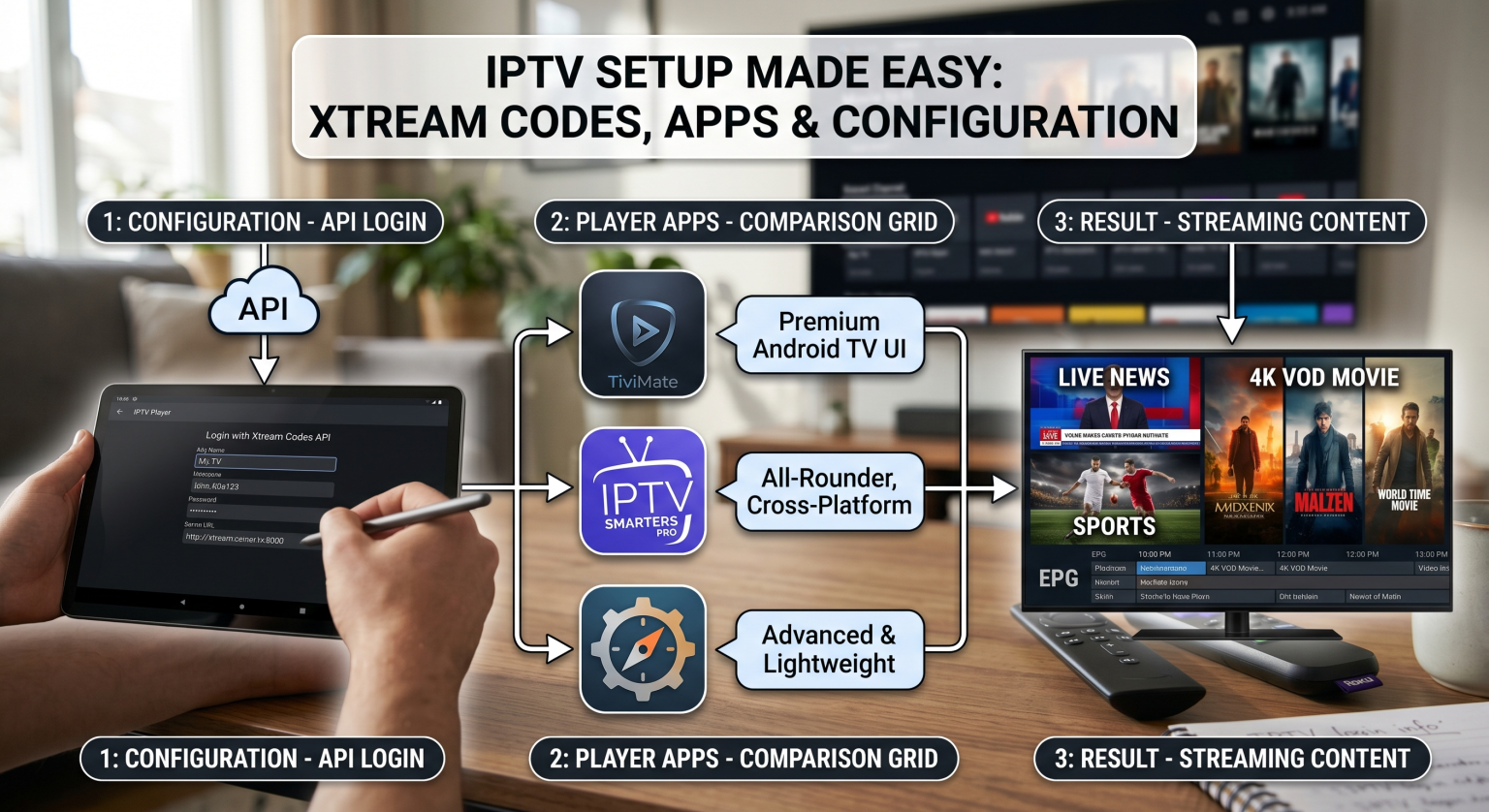
Magia interfejsu API Xtream Codes
Zanim przejdziemy do klikania i pisania, musisz dokładnie zrozumieć co które konfigurujesz.
Kiedy Dostawcy usług IPTV po raz pierwszy zyskało popularność, zapewnili użytkownikom długie, złożone adresy URL “playlist M3U”. Trzeba było je dokładnie przepisać, a jeśli Twój dostawca zaktualizował listę kanałów, często trzeba było ręcznie aktualizować link M3U. Było to nieporęczne i podatne na błędy.
API Xtream Codes stanowi rozwiązanie tego problemu.
Pomyśl o tym w ten sposób: Zamiast otrzymywać statyczną listę (plik M3U), Xtream Codes zapewnia Twojej aplikacji bezpośredni dostęp do, komunikacja w czasie rzeczywistym z bazą danych serwera dostawcy. Po zalogowaniu się za pomocą Xtream Codes, Twoja aplikacja odtwarzacza wysyła zapytanie do serwera: “Jakie kanały, filmy, a jakie seriale telewizyjne są obecnie dostępne?” Serwer zwraca ustrukturyzowaną odpowiedź.
Daje to trzy ogromne korzyści dla Ciebie, użytkownik:
Dynamiczne aktualizacje: Zmiany kanałów, nowe filmy, lub aktualizacje adresu serwera odbywają się automatycznie. Twoja playlista nigdy traci ważność.
Kategoria: Organizacja: Telewizja na żywo, Filmy, a pliki z serii są starannie posortowane w folderach.
Szybsze ładowanie: Xtream Codes zostało stworzone z myślą o szybkości, dzięki czemu duże listy kanałów ładują się znacznie szybciej niż pliki M3U.
Jest to system stosowany w niemal wszystkich nowoczesnych, wysokiej jakości usługi IPTV (takie jak TV Shadow IPTV, (widoczne na poniższym obrazku przedstawiającym konfigurację) opierają się na.
Przewodnik po konfiguracji kodów Xtream w 4 krokach
Jesteś gotowy, aby to skonfigurować. Niezależnie od tego, czy korzystasz z urządzenia Android TV Box, urządzenie Firestick, telewizor Smart TV (np. marki Samsung lub LG), lub urządzenie z systemem iOS, logika pozostaje taka sama.
Etap 1: Przygotowanie (zdobądź uprawnienia)
Twój dostawca usług IPTV wysłał Ci wiadomość e-mail z powitaniem lub udostępnił dane logowania w portalu użytkownika. Ty trzeba Przygotuj cztery informacje. (Wszelkie błędy w tym miejscu spowodują niepowodzenie logowania.).)
Dowolna nazwa: Możesz to wymyślić. Nazwij to “My TV” albo “Shadow IPTV”.” To tylko nazwa tej playlisty.
Adres URL serwera: To zawsze zawiera numer portu. Wygląda na to, że (http://example.xyz:8080).
Nazwa użytkownika: To dotyczy wyłącznie Twojego konta.
Hasło: Ta informacja dotyczy wyłącznie Twojego konta.
Faza 2: Konfiguracja
W tym przykładzie, Załóżmy, że wybrałeś już aplikację do odtwarzania IPTV i ją zainstalowałeś.
1. Otwórz aplikację i dodaj użytkownika:
Uruchom wybrany odtwarzacz IPTV. Poszukaj dużego znaku plusa (+), opcji “Dodaj listę odtwarzania”, “Nowy profil” lub – najlepiej – “Zaloguj się za pomocą API Xtream Codes”.”
2. Wybierz ‘Xtream Codes API’:
Gdybyśmy mieli do wyboru opcje “Load M3U” i “Xtream Codes API”,” zawsze wybierz interfejs API Xtream Codes (jak pokazano na obrazku image_0.png).
3. Wprowadź dane uwierzytelniające dokładnie tak, jak podano:
Pojawi się ekran z czterema polami z fazy 1. Wprowadź dane starannie. Zwróć uwagę na http://, :8080, a także wielkość liter w nazwie użytkownika i haśle.
4. Kliknij ‘Dodaj użytkownika’ / ‘Zaloguj się’:
Po wprowadzeniu wszystkich danych naciśnij przycisk logowania. Aplikacja nawiąże połączenie, zweryfikuje Twoje dane i automatycznie pobierze dane kanałów, treści VOD oraz EPG (elektroniczny przewodnik po programach).
Analiza: Jak wybrać odpowiednią aplikację do odtwarzania treści IPTV
Wprowadzone właśnie dane uwierzytelniające są bezużyteczne bez wydajnej aplikacji do ich zarządzania. Chociaż dziesiątki graczy popierają Xtream Codes, cztery z nich wyraźnie wyróżniają się pod względem wyników, interfejs, oraz funkcje.
Wybór odpowiedniej aplikacji zależy całkowicie od posiadanego urządzenia oraz od tego, co jest dla Ciebie najważniejsze.
TiviMate (najlepsze wrażenia z użytkowania aplikacji premium na Androida)
To jest złoty standard w dziedzinie Android TV oraz użytkownicy Firesticka. Jeśli poważnie podchodzisz do tematu IPTV i posiadasz urządzenie z systemem Android, TiviMate to niezbędna aplikacja. Jego interfejs jest niemal identyczny jak w przypadku dekodera telewizji kablowej klasy premium, z doskonałym przewodnikiem programowym (EPG), błyskawiczne przełączanie kanałów, oglądanie na wielu ekranach, oraz zaawansowane funkcje tworzenia kopii zapasowych i przywracania danych. Gorąco polecamy wersję Premium.
IPTV Smarters Pro (najlepsze wszechstronne rozwiązanie / obsługujące różne platformy)
Nie bez powodu jest to najbardziej znana aplikacja do IPTV. Smarters Pro działa stabilnie, dostępne niemal na każdy platforma (Android, iOS, Telewizory Smart TV, Windows), i charakteryzuje się bardzo logiczną, przystępny w obsłudze interfejs Xtream Codes. Obejmuje to oglądanie na wielu ekranach, kontrola rodzicielska, oraz pełną integrację z EPG. Dla większości użytkowników jest to najlepszy punkt wyjścia.
Perfect Player (najlepsza lekka opcja dla starszych urządzeń)
Jeśli korzystasz ze starego urządzenia Firestick lub urządzenia z systemem Android o ograniczonych zasobach, może się okazać, że aplikacje Smarters lub TiviMate są nieco zbyt obciążające. Perfect Player jest niezwykle lekki. Stawia na szybkość i czystą wydajność, a nie na efektowny interfejs. Brakuje mu co prawda niektórych zaawansowanych funkcji, ale działa niezwykle stabilnie.
OttNavigator (najlepszy dla zaawansowanych użytkowników i miłośników personalizacji)
Jeśli chcesz mieć szczegółową kontrolę nad wszystko, OttNavigator to rozwiązanie, którego szukasz. Aplikacja została stworzona z myślą o systemie Android TV i oferuje zadziwiającą gamę opcji, od konkretnych elementów sterujących buforowaniem po w pełni konfigurowalny interfejs. Radzi sobie ze złożonymi konfiguracjami obejmującymi wielu dostawców lepiej niż jakakolwiek inna aplikacja.
Tabela porównawcza: Najlepsze aplikacje do odtwarzania treści IPTV
| Aplikacja dla graczy | Najlepsze dla… | Najważniejsza cecha wyróżniająca | Obsługiwane platformy (główne) |
| TiviMate | Wysokiej jakości interfejs przypominający dekoder telewizji kablowej na systemie Android | Niezrównane wrażenia z korzystania z EPG; dopracowany interfejs użytkownika. | Android TV, Firestick |
| IPTV Smarters Pro | Kompatybilność międzyplatformowa; Początkujący | Prosta konfiguracja; działa na niemal każdym urządzeniu. | Android, iOS, Windows, telewizory Smart TV, Firestick |
| OttNavigator | Ekstremalna personalizacja; zaawansowani użytkownicy | Niezrównane możliwości konfiguracji i personalizacji. | Android TV, Firestick, telefony z systemem Android |
| Idealny gracz | Maksymalna wydajność na starszym sprzęcie | Minimalne zużycie zasobów; niesamowicie szybki i stabilny. | Android, Windows, Linux, Firestick |
Podsumowanie: Przejście na prostotę
Konfiguracja IPTV za pośrednictwem Kody Xtream stanowi zasadniczą zmianę w stosunku do nieporęcznych playlist M3U z przeszłości. Zapewnia doskonałą obsługę, automatyczne aktualizacje, oraz większą stabilność. Dzięki zrozumieniu prostego związku między Twoimi danymi uwierzytelniającymi a aplikacją gracza, usługę można uruchomić w ciągu kilku minut. Najważniejsze jest to, która aplikacja pasuje do Twojego stylu. Jeśli zależy Ci na prostocie i dostępności na wielu platformach, IPTV Smarters Pro jest świetne; jeśli zależy Ci na absolutnie najlepszym interfejsie użytkownika dla telewizora w salonie, TiviMate to inwestycja, której nie pożałujesz.