
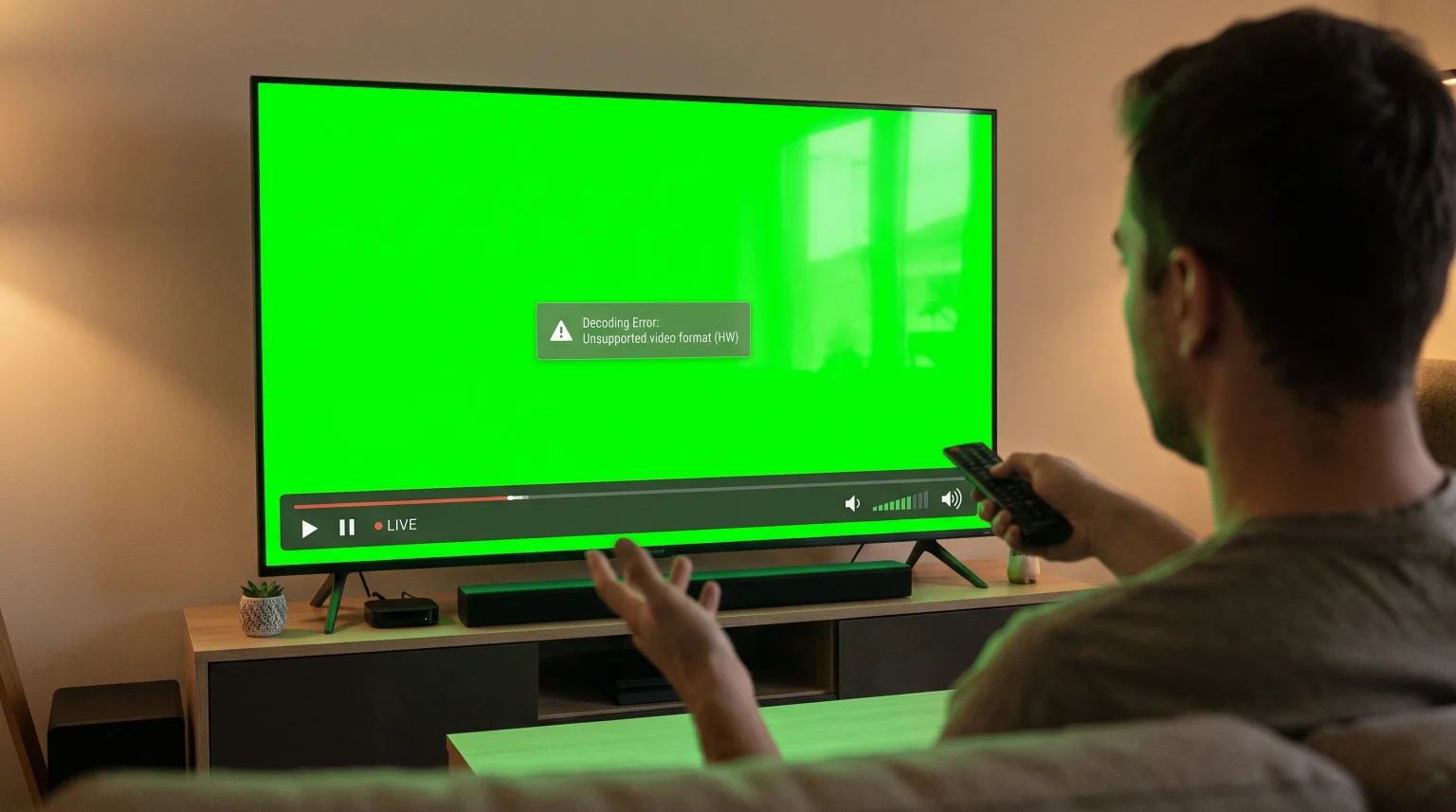
You open your IPTV application to watch a television channel. You can hear the audio, but the television only shows a solid green screen. This is a common video playback error. The green screen happens when your television or streaming device cannot process the video signal correctly. This guide explains why the IPTV green screen error occurs and how you can fix the problem.
Quick Answer
The IPTV green screen usually happens because of a hardware decoding failure. Your television cannot read the specific video format, such as HEVC or H.265. The fastest way to fix this error is to open your IPTV player settings. Find the video decoding options. Change the setting from Hardware Decoding (HW) to Software Decoding (SW). This change forces the application to process the video instead of using the television hardware.
Common Causes of the IPTV Green Screen
Understanding why the green screen appears will help you prevent the error in the future. The problem is rarely caused by your internet connection. Instead, the problem involves how your device translates video data into visual images.
Hardware Decoding Failures
Modern televisions use an internal computer chip to process video. This process is called hardware decoding. Hardware decoding is fast and uses very little electrical power. However, the television chip must understand the specific video format. If the television chip does not understand the video format, the television fails to draw the picture. The result is a solid green screen.
Unsupported Video Codecs
A codec is a software tool that compresses and decompresses digital video. Many IPTV channels use a modern codec called HEVC, which is also known as H.265. This codec provides high picture quality while using less internet bandwidth.
Older Smart TVs and older streaming devices do not have hardware support for HEVC. When you try to play an HEVC channel on an older television, the television cannot decompress the video. The audio will play normally, but the video will fail and display a green screen.
Outdated IPTV Player Applications
The IPTV player application on your television is responsible for managing the video stream. Video technology updates frequently. If your IPTV player application is old, it might not contain the latest software instructions to decode modern video streams. Developers regularly release updates for IPTV applications to fix green screen errors and improve video compatibility.
HDMI Connection and HDCP Issues
If you use an external streaming device, such as an Android TV box or an Amazon Fire TV Stick, the problem might be your HDMI connection. HDCP stands for High-bandwidth Digital Content Protection. It is a security feature built into HDMI cables and televisions. If the streaming device and the television fail to communicate securely through the HDMI cable, the video signal can drop. This failure can cause a green screen, a black screen, or a flickering image.
How to Fix the Green Screen Error on Smart TVs
You can usually resolve the green screen error by changing a few settings in your IPTV application. Follow these methods to restore your video picture.
Step 1: Change to Software Decoding
Software decoding uses the IPTV application to process the video, rather than using the internal chip of the television. This is the most successful solution for the green screen error.
Open your IPTV player application.
Navigate to the Settings menu.
Look for a section named “Player”, “Playback”, or “Video”.
Find the option for “Video Decoder” or “Hardware Acceleration”.
Change the setting from “Hardware Decoding (HW)” to “Software Decoding (SW)”.
Restart the IPTV application and play the channel again.
Step 2: Try Different IPTV Player Applications
Not all IPTV player applications use the same internal video players. Some applications use ExoPlayer, while others use VLC Player. If changing to software decoding does not work, try installing a different IPTV player application.
If you are researching which television to buy for application compatibility, read our comparison of the Best Smart TVs for IPTV in 2026: Samsung, Sony, LG & TCL Compared.
Step 3: Update Your Smart TV Firmware
Television manufacturers release software updates to improve video processing. An outdated television operating system can cause decoding errors.
To update your television:
Open the main Settings menu on your television.
Select “Support” or “System”.
Select “Software Update”.
Download and install any available updates.
Restart the television.
Step 4: Check Your HDMI Cable
If you use an external streaming device, inspect the HDMI cable. A damaged HDMI cable can cause a green screen.
Unplug the HDMI cable from the television and the streaming device.
Plug the HDMI cable back in securely.
Try plugging the HDMI cable into a different HDMI port on the television.
If the problem continues, replace the HDMI cable with a new HDMI 2.0 or HDMI 2.1 cable.
Hardware Decoding vs. Software Decoding
When you change settings in your IPTV application, it is helpful to understand the difference between hardware decoding and software decoding.
| Feature | Hardware Decoding (HW) | Software Decoding (SW) |
| Processing location | Television internal chip | IPTV application software |
| Speed | Very fast | Slower |
| Device temperature | Keeps device cool | Can make device warmer |
| Codec compatibility | Limited to factory specifications | Very high compatibility |
| Best used for | Standard H.264 video formats | Complex HEVC/H.265 formats |
| Green screen risk | High (if codec is unsupported) | Low |
IPTV Compatibility and Playlists
When you use a service like TV Shadow IPTV, you receive an M3U playlist or Xtream Codes login details. The playlist contains web links to the live television channels.
The IPTV provider does not control how your television decodes the video. The green screen is a hardware or software limitation on your personal device. It is not an error in the M3U playlist.
To get the best experience, you must choose an IPTV player application that supports M3U playlists and offers multiple video decoding options. Applications with built-in VLC player engines are very good at avoiding the green screen error. They can process almost any video codec, even on older televisions.
Fixing Green Screen Issues for Live Football
Live football and other fast sports require specialized video processing. Football streams often broadcast at 50 frames per second (fps) or 60 fps to make the motion look smooth. They also use high video bitrates.
If your television processor is weak, it might struggle to decode 60 fps HEVC video in real-time. When the processor fails to keep up with the fast video data, the screen will turn green or freeze completely.
If you experience a green screen during live football:
Switch to Software Decoding (SW) in your IPTV application.
Ensure your television is connected to the internet using an Ethernet cable instead of Wi-Fi. Ethernet provides a more stable data flow for high-bitrate sports.
Check if your television has a 120Hz refresh rate. Televisions with 120Hz panels usually have faster processors that handle live football better. Read our guide explaining the difference between a 60Hz vs 120Hz TV for Live Football to learn more.
If your stream looks pixelated instead of green, the issue might be your television’s upscaling processor. You can learn more about this in our guide explaining Why Does IPTV Look Blurry on a New 4K TV?.
Smart TV Operating Systems and Video Decoding
Different television brands use different operating systems. These operating systems handle video decoding differently.
Samsung Tizen
Samsung televisions use the Tizen operating system. Modern Samsung televisions have excellent hardware decoding for both H.264 and HEVC codecs. However, older Samsung models (built before 2018) often struggle with HEVC. If you have an older Samsung television and see a green screen, you must rely on software decoding within your chosen IPTV application.
LG webOS
LG televisions use the webOS operating system. LG televisions handle video formats very well. However, LG restricts how much control application developers have over the television hardware. If an IPTV application on an LG television shows a green screen, ensure the television firmware is completely up to date.
Google TV and Android TV
Sony, Philips, and TCL televisions use Google TV or Android TV. The Android operating system is very flexible. It allows application developers to include custom software decoders. Because of this flexibility, Android TV users have the most options for fixing green screen errors. You can easily install alternative media players like VLC or MX Player to handle difficult video files.
Conclusion
The IPTV green screen is a common technical issue caused by video decoding failures. It happens when your television hardware cannot process modern video codecs like HEVC. Fortunately, the solution is usually simple. By opening your IPTV player application and changing the video settings from hardware decoding to software decoding, you can force the application to process the video. Keeping your television firmware updated and choosing a modern IPTV application will ensure a stable viewing experience.
Frequently Asked Questions (FAQ)
Why do I hear audio but only see a green screen?
Lorem ipsum dolor sit amet, consectetur adipiscing elit. Ut elit tellus, luctus nec ullamcorper mattis, pulvinar dapibus leo.
Will buying a new HDMI cable fix the green screen?
Lorem ipsum dolor sit amet, consectetur adipiscing elit. Ut elit tellus, luctus nec ullamcorper mattis, pulvinar dapibus leo.
Does the green screen mean my television is broken?
Lorem ipsum dolor sit amet, consectetur adipiscing elit. Ut elit tellus, luctus nec ullamcorper mattis, pulvinar dapibus leo.
What is hardware decoding?
Lorem ipsum dolor sit amet, consectetur adipiscing elit. Ut elit tellus, luctus nec ullamcorper mattis, pulvinar dapibus leo.
Why does only one channel show a green screen?
Lorem ipsum dolor sit amet, consectetur adipiscing elit. Ut elit tellus, luctus nec ullamcorper mattis, pulvinar dapibus leo.
Do all IPTV apps have software decoding?
No. Simple or basic IPTV applications might only use the default television hardware decoder. Advanced IPTV applications usually offer a choice between hardware decoding and software decoding in their settings menu.
How can I watch HEVC channels on an old television?
If your old television cannot decode HEVC, and software decoding is too slow, you should buy an external streaming device. A modern Android TV stick or Amazon Fire TV Stick will process the HEVC video and send a clean image to your old television through the HDMI cable.