
Der er ikke noget, der er så frustrerende som at tage en kold drik, sætte sig ned for at se en live-kamp eller sit yndlingsprogram og så blive mødt af en indlæsningscirkel, en sort skærm eller en fejlkode. Hvis du står over for dit IPTV virker ikke, så er du ikke alene. Selvom teknologien er en revolution for dem, der har droppet kabel-tv, er der dog et par tekniske problemer forbundet med den.
Den gode nyhed? Langt de fleste af disse streamingproblemer kan du selv løse på blot et par minutter. Du behøver ikke at være IT-ekspert for at få dem løst.
Lad os gennemgå de 12 mest almindelige årsager til, at din IPTV driller, analysere præcis, hvorfor de opstår, og gennemgå de konkrete trin, der skal til for at få dine streaminger til at køre problemfrit igen.
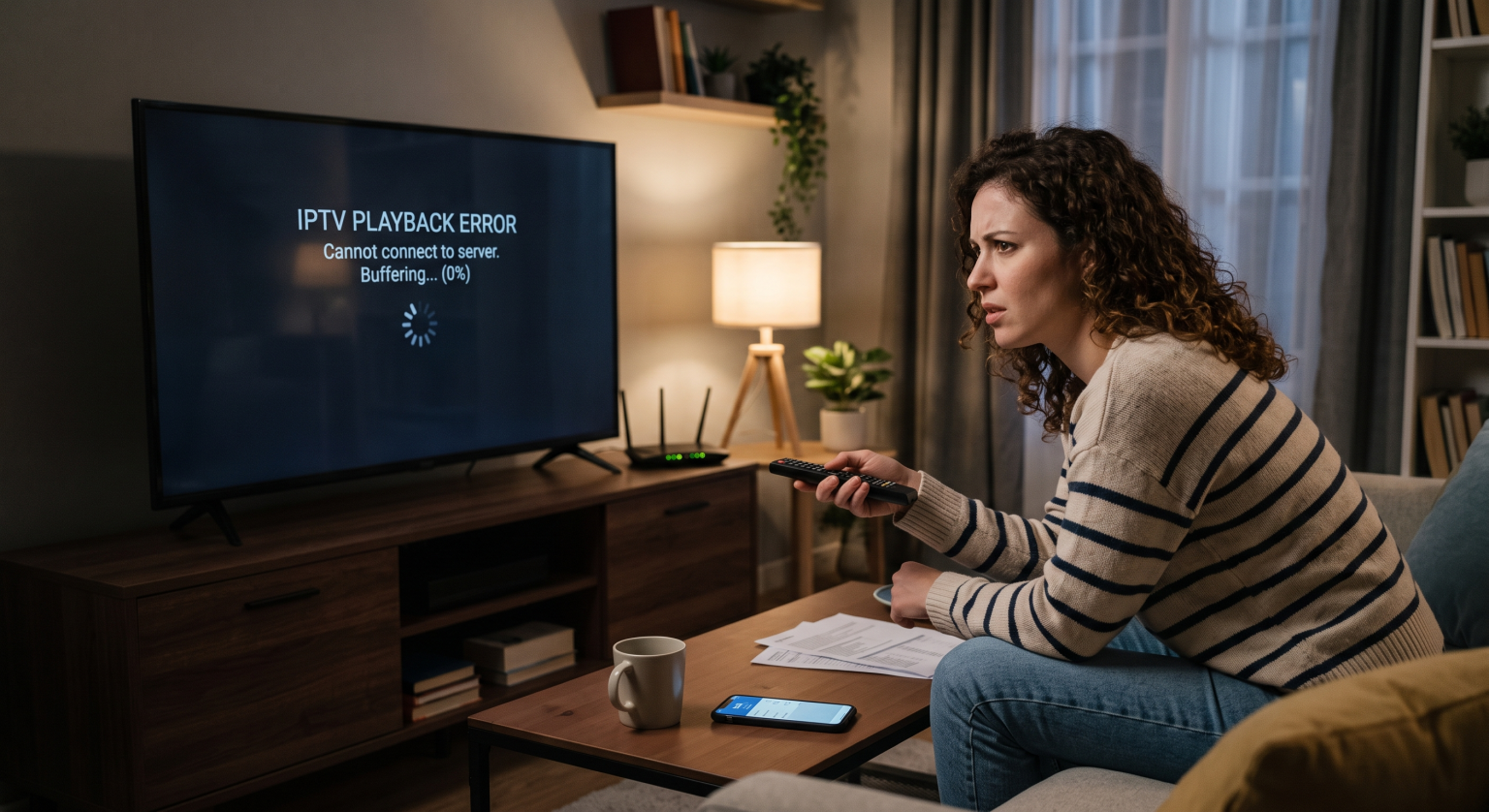
1. Konstant buffering og fastfrysning
Analysen: Buffering er den ubestridte sværvægtsmester inden for IPTV-klager. Det sker, når din streaming-app afspiller video hurtigere, end din internetforbindelse kan downloade den.
Løsningen: Giv ikke bare internethastigheden skylden. Start først med at genstarte din router. Hvis du bruger Wi-Fi, kan du prøve at flytte enheden tættere på routeren. Endnu bedre: Tilslut din streamingenhed (f.eks. din Firestick eller Android TV-boks) direkte til routeren med et ethernetkabel. Ethernet eliminerer den trådløse interferens, der forårsager pludselige forbindelsesafbrydelser.
2. Hastighedsbegrænsning hos internetudbyderen
Analysen: Tro det eller ej, men din internetudbyder (ISP) kan meget vel bevidst sænke hastigheden på din forbindelse. Mange internetudbydere overvåger din datatrafik, og når de opdager store mængder streamingdata – især fra uautoriserede eller stærkt belastede IPTV-servere – begrænser de bevidst din båndbredde.
Løsningen: Brug et pålideligt virtuelt privat netværk (VPN) (VPN). Et VPN krypterer din internettrafik, så din internetudbyder ikke kan se, hvad du laver. Hvis de ikke kan se, at du streamer IPTV, vil de ikke begrænse hastigheden på din forbindelse.
3. Sort skærm eller nedbrud under videoafspilning
Analysen: Når du klikker på en kanal, kan du høre lyden, men skærmen forbliver helt sort. Eller også går appen simpelthen ned og vender tilbage til startmenuen. Dette skyldes næsten altid en konflikt i forbindelse med hardwaredekodning. Din streaming-app forsøger at tvinge dit tv eller din set-top-boks til at behandle video i et format, som det ikke understøtter indbygget.
Løsningen: Åbn indstillingerne i din IPTV-app (f.eks. TiviMate eller IPTV Smarters) og find indstillingerne for “Afspilning” eller “Afspiller”. Find indstillingen “Decoder” og skift den fra “Hardware” til “Software” (eller omvendt). Genstart appen, så skulle videoen nu blive vist.
4. EPG’en (tv-programoversigten) kan ikke indlæses
Analysen: En elektronisk programguide (EPG) er afhængig af et XMLTV-link, som din udbyder stiller til rådighed. Når der står “Ingen oplysninger”, betyder det, at appen ikke kunne hente det seneste programoversigt fra serveren.
Løsningen: Først skal du udføre en manuel EPG-opdatering i appens indstillinger. Hvis det stadig ikke virker, skal du tjekke, om der er stavefejl i din EPG-URL. Hvis du bruger en M3U-afspilningsliste, kan udbyderen have ændret sine serverdomæner. Kontakt din udbyder for at sikre dig, at dit EPG-kildelink stadig er aktivt.
5. “Ugyldig afspilningsliste” eller fejl i M3U-linket
Analysen: Du indtaster dit Xtream Codes API- eller M3U-link og får straks en fejlmeddelelse. Det betyder som regel, at dit abonnement er udløbet, at din konto er blevet spærret, fordi du har brugt den på for mange enheder på samme tid, eller at du ganske enkelt har lavet en tastefejl.
Løsningen: Tjek dine loginoplysninger en ekstra gang. Husk, at der skelnes mellem store og små bogstaver i adgangskoder. Hvis du kopierer og indsætter, skal du sikre dig, at du ikke ved en fejl har medtaget et mellemrum i slutningen af URL’en. Hvis loginoplysningerne er korrekte, skal du tjekke din faktureringsportal for at sikre dig, at dit abonnement er aktivt.
6. Overbelastede udbyderservere
Analysen: Der opstår kun buffering under store sportsbegivenheder eller om søndag aften. Hvis dit internet er lynhurtigt, men streamingen stadig hakker, skyldes det, at IPTV-udbyderens server er overbelastet, fordi for mange brugere forsøger at se den samme kanal.
Løsningen: Du kan ikke reparere deres server, men du kan mindske belastningen. Prøv at sænke streamkvaliteten. Hvis du forsøger at se en kanal i 4K eller 1080p, skal du skifte til 720p- eller SD-versionen af den samme kanal. Det kræver mindre båndbredde fra den overbelastede server og vil som regel køre helt problemfrit.
7. Enhedens lagerplads er helt fyldt op
Analysen: Billige Android-bokse og Amazon Firesticks har meget begrænset intern lagerplads (ofte kun 8 GB). Når denne lagerplads er fyldt op, har din enhed ikke længere nogen “arbejdshukommelse” til at behandle live-videostreams. Resultatet? Hakken i navigationen og app-nedbrud.
Løsningen: Gå til din enheds app-manager og afinstaller de apps og spil, du ikke bruger. Sørg for at holde mindst 1 GB til 2 GB ledig lagerplads.
8. Beskadiget app-cache
Analysen: Når du dag efter dag indlæser tusindvis af kanaler, filmplakater og tv-programoversigter, opbygger din app en enorm mængde midlertidige filer. Med tiden kan disse filer blive beskadiget, hvilket kan føre til uforudsigelige fejl og, at appen fryser fast.
Løsningen: Gå ind i enhedens indstillinger, vælg “Apps”, vælg din IPTV-afspiller, og tryk på “Ryd cache” (tryk IKKE på »Ryd data«, medmindre du vil miste dine loginoplysninger). Genstart din enhed.
9. Begrænsninger i forbindelse med geoblokering
Analysen: Nogle IPTV-tjenester eller bestemte kanaler er regionslåste. Hvis du forsøger at se et britisk tv-program fra USA, kan serveren afvise din forbindelse på baggrund af din IP-adresse.
Løsningen: Start en VPN og opret forbindelse til en server i det land, hvor udsendelsen sendes fra. Dette får IPTV-serveren til at tro, at du er en lokal seer.
10. Forældet app eller firmware
Analysen: Streamingprotokoller ændrer sig. Hvis du bruger en IPTV-app, der ikke er blevet opdateret i tre år, mangler den muligvis den nødvendige software til at afspille moderne videokodeker.
Løsningen: Se efter opdateringer i Google Play Store eller i din enheds app-butik. Hvis du har installeret appen via sideload (f.eks. ved hjælp af Downloader-appen på Firestick), skal du gå til udviklerens officielle hjemmeside og downloade den nyeste APK-fil for at overskrive den gamle.
11. Lyd og billede er ude af synkronisering
Analysen: Det er til at blive vanvittig af at se en film, hvor læberne bevæger sig to sekunder før ordene kommer ud. Det skyldes som regel forsinkelser i lydbehandlingen i Bluetooth-soundbars eller stor serverforsinkelse.
Løsningen: De fleste IPTV-afspillere i premiumklassen har en indstilling kaldet “Audio Offset” eller “Audio Sync”. Du kan justere en skyder for at forsinke lyden eller billedet med millisekunder, indtil alt passer perfekt sammen. Alternativt kan du blot skifte kanal og gå tilbage for at tvinge streamen til at synkronisere igen.
12. Blokering via firewall eller antivirusprogram
Analysen: Hvis du ser IPTV på en PC, Mac eller et netværk med en streng router-firewall, kan systemet muligvis markere den indgående videostrøm som mistænkelig trafik og blokere portene.
Løsningen: Deaktiver midlertidigt computerens antivirusprogram eller netværksfirewall. Hvis streamingen pludselig virker, har du fundet årsagen. Du skal gå ind i dine firewall-indstillinger og sætte din specifikke IPTV-app på “hvidlisten” eller oprette en undtagelse for den.
Hurtig diagnose: Hvad forstyrrer din stream?
Hvis du vil få et hurtigt overblik over, hvad der foregår, kan du bruge denne sammenligningstabel til fejlfinding:
| Symptomet | Den sandsynlige gerningsmand | Den hurtigste løsning |
| Konstant buffering på alle kanaler | Wi-Fi-forstyrrelser / hastighedsbegrænsning fra internetudbyderen | Brug et Ethernet-kabel; aktiver en VPN. |
| Der sker kun buffering under store live-begivenheder | Overbelastede udbyderservere | Skift til en kanal med lavere opløsning (SD/720p). |
| Sort skærm, men lyden kan høres | Fejl i hardwareafkodningen | Indstil dekoderindstillingerne til “Software” i appen. |
| “Fejlmeddelelsen ”Autorisering mislykkedes« | Ugyldigt login / Abonnementet er udløbet | Kontroller endnu en gang M3U/API-adgangsoplysningerne og abonnementsstatus. |
| Appen går ned med det samme | Fuld enhedslagerplads / Beskadiget cache | Ryd app-cachen, og slet ubrugte apps på din enhed. |
| Ingen tv-programoversigt / “Ingen oplysninger” | Fejl i XMLTV-kilden | Opdater EPG’en manuelt i indstillingerne, eller kontakt din udbyder. |
Konklusionen
Når man har at gøre med en IPTV virker ikke, er den første reaktion som regel at give udbyderen skylden og kræve en refusion. Men som du kan se, skyldes langt de fleste af disse småproblemer blot problemer med det lokale netværk, enhedens hukommelse eller appindstillinger.
Inden du giver op på din tjeneste, skal du gennemgå trinene ovenfor. Ryd din cache, tilslut et ethernetkabel, juster indstillingerne på din dekoder, og aktiver et VPN. Ni ud af ti gange vil disse enkle løsninger få dig tilbage til at se serier i et væk på ingen tid. Hvis du har gennemgået denne liste, og siderne stadig ikke indlæses, er det måske endelig på tide at se sig om efter en mere pålidelig udbyder.