
Nie ma nic bardziej irytującego niż sięgnięcie po zimny napój, usiąść, by obejrzeć mecz na żywo lub ulubiony program, a potem natknąć się na krążek ładowania, czarny ekran lub kod błędu. Jeśli masz do czynienia z IPTV nie działa, nie jesteś sam. Chociaż technologia ta stanowi przełom dla osób rezygnujących z telewizji kablowej, wiąże się ona z kilkoma technicznymi dziwactwami.
A jaka jest dobra wiadomość? Zdecydowaną większość tych problemów związanych ze streamingiem można całkowicie rozwiązać samodzielnie w ciągu zaledwie kilku minut. Nie trzeba być ekspertem IT, żeby sobie z nimi poradzić.
Przyjrzyjmy się 12 najczęstszym przyczynom problemów z usługą IPTV, przeanalizujmy dokładnie, dlaczego do nich dochodzi, i omówmy konkretne kroki, które pozwolą przywrócić płynne działanie transmisji.
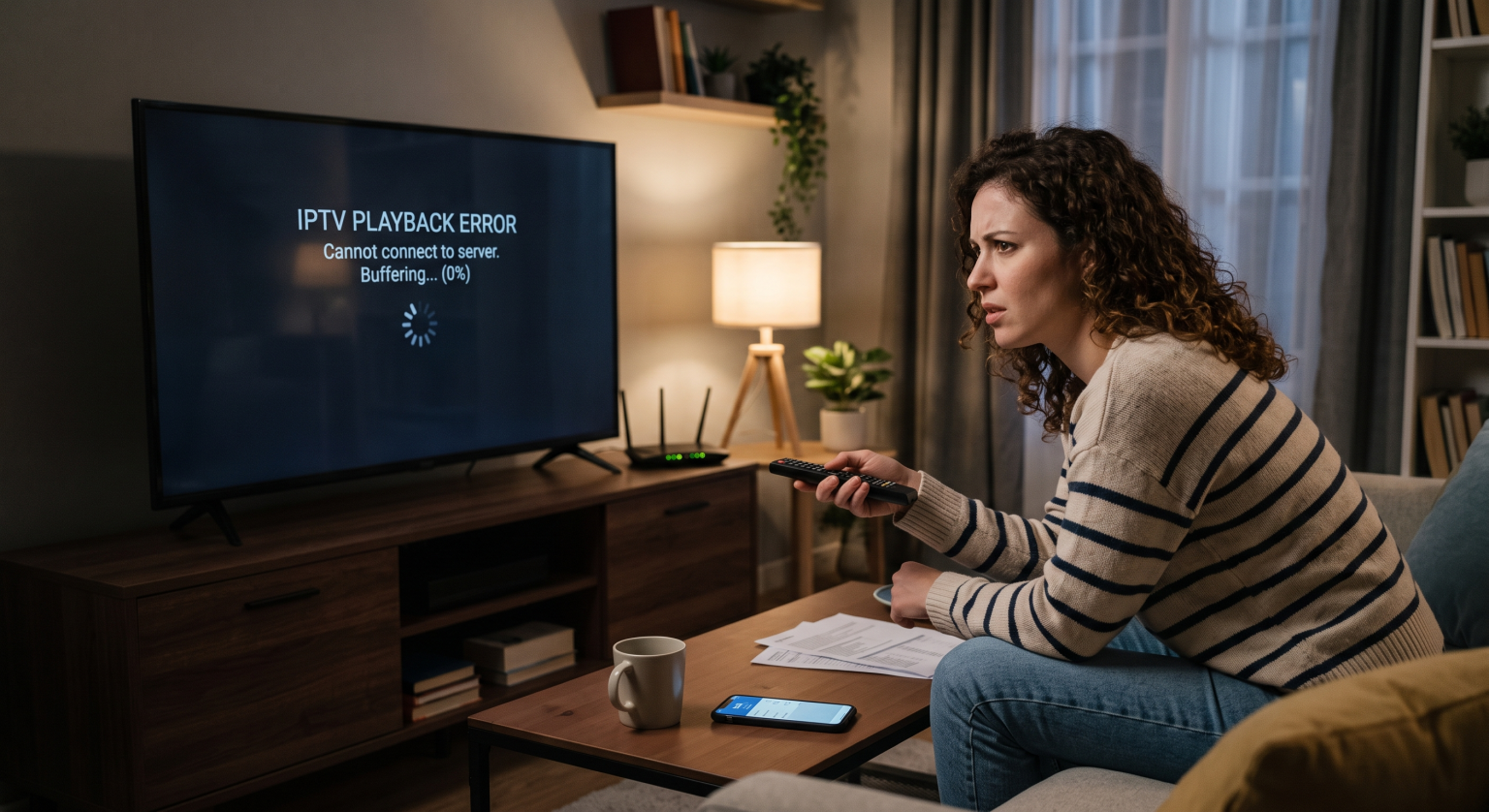
1. Ciągłe buforowanie i zawieszanie się
Analiza: Buforowanie jest niekwestionowanym mistrzem wagi ciężkiej wśród skarg dotyczących IPTV. Dzieje się tak, gdy aplikacja do strumieniowego przesyłania treści odtwarza wideo szybciej, niż pozwala na to prędkość połączenia internetowego.
Rozwiązanie: Nie obwiniaj tylko prędkości swojego internetu. Najpierw zrestartuj router. Jeśli korzystasz z Wi-Fi, spróbuj przysunąć urządzenie bliżej routera. A jeszcze lepiej – podłącz urządzenie do strumieniowego przesyłania treści (takie jak Firestick lub dekoder Android TV) bezpośrednio do routera za pomocą kabla Ethernet. Sieć Ethernet eliminuje zakłócenia bezprzewodowe, które powodują nagłe przerwy w połączeniu.
2. Ograniczanie przepustowości przez dostawców usług internetowych
Analiza: Wierzcie lub nie, ale wasz dostawca usług internetowych (ISP) może celowo spowalniać wasze połączenie. Wielu dostawców monitoruje ruch w sieci, a gdy wykryją duży przepływ danych związanych ze streamingiem – zwłaszcza z nieautoryzowanych lub mocno obciążonych serwerów IPTV – celowo ograniczają przepustowość waszego łącza.
Rozwiązanie: Skorzystaj z niezawodnej wirtualnej sieci prywatnej (VPN). Sieć VPN szyfruje ruch internetowy, dzięki czemu dostawca usług internetowych nie widzi, co robisz. Jeśli nie będzie w stanie stwierdzić, że korzystasz z serwisu IPTV, nie będzie ograniczał prędkości połączenia.
3. Czarny ekran lub awarie podczas odtwarzania wideo
Analiza: Klikasz na kanał, słychać dźwięk, ale ekran pozostaje całkowicie czarny. Albo aplikacja po prostu ulega awarii i wraca do menu głównego. Niemal zawsze jest to konflikt związany z dekodowaniem sprzętowym. Twoja aplikacja do strumieniowania próbuje zmusić telewizor lub dekoder do przetwarzania obrazu w formacie, którego nie obsługują natywnie.
Rozwiązanie: Otwórz ustawienia aplikacji IPTV (np. TiviMate lub IPTV Smarters) i znajdź ustawienia “Odtwarzanie” lub “Odtwarzacz”. Znajdź opcję “Dekoder” i zmień jej ustawienie z “Sprzętowy” na “Programowy” (lub odwrotnie). Uruchom aplikację ponownie – film powinien się wyświetlić.
4. Nie udaje się załadować EPG (przewodnika telewizyjnego)
Analiza: Elektroniczny przewodnik po programach (EPG) korzysta z linku XMLTV udostępnianego przez dostawcę usług. Komunikat “Brak informacji” oznacza, że aplikacji nie udało się pobrać najnowszego harmonogramu z serwera.
Rozwiązanie: Najpierw wymuś ręczną aktualizację EPG w ustawieniach aplikacji. Jeśli to nie pomoże, sprawdź, czy w adresie URL EPG nie ma literówek. Jeśli korzystasz z listy odtwarzania M3U, dostawca mógł zmienić domeny swoich serwerów. Skontaktuj się z dostawcą, aby upewnić się, że link do źródła EPG nadal działa.
5. “Nieprawidłowa lista odtwarzania” lub błędy związane z linkami M3U
Analiza: Wpisujesz swój link do API Xtream Codes lub link M3U i od razu pojawia się błąd. Zazwyczaj oznacza to, że Twoja subskrypcja wygasła, Twoje konto zostało zablokowane z powodu korzystania z niego na zbyt wielu urządzeniach jednocześnie lub po prostu popełniłeś błąd w pisowni.
Rozwiązanie: Sprawdź dokładnie swoje dane logowania. Pamiętaj, że w hasłach rozróżniana jest wielkość liter. Jeśli kopiujesz i wklejasz adres, upewnij się, że przypadkiem nie wstawiłeś spacji na końcu adresu URL. Jeśli dane logowania są prawidłowe, sprawdź w portalu rozliczeniowym, czy Twoja subskrypcja jest aktywna.
6. Przeciążone serwery dostawców
Analiza: Zjawisko buforowania występuje wyłącznie podczas dużych wydarzeń sportowych lub w niedzielne wieczory. Jeśli masz superszybki internet, a transmisja nadal się zacina, oznacza to, że serwer dostawcy IPTV jest przeciążony przez zbyt dużą liczbę użytkowników próbujących oglądać ten sam kanał.
Rozwiązanie: Nie możesz naprawić ich serwera, ale możesz zmniejszyć obciążenie. Spróbuj obniżyć jakość transmisji. Jeśli próbujesz oglądać kanał w rozdzielczości 4K lub 1080p, przełącz się na wersję tego samego kanału w rozdzielczości 720p lub SD. Wymaga to mniejszego przepustowości od przeciążonego serwera i zazwyczaj odtwarza się bez problemów.
7. Pamięć urządzenia jest całkowicie zapełniona
Analiza: Tanie urządzenia z systemem Android oraz Amazon Firestick mają bardzo ograniczoną pamięć wewnętrzną (często zaledwie 8 GB). Gdy ta pamięć się zapełni, urządzenie nie dysponuje pamięcią “roboczą” niezbędną do przetwarzania strumieni wideo na żywo. Efekt? Problemy z nawigacją i awarie aplikacji.
Rozwiązanie: Przejdź do menedżera aplikacji na swoim urządzeniu i odinstaluj aplikacje oraz gry, z których nie korzystasz. Postaraj się, aby co najmniej 1 GB do 2 GB miejsca na dysku pozostało całkowicie wolne.
8. Uszkodzona pamięć podręczna aplikacji
Analiza: W miarę jak dzień po dniu ładujesz tysiące kanałów, plakatów filmowych i programów telewizyjnych, Twoja aplikacja gromadzi ogromną ilość plików tymczasowych. Z czasem pliki te mogą ulec uszkodzeniu, co prowadzi do nieprzewidywalnych błędów i zawieszania się aplikacji.
Rozwiązanie: Wejdź w ustawienia urządzenia, przejdź do sekcji “Aplikacje”, wybierz swój odtwarzacz IPTV i kliknij “Wyczyść pamięć podręczną” (NIE klikaj opcji „Wyczyść dane”, chyba że chcesz utracić swoje dane logowania). Uruchom ponownie urządzenie.
9. Ograniczenia związane z blokowaniem geograficznym
Analiza: Niektóre usługi IPTV lub konkretne kanały są zablokowane regionalnie. Jeśli spróbujesz oglądać brytyjską transmisję ze Stanów Zjednoczonych, serwer może zablokować Twoje połączenie na podstawie Twojego adresu IP.
Rozwiązanie: Uruchom VPN i połącz się z serwerem w kraju, z którego pochodzi transmisja. W ten sposób serwer IPTV uznaje cię za lokalnego widza.
10. Przestarzała aplikacja lub oprogramowanie sprzętowe
Analiza: Protokoły strumieniowania ulegają zmianom. Jeśli korzystasz z aplikacji IPTV, która nie była aktualizowana od trzech lat, może jej brakować oprogramowania niezbędnego do odtwarzania nowoczesnych kodeków wideo.
Rozwiązanie: Sprawdź dostępność aktualizacji w sklepie Google Play lub w sklepie z aplikacjami na swoim urządzeniu. Jeśli zainstalowałeś aplikację z innego źródła (np. za pomocą aplikacji „Downloader” na Firesticku), wejdź na oficjalną stronę internetową twórcy i pobierz najnowszy plik APK, aby zastąpić nim stary plik.
11. Dźwięk i obraz nie są zsynchronizowane
Analiza: Oglądanie filmu, w którym usta poruszają się dwie sekundy przed wypowiedzeniem słów, doprowadza do szału. Zazwyczaj wynika to z opóźnień w przetwarzaniu dźwięku w soundbarach Bluetooth lub znacznych opóźnień na serwerze.
Rozwiązanie: Większość wysokiej klasy odtwarzaczy IPTV posiada opcję “Przesunięcie dźwięku” lub “Synchronizacja dźwięku”. Można przesunąć suwak, aby opóźnić dźwięk lub obraz o kilka milisekund, aż wszystko idealnie się zsynchronizuje. Alternatywnie, sama zmiana kanału i powrót do poprzedniego może wymusić ponowną synchronizację transmisji.
12. Blokowanie przez zaporę sieciową lub program antywirusowy
Analiza: Jeśli oglądasz IPTV na komputerze PC, Macu lub w sieci z rygorystyczną zaporą sieciową routera, system może uznać przychodzący strumień wideo za podejrzany ruch i zablokować odpowiednie porty.
Rozwiązanie: Tymczasowo wyłącz program antywirusowy lub zaporę sieciową na swoim komputerze. Jeśli transmisja nagle zacznie działać, to znaczy, że znalazłeś przyczynę problemu. Musisz przejść do ustawień zapory sieciowej i dodać daną aplikację IPTV do “białej listy” lub utworzyć dla niej wyjątek.
Szybka diagnoza: co zakłóca Twoją transmisję?
Jeśli chcesz szybko zorientować się, co się dzieje, skorzystaj z poniższej tabeli porównawczej dotyczącej rozwiązywania problemów:
| Objaw | Prawdopodobny sprawca | Najszybsze rozwiązanie |
| Ciągłe buforowanie na wszystkich kanałach | Zakłócenia sieci Wi-Fi / Ograniczanie przepustowości przez dostawcę usług internetowych | Użyj kabla Ethernet; włącz VPN. |
| Buforowanie ma miejsce wyłącznie podczas dużych wydarzeń na żywo | Przeciążone serwery dostawców | Przełącz się na kanał o niższej rozdzielczości (SD/720p). |
| Czarny ekran, ale słychać dźwięk | Błąd dekodowania sprzętowego | W aplikacji zmień ustawienia dekodera na “Oprogramowanie”. |
| “Błąd ”Nie udało się uzyskać uprawnień” | Nieprawidłowe dane logowania / Wygasła subskrypcja | Sprawdź dokładnie dane uwierzytelniające M3U/API oraz status subskrypcji. |
| Aplikacja natychmiast się zawiesza | Zapełniona pamięć urządzenia / Uszkodzona pamięć podręczna | Wyczyść pamięć podręczną aplikacji i usuń nieużywane aplikacje z urządzenia. |
| Brak programu telewizyjnego / “Brak informacji” | Błąd źródła XMLTV | Zaktualizuj EPG ręcznie w ustawieniach lub skontaktuj się z dostawcą usług. |
Podsumowanie
W przypadku IPTV nie działa, zazwyczaj odruchowo obwinia się dostawcę i domaga się zwrotu pieniędzy. Jak jednak widać, zdecydowana większość tych problemów wynika po prostu z kwestii związanych z siecią lokalną, pamięcią urządzenia lub ustawieniami aplikacji.
Zanim zrezygnujesz z usługi, wykonaj powyższe czynności. Wyczyść pamięć podręczną, podłącz kabel Ethernet, dostosuj ustawienia dekodera i włącz VPN. W dziewięciu na dziesięć przypadków zastosowanie tych prostych rozwiązań pozwoli ci w mgnieniu oka wrócić do maratonu serialowego. Jeśli wypróbowałeś już wszystkie pozycje z tej listy, a strona nadal się nie ładuje, być może nadszedł czas, aby rozejrzeć się za bardziej niezawodnym dostawcą.