
Vous vous installez confortablement pour une soirée cinéma, mais vous vous rendez compte que votre L'IPTV ne fonctionne pas sur Firestick? Vous n'êtes pas seul(e). Que vous soyez confronté(e) à un chargement interminable, à un écran noir agaçant ou à une application qui plante aussitôt, il est plus facile d'y remédier que vous ne le pensez.
Pour ceux qui ont renoncé à la télévision par câble dans le États-Unis, regarder la télévision en direct via un appareil Fire TV est désormais la norme. Cependant, la congestion du réseau, la limitation du débit par les FAI et les récentes mises à jour logicielles 2026 d'Amazon peuvent perturber votre expérience de visionnage. Si votre L'IPTV ne fonctionne pas sur Firestick Si cette erreur vous rend fou, ce guide est là pour vous aider. Découvrons ensemble 10 solutions rapides et simples pour que votre télévision en direct fonctionne à nouveau.
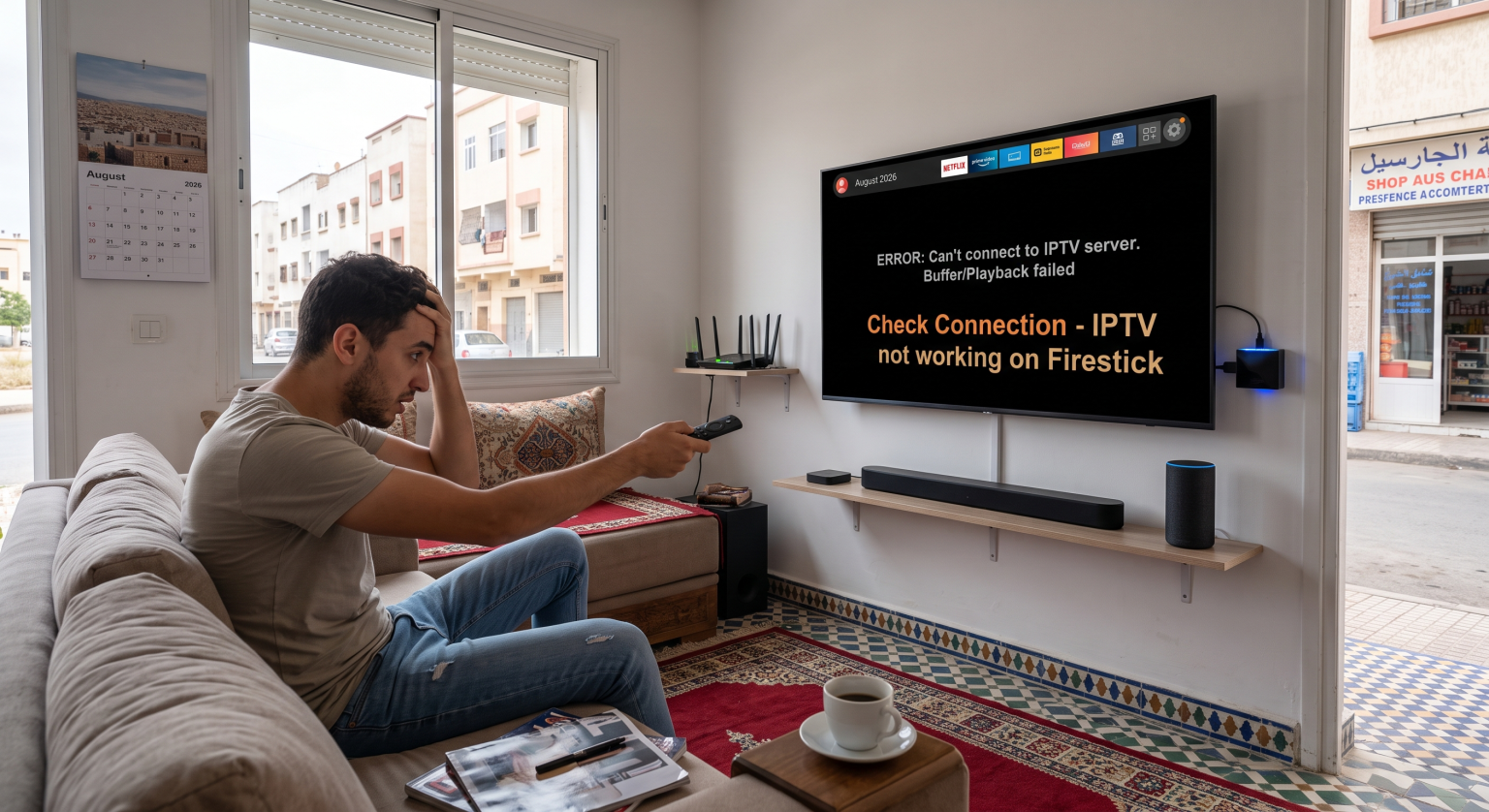
Pourquoi mon IPTV ne fonctionne-t-elle pas sur Firestick ?
Avant de lancer votre télécommande à travers la pièce, il est essentiel d’en comprendre la cause profonde. En 2026, les problèmes liés au streaming se répartissent généralement en trois catégories principales :
Problèmes de réseau : Une connexion Wi-Fi lente, une limitation de bande passante par le FAI ou une saturation du routeur.
Problèmes techniques de l'application : Fichiers de cache corrompus, logiciel de lecture obsolète ou décodeurs vidéo incompatibles.
Pannes chez les fournisseurs : Abonnements arrivés à échéance ou serveurs des fournisseurs surchargés pendant les heures de pointe en soirée.
Si plusieurs applications ne fonctionnent pas, le problème vient probablement de votre connexion Internet. Si seuls vos flux de télévision en direct ne fonctionnent pas alors que Netflix fonctionne correctement, c’est votre fournisseur d’accès ou votre application de lecture qui doit faire l’objet d’un dépannage. Voyons ensemble les meilleures façons de résoudre ce problème. L'IPTV ne fonctionne pas sur Firestick.
1. Redémarrez correctement votre appareil Fire TV
Le fait de fermer une application ne signifie pas pour autant qu'elle s'arrête réellement. Fire OS maintient les applications récentes en exécution en arrière-plan, ce qui épuise rapidement la mémoire limitée de l'appareil.
Pour redémarrer correctement votre appareil, maintenez enfoncé le bouton Boutons « Sélectionner » et « Lecture/Pause » en même temps pendant cinq secondes. Vous pouvez également débrancher le cordon d'alimentation de la prise murale pendant dix secondes, puis le rebrancher. Ce simple redémarrage permet de résoudre la grande majorité des problèmes de performances.
2. Videz le cache de votre application IPTV
Au fil du temps, votre application de streaming stocke des données temporaires qui peuvent finir par être corrompues. Un cache surchargé entraîne souvent des blocages ou l'erreur redoutée de l'écran noir.
Aller à Paramètres > Applications > Gérer les applications installées. Sélectionnez l'application de lecture de votre choix, puis cliquez sur Vider le cache. Si le problème persiste, utilisez Effacer les données, mais n'oubliez pas que vous devrez ensuite saisir à nouveau vos identifiants de connexion.
3. Vérifiez les informations relatives à votre abonnement et à votre connexion
Un abonnement arrivé à échéance ressemble souvent à une erreur technique. Il se peut que vous constatiez des listes de canaux vides, des refus de connexion ou des flux qui se ferment de manière aléatoire.
Vérifiez auprès de votre opérateur que votre forfait est bien entièrement actif. Si vous avez récemment réinstallé l'application, ressaisissez soigneusement l'URL de votre serveur, votre nom d'utilisateur et votre mot de passe. N'oubliez pas que ces champs sont strictement sensibles à la casse et qu'une seule faute de frappe empêchera votre service de fonctionner.
4. Basculer entre les décodeurs matériels et logiciels
Vous entendez le son mais l'écran reste noir ? C'est le signe classique d'une incompatibilité entre décodeurs vidéo.
Ouvrez les paramètres internes de votre application et recherchez le menu « Lecture » ou « Décodeur ». Basculer entre Décodage matériel et Décodage logiciel. Un format donne généralement de bien meilleurs résultats sur les anciens modèles de Firestick.
5. Se connecter à un réseau Wi-Fi à 5 GHz
La diffusion en direct nécessite une connexion solide et stable. La bande Wi-Fi standard de 2,4 GHz est souvent trop encombrée et trop lente pour la vidéo haute définition.
Connectez votre Firestick au routeur bande des 5 GHz pour des vitesses bien plus élevées. Pour bénéficier d'une connexion optimale, évitez complètement le Wi-Fi et utilisez un adaptateur Ethernet Amazon pour connecter votre appareil directement à votre routeur via un câble.
6. Méfiez-vous de la vague de répression contre le système d'exploitation Amazon Vega prévue en 2026
Si vous avez récemment acheté un nouvel appareil en 2026, vous pourriez être confronté aux nouvelles restrictions d'Amazon concernant le système d'exploitation. La dernière version de Vega OS bloque activement de nombreuses applications tierces installées hors des canaux officiels.
Si vous recevez un message d'erreur indiquant “ bloqué ”, vous devez utiliser un lecteur officiel disponible directement dans l'Appstore d'Amazon. Vous pouvez vérifier la version actuelle de votre logiciel sous Paramètres > Mon Fire TV > À propos.
7. Utilisez un VPN haut de gamme pour éviter la limitation du débit par votre FAI
Les fournisseurs d'accès à Internet limitent souvent la bande passante pendant les heures de pointe en soirée, ce qui entraîne d'importants ralentissements lors du visionnage en streaming. Un réseau privé virtuel (VPN) crypte vos données, masquant ainsi votre activité de streaming à votre FAI.
Activez un VPN fiable et connectez-vous à un serveur local. Cette simple étape permet souvent de contourner les limitations de vitesse artificielles et de réduire considérablement la congestion du réseau.
8. Mettre à jour le micrologiciel de votre Firestick
Amazon publie régulièrement des correctifs pour corriger des bugs et améliorer les performances. L'utilisation d'une version obsolète de Fire OS peut entraîner des conflits avec les applications de streaming plus récentes.
Accéder à Paramètres > Mon Fire TV > À propos > Rechercher une mise à jour du système. Installez toutes les mises à jour en attente afin de garantir une compatibilité optimale.
9. Actualisez votre guide électronique des programmes (EPG)
Le guide électronique des programmes (EPG) affiche les noms des chaînes et les grilles de programmes quotidiennes. Une mise à jour de l'EPG bloquée ou corrompue peut ralentir l'ensemble de l'interface ou entraîner l'affichage d'une liste de chaînes vide.
Recherchez le menu « EPG » dans les paramètres de votre lecteur, puis cliquez sur Mise à jour ou Actualiser. Si le guide se bloque régulièrement, désactivez la fonction “ Mise à jour automatique ” et actualisez-le manuellement une fois par semaine.
10. Réinstallez votre application de lecture IPTV
Si tout le reste échoue et que votre L'IPTV ne fonctionne pas sur Firestick Si l'erreur persiste, une réinstallation complète est la dernière solution.
Supprimez complètement l'application corrompue via le menu « Gérer les applications installées ». Téléchargez une version récente et à jour depuis l'App Store ou l'application « Downloader » afin d'éliminer tout dysfonctionnement logiciel profondément ancré.
Comparatif des meilleures applications de streaming pour Fire TV
Parfois, la meilleure solution pour L'IPTV ne fonctionne pas sur Firestick Il suffit simplement de mettre à jour votre logiciel de lecture. Vous trouverez ci-dessous une comparaison de trois lecteurs populaires à envisager en 2026 :
| Fonctionnalité | TiviMate | IPTV Smarters Pro | XCIPTV |
| Interface utilisateur | Haut de gamme, qualité comparable à celle du câble | Standard, à base de tuiles | Moderne, rapide |
| Amazon Appstore | Téléchargement externe uniquement | Oui (cela varie selon les régions) | Oui |
| Plusieurs listes de lecture | Oui (fonctionnalité Premium) | Oui | Oui |
| Idéal pour | Utilisateurs avancés | Débutants | Appareils d'entrée de gamme |
Prêt à résoudre vos problèmes de streaming sur Fire TV aux États-Unis ?
Il n'y a rien de pire que de s'installer pour regarder un film et de constater que votre L'IPTV ne fonctionne pas sur Firestick. En redémarrant votre appareil, en vidant votre cache et en vous assurant que votre connexion Wi-Fi fonctionne de manière optimale, vous pouvez éliminer la plupart de ces interruptions gênantes. En tant que spectateur dans le États-Unis, vous disposez de nombreuses options pour personnaliser et protéger votre installation sans câble.
Ne laissez pas les limitations imposées par votre FAI ou les restrictions régionales gâcher votre expérience de visionnage. Abonnez-vous dès aujourd'hui à un VPN premium pour sécuriser votre connexion, mettre fin aux temps de chargement interminables et profiter d'un streaming fluide !
Ajoutez ici le texte de votre titre
Pourquoi mon Firestick IPTV est-il sans cesse en mode « buffering » ?
La mise en mémoire tampon est généralement due à une connexion Internet lente, à une limitation du débit par le FAI ou à une surcharge des serveurs du fournisseur d'accès. Pour résoudre ce problème, redémarrez votre routeur, passez à une connexion Wi-Fi en 5 GHz ou utilisez un VPN fiable pour contourner les restrictions réseau.
Comment vider le cache de mon application IPTV ?
Accédez à l'écran d'accueil de votre Fire TV, puis cliquez sur Paramètres. Accédez à Applications, puis Gérer les applications installées. Recherchez votre lecteur de streaming, cliquez dessus, puis sélectionnez Vider le cache.
Amazon peut-il bloquer mon application IPTV en 2026 ?
Oui. Avec le lancement du système d'exploitation Vega d'Amazon en 2026, les nouveaux appareils Fire TV limitent l'accès à de nombreuses applications installées de manière non autorisée. Si votre application est bloquée, utilisez une alternative fiable disponible sur l'Appstore officiel d'Amazon.