
Als je je al een tijdje verdiept in de wereld van internetprotocoltelevisie, is het je waarschijnlijk opgevallen dat het vinden van een betrouwbare streaming-app net zo frustrerend kan zijn als het vinden van een goede aanbieder. Apps blijven hangen, de interfaces zien eruit alsof ze in 2005 zijn ontworpen, of ze crashen zomaar midden in een livewedstrijd.
Enter SET IPTV. De afgelopen jaren is deze app stilletjes uitgegroeid tot een favoriet onder gebruikers van smart-tv’s en Android-toestellen. Maar wat maakt deze app nu precies zo bijzonder, en nog belangrijker: hoe krijg je je zenders er eigenlijk op aan de praat?
Laten we eens bekijken wat je allemaal moet weten over SET IPTV, van de opvallende functies tot een stapsgewijze installatiehandleiding met behulp van M3U-links en Xtream-codes.
Wat is SET IPTV? (Een korte disclaimer)
Voordat we ons in de technische details storten, willen we eerst de grootste misvatting uit de weg ruimen: SET IPTV bevat geen inhoud. Het is gewoon een mediaspeler.
Zie het maar als het kopen van een lege dvd-speler; je moet nog steeds je eigen dvd’s meenemen. In dit geval moet je zelf zorgen voor IPTV-abonnement (die meestal de vorm aanneemt van een M3U-afspeellijst of de Xtream Codes API). De app zorgt ervoor dat je live-tv-zenders, films en VOD (Video on Demand) in een overzichtelijke, gebruiksvriendelijke interface.
Waarom kiezen voor SET IPTV? (Belangrijkste kenmerken)
Er zijn tientallen IPTV-spelers op de markt (zoals TiviMate, Smart IPTV en IPTV Smarters). Waarom zou je je dan nog met deze bezighouden?
Eersteklas EPG-ondersteuning: De elektronische programmagids (EPG) werkt echt goed en synchroniseert soepel. Je weet precies wat er op dit moment wordt uitgezonden en wat er straks komt, zonder grote vertraging.
Integratie van Xtream Codes: Hoewel het standaard M3U Het sluit perfect aan en ondersteunt bovendien Xtream Codes, een veel snellere en veiligere manier om in te loggen op je IPTV-abonnement.
Overzichtelijke interface: De lay-out is zeer visueel. Je live-tv, VOD en series zijn onderverdeeld in aparte, overzichtelijke categorieën.
Snelheid: Het wisselen van kanaal (zappen) gaat ongelooflijk snel, mits je internetverbinding en IPTV-server goed genoeg zijn.
Compatibiliteit met apparaten
SET IPTV is zeer veelzijdig, maar richt zich vooral op de markt voor smart-tv’s. Je kunt de app rechtstreeks installeren vanuit de officiële app-winkels op:
Samsung Smart-tv's (Tizen OS)
LG Smart-tv’s (WebOS)
Android TV en Android-boxen (Nvidia Shield, Xiaomi Mi Box, enz.)
Amazon Firestick (Moet via de Downloader-app worden geïnstalleerd, aangezien de app niet altijd standaard in de Amazon Store beschikbaar is).
Prijzen: Gratis proefperiode versus activering
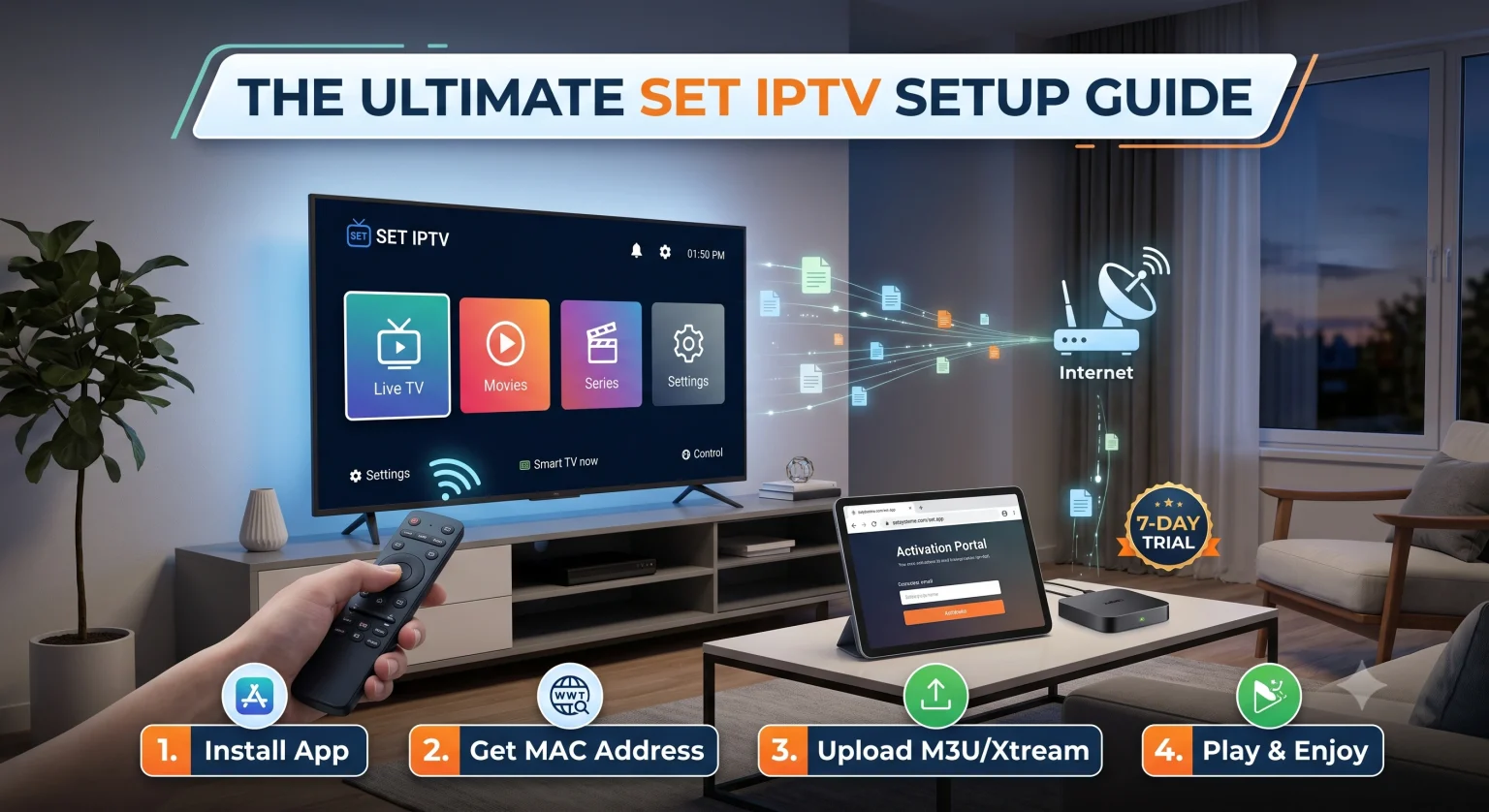
Je hoeft niet zomaar te betalen. Wanneer je de app voor het eerst installeert, krijg je een 7 dagen gratis proefperiode. Gebruik deze week om je afspeellijst te vullen, de interface te testen en te kijken of deze je omvangrijke VOD-bibliotheken aankan zonder vertragingen.
Zodra de 7 dagen voorbij zijn, vraagt de app om een eenmalige activeringskosten van ongeveer € 14,99 (gekoppeld aan het MAC-adres van je apparaat). Er zijn geen maandelijkse kosten voor de app zelf: je betaalt één keer en dan is hij voor altijd van jou op die specifieke tv.
Hoe stel je SET IPTV in (stapsgewijze handleiding)
Het instellen van de app duurt ongeveer drie minuten, zodra je je abonnementsgegevens bij de hand hebt.
Stap 1: Installeer de app
Ga naar de app store van je tv, zoek naar “SET IPTV” en klik op ‘Downloaden’.
Stap 2: Zoek je MAC-adres op
Start de app. Direct op het startscherm zie je een code van 12 tekens met het opschrift MAC-adres (het ziet er ongeveer zo uit als 00:1A:2B:3C:4D:5E). Schrijf dit op. Dit is de unieke digitale vingerafdruk van je tv, en je hebt deze nodig om je afspeellijst te koppelen.
Stap 3: Ga naar het activeringsportaal
Pak je telefoon of laptop en open een webbrowser. Ga naar het officiële ontwikkelaarsportaal: setsysteme.com/set.app (hier koppel je je afspeellijst aan je tv).
Stap 4: Je afspeellijst uploaden
Op de website vind je twee belangrijke manieren om je kanalen te uploaden.
Methode A (M3U-link): Voer het MAC-adres van je tv in het eerste veld in, plak je lange M3U-URL in het tweede veld, vink het captcha-vakje “Ik ben geen robot” aan en klik op ‘Verzenden’.
Methode B (Xtream Codes): (Sterk aanbevolen). Kies de optie ‘Xtream-codes portal’. Voer je MAC-adres in, gevolgd door de server-URL, gebruikersnaam en het wachtwoord die je van je IPTV-provider hebt ontvangen. Klik op ‘Verzenden’.
Stap 5: Start de app opnieuw op
Ga terug naar je tv, sluit de SET IPTV-app volledig af en open deze opnieuw. Je zenders, films en series worden nu automatisch geladen.
Problemen oplossen
Zelfs de beste installaties kunnen wel eens haperen. Hieronder lees je hoe je de meest voorkomende problemen kunt oplossen:
1. Foutmelding “Afspeellijst niet gevonden” Als je je M3U-link hebt geüpload maar er wordt niets op de tv weergegeven, is de link van je provider mogelijk defect of geografisch geblokkeerd. Test exact dezelfde link op je telefoon (met een app zoals VLC of IPTV Smarters) om te zien of deze daar wel werkt. Als dat niet het geval is, neem dan contact op met je provider.
2. Kanalen worden gebufferd Het bufferen is zelden de schuld van de app. In 90% van de gevallen ligt het aan je internetsnelheid of aan een overbelaste IPTV-server. Sluit je smart-tv rechtstreeks via een ethernetkabel aan op je router, in plaats van gebruik te maken van wifi.
3. Ik heb een nieuwe tv gekocht. Kan ik mijn licentie overzetten? Helaas niet. De activeringskosten van € 14,99 zijn permanent gekoppeld aan het MAC-adres van het apparaat waarop je de licentie hebt geactiveerd. Als je een nieuwe tv koopt, moet je een nieuwe licentie aanschaffen voor dat specifieke MAC-adres.
Het oordeel
Als je een Android Box gebruikt, geef je misschien toch de voorkeur aan TiviMate. Maar als je een Samsung- of LG-smart-tv Hoewel de keuze aan apps sterk beperkt is, is SET IPTV ongetwijfeld een van de meest stabiele en gebruiksvriendelijke spelers die momenteel op de markt te vinden zijn. Dankzij de proefperiode van 7 dagen loop je helemaal geen risico, dus vul je afspeellijst maar vol en kijk hoe het je sportstreams in het weekend aankan.