
Sitter du og stirrer på en Hvit skjerm i IPTV-appen akkurat når favorittkampen eller -serien din er i ferd med å starte? Du er ikke alene. Over hele USA opplever tusenvis av «cord-cutters» denne frustrerende, tomme skjermen når de prøver å streame.
Den gode nyheten er at du ikke trenger å være noen teknikexpert for å løse problemet. Uansett om du bruker en Firestick, Android TV eller en mobilenhet, vil denne veiledningen få kanalene dine til å fungere problemfritt igjen.
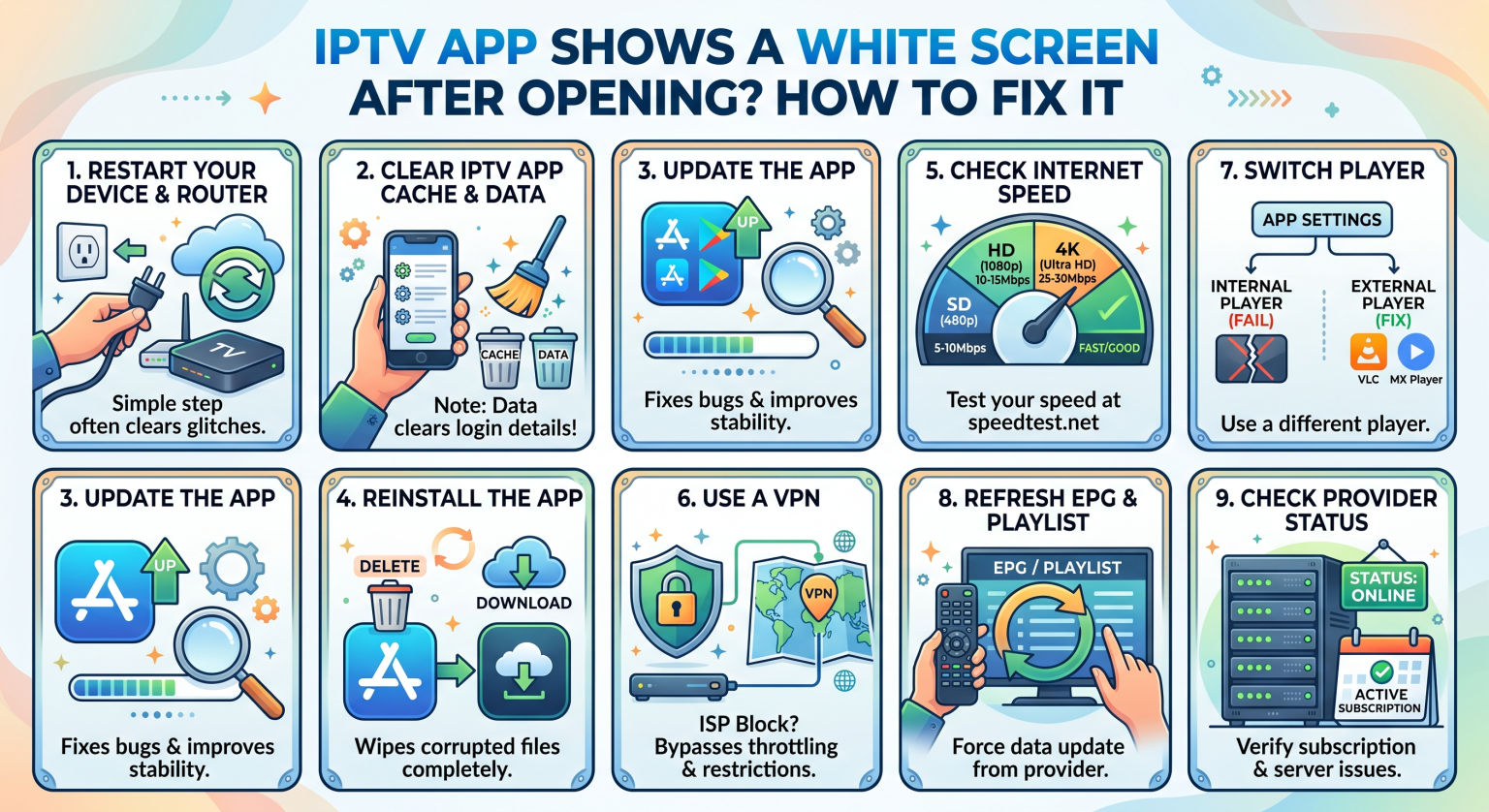
Hvorfor du får en hvit skjerm i IPTV-appen på amerikanske nettverk
En tom eller hvit skjerm tyder vanligvis på en feil i måten appen behandler videodata på eller kobler seg til serveren. For mange seere i USA begrenser internettleverandørene (ISP-er) aktivt stor strømmetrafikk, noe som fører til at spilleren fryser ved oppstart.
Andre vanlige årsaker er blant annet:
Korrupte app-cachefiler: Midlertidige filer hoper seg opp over tid og forstyrrer programmets oppstartssekvens.
Feil i kodeker: Den innebygde spilleren på enheten din har problemer med å avkode videoformatet, noe som fører til at skjermen forblir svart.
Serveroverbelastning: Det er for mange brukere som kobler seg til samtidig i den amerikanske prime time-perioden.
Trinn 1: Tøm applikasjonsbufferen
Den absolutt raskeste måten å bli kvitt en Hvit skjerm i IPTV-appen er å tømme det midlertidige minnet. Over tid kan uønskede filer ødelegge programvaren og føre til at den fryser.
Gå til enhetens Innstillinger og velg Søknader.
Finn strømmeappen din (for eksempel IPTV Smarters eller TiviMate).
Klikk Tøm hurtigbufferen og så Tving stopp.
Viktig: Ikke klikk på “Tøm data” med mindre du er helt klar til å skrive inn påloggingsopplysningene og spilleliste-URL-ene på nytt.
Trinn 2: Juster innstillingene for maskinvareakselerasjon
Hvis appens grensesnitt lastes inn, men videostrømmen bare viser en tom skjerm, har du sannsynligvis en avkodingsfeil.
Åpne de interne innstillingene i IPTV-spilleren din.
Gå til Spillerinnstillinger eller Avspilling.
Bytt fra Maskinvaredekoder (HW) til Programvaredekoder (SW), eller merk av for “OpenGL”-alternativene hvis de er tilgjengelige.
Start videoen på nytt etter at du har tatt i bruk disse endringene. Dette tvinger appen til å behandle strømmen på en annen måte, slik at enhetsspesifikke maskinvarefeil omgås.
Trinn 3: Omgå nettleverandørens hastighetsbegrensning med et VPN
Store amerikanske internettleverandører overvåker og begrenser ofte IPTV-tilkoblinger med høy båndbredde. Denne nettverksforstyrrelsen blokkerer serverens oppkoblingsprosess, noe som fører til at det vises en hvit skjerm eller en lasteskjerm.
Aktivering av et premiumabonnement VPN skjuler strømmetrafikken din. Den hindrer aktivt internettleverandøren din i å redusere hastigheten på strømmen din og oppretter en stabil, sikker forbindelse direkte til IPTV-leverandørens server.
De beste eksterne mediespillerne for å unngå tomme skjermer
Noen ganger er den innebygde standardspilleren rett og slett ikke i stand til å håndtere bestemte strømningskodeker. Å bytte til et dedikert eksternt program er en svært effektiv løsning på problemet med Hvit skjerm i IPTV-appen.
| Mediaspiller | Støtte for maskinvaredekoding | Best egnet for | Kodek-kompatibilitet |
| Innebygd avspiller | Standard | Raske oppsett og enkle strømminger | Moderat |
| VLC Media Player | Avansert | Løse problemer med synkronisering av lyd og bilde og tomme skjermer | Svært høy |
| MX Player Pro | Avansert (tilpasset) | Eldre enheter sliter med 4K-innhold | Ekstremt høy |
Er du klar til å nyte problemfri strømming i USA?
Ikke la en Hvit skjerm i IPTV-appen ødelegge helgens underholdning. Ved å tømme hurtigbufferen, justere innstillingene på dekoderen og bruke en ekstern avspiller, kan du unngå disse irriterende feilene en gang for alle.
Vil du sikre nettforbindelsen din og få slutt på nettleverandørens hastighetsbegrensning en gang for alle? 👉 [Klikk her for å skaffe deg vår best rangerte VPN for amerikanske strømmetjenestebrukere med en eksklusiv 60%-rabatt i dag!]
Ofte stilte spørsmål (Andre spør også om)
Hvorfor viser IPTV Smarters en tom skjerm?
En tom skjerm i IPTV Smarters betyr vanligvis at appen har gått tom for minne, at den innebygde mediespilleren ikke klarte å avkode videoen, eller at internettforbindelsen din ble brutt. Å tømme hurtigbufferen og bytte til en ekstern avspiller som VLC løser vanligvis dette problemet.
Løser det problemet med den hvite skjermen hvis man avinstallerer appen?
Ja, hvis det ikke lykkes å tømme hurtigbufferen, vil en ny installasjon slette sterkt ødelagte kjernefiler. Sørg alltid for å starte enheten på nytt før du installerer den nyeste versjonen av appen fra den offisielle butikken.
Kan et VPN løse strømningsfeil på Firestick?
Absolutt. Et VPN hindrer internettleverandøren din i å redusere hastigheten på tilkoblingen din i rushtiden, slik at enheten din kommuniserer problemfritt med strømmeserverne.