
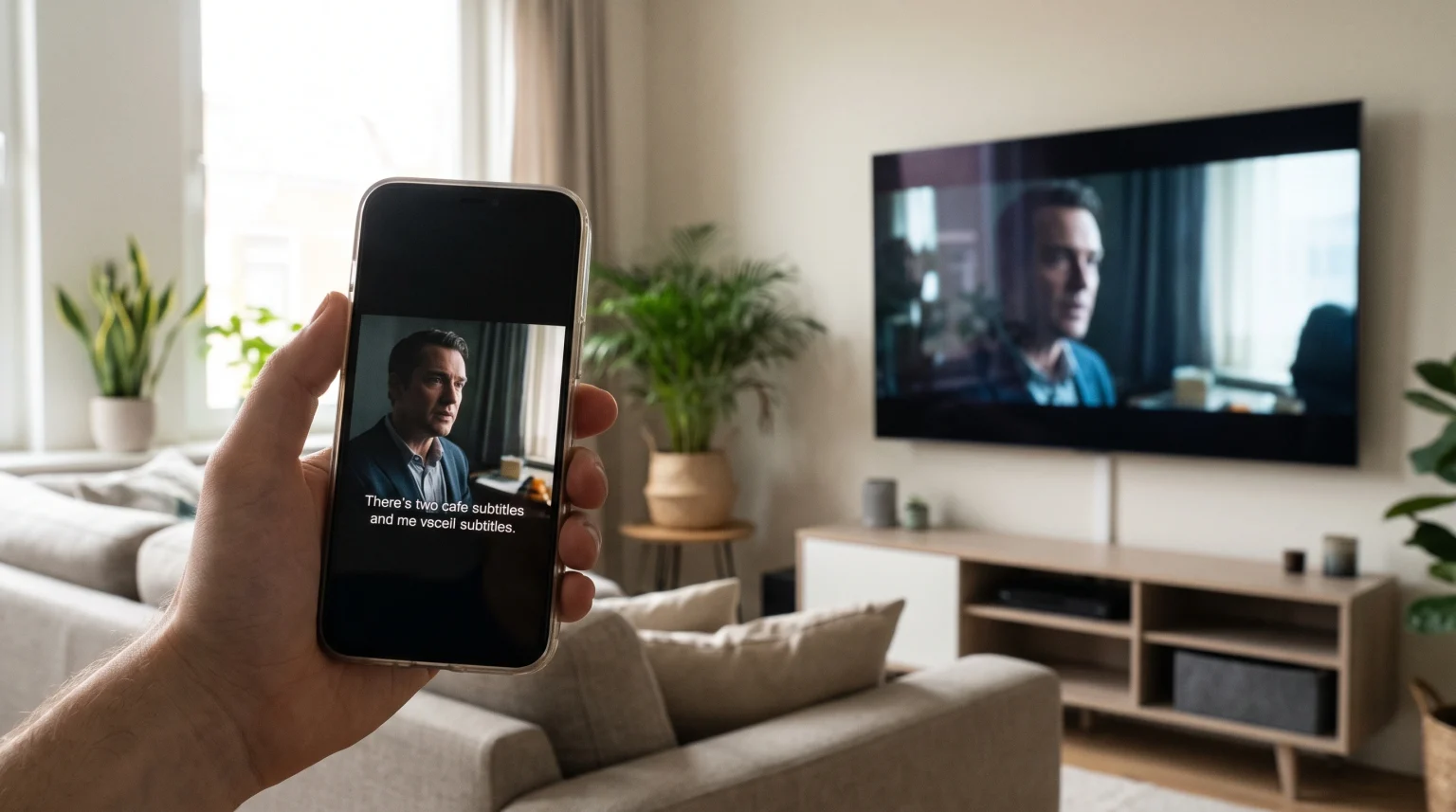
Many IPTV users experience a specific technical problem. Subtitles display perfectly on a mobile phone or tablet, but the same subtitles do not appear on a Smart TV. This happens even when you use the same IPTV service and the same video stream.
The cause of this problem is usually the media player software inside the television. Mobile devices and Smart TVs process video data differently. Mobile applications often use internal software to decode video and text. Smart TVs normally use built-in hardware decoders to process video. These hardware decoders do not always understand all subtitle formats.
This guide explains why this problem occurs and provides practical steps to fix it. By adjusting your application settings or changing your media player, you can make subtitles work correctly on your Smart TV.
Krótka odpowiedź
If you have the problem of IPTV subtitles not working Smart TV, the issue is usually the media player engine inside the Smart TV application. Mobile phones have broad software support for subtitle formats like SRT and VTT. Smart TVs often lack this built-in support. To fix this, open your IPTV application settings on the Smart TV. Look for the “Media Player” or “Playback Engine” option. Change the player from “Hardware” (or default) to “Software” (or VLC/ExoPlayer). This simple change forces the application to process the subtitles correctly.
Why Subtitles Fail on Smart TVs
To understand how to fix the problem, you must understand how devices read video streams.
An IPTV stream contains three main parts: video, audio, and sometimes text subtitles. When you select a channel or a movie, the device must process all three parts at the same time.
Different Media Players
Your mobile phone has a powerful central processor. Most mobile IPTV applications use a software media player. This software player can easily read many different subtitle files.
A Smart TV operates differently. To save power and keep the interface fast, a Smart TV uses a special hardware chip to decode video. The IPTV application on the television often sends the video stream directly to this hardware chip. If the hardware chip does not recognize the specific subtitle format, the television will only play the video and the audio. The subtitles will fail to load.
If you want to know more about how television operating systems manage these tasks, our guide to Najlepszy system operacyjny dla telewizorów Smart TV do obsługi IPTV w 2026 r.: Tizen kontra Google TV kontra webOS explains the technical differences between major brands.
Subtitle Format Compatibility
Subtitles come in many different digital formats. The most common formats in IPTV streams are:
SRT (SubRip Subtitle): A very simple text format.
VTT (Web Video Text Tracks): A modern text format used often for internet video.
DVB Subtitles: An image-based subtitle format used in live television broadcasting.
Embedded Closed Captions (EIA-608): Text data hidden inside the video signal.
Mobile applications usually support all these formats. Smart TV operating systems, such as Samsung Tizen or LG webOS, sometimes block or ignore embedded SRT or VTT files within live streams.
How to Fix Subtitles on Your Smart TV
You can usually fix this problem without buying new equipment. Follow these steps to restore subtitles on your Smart TV.
1. Change the Media Player Engine
This is the most successful solution. Most high-quality IPTV applications allow you to change the internal media player.
Open your IPTV application on the Smart TV.
Przejdź do Ustawienia menu.
Look for a section called Gracz, Odtwarzanie, albo Media Engine.
You will usually see options like “Hardware”, “Software”, “VLC”, or “ExoPlayer”.
Zmień ustawienie na Oprogramowanie, VLC, albo ExoPlayer.
Restart the application and test the video again.
The VLC or ExoPlayer options use software decoding. This bypasses the television’s hardware chip and allows the application to read the subtitle text directly.
2. Check the Subtitle Settings
Sometimes the media player engine is correct, but the subtitles are simply turned off in the application menus.
Play a movie or a television show.
Press the “OK” or “Enter” button on your television remote control to open the playback menu.
Look for a subtitle icon. This icon often looks like a small text box or the letters “CC”.
Select the icon and verify that a subtitle language is selected.
If you see multiple tracks for the same language, try each track. Sometimes the first track is empty.
3. Update the Smart TV and IPTV App
Old software can cause subtitle errors. Television manufacturers regularly release software updates to improve video playback compatibility.
Check the system settings on your Smart TV to ensure you have the latest operating system version. You should also open the television app store and verify that your IPTV application is fully updated. If you use a Samsung device, you can read more about application compatibility in our article: Czy system Samsung Tizen sprawdzi się w IPTV w 2026 roku?.
Comparison: Subtitle Support Across Devices
This table shows the general differences in subtitle processing between mobile devices and Smart TVs.
| Funkcja | Mobile Devices (iOS/Android) | Smart TVs (Tizen/webOS) |
| Default decoding method | Software decoding | Hardware decoding |
| SRT/VTT format support | Bardzo wysoki | Od umiarkowanego do niskiego |
| DVB (Live TV) subtitle support | Wysoki | Variable (depends on app) |
| Ability to change player engine | Very common | Common in premium apps |
| User effort required | Usually none | Often requires manual settings |
Using TV Shadow IPTV for the Best Experience
Gdy korzystasz z TV Shadow IPTV, you receive high-quality streams. However, the display of subtitles always depends on the specific application you choose to install on your device.
We recommend using IPTV player applications that offer advanced media engine settings. Applications that include the VLC media engine or ExoPlayer engine provide the best compatibility for subtitles, electronic program guides (EPG), and multiple audio tracks. TV Shadow IPTV delivers the subtitle data perfectly; your chosen application just needs the correct settings to display it.
If your subtitles appear fuzzy or pixelated after you fix them, the issue might be related to how your television processes the image. You can learn more about image clarity in our article explaining Dlaczego obraz z IPTV jest rozmyty na nowym telewizorze 4K?.
Subtitles During Live Football and Sports
Subtitles operate differently during live sports broadcasts. When you watch live football, the broadcasters do not use separate SRT text files. Instead, they use embedded closed captions or DVB subtitles.
These live subtitles must synchronize perfectly with the fast action on the screen. Because live sports streams require maximum processing power for motion handling and high refresh rates, some television hardware decoders will drop the subtitle data to maintain a smooth video frame rate.
If you need subtitles while watching live football, changing your IPTV application to a “Software” media player is essential. This ensures the television processes both the fast-moving video and the live text data simultaneously without dropping the text.
Wnioski
The problem of IPTV subtitles not working Smart TV is very common but easy to solve. The difference in performance between mobile phones and Smart televisions is caused by how each device decodes video streams. By navigating to the settings menu of your Smart TV IPTV application and changing the media player engine from hardware to software, you can restore subtitle functionality in minutes. Always ensure your television operating system and your applications are fully updated for the most stable viewing experience.
Najczęściej zadawane pytania
Why do subtitles work on my Android phone but not on my Samsung Smart TV?
Your Android phone uses a software media player that reads all subtitle formats easily. Your Samsung Smart TV uses a hardware decoder that may not recognize the specific subtitle format in the stream. Changing the player engine in your TV application settings will usually fix this.
Can I download subtitles manually to my Smart TV?
This depends on the IPTV application. A few advanced applications allow you to search online and download external subtitle files directly to the TV. However, most basic Smart TV applications do not support this feature.
What is the best media player setting for IPTV subtitles?
The “VLC” or “Software” media player setting is almost always the best choice for subtitles. These engines are designed to read complex text formats that standard television hardware ignores.