
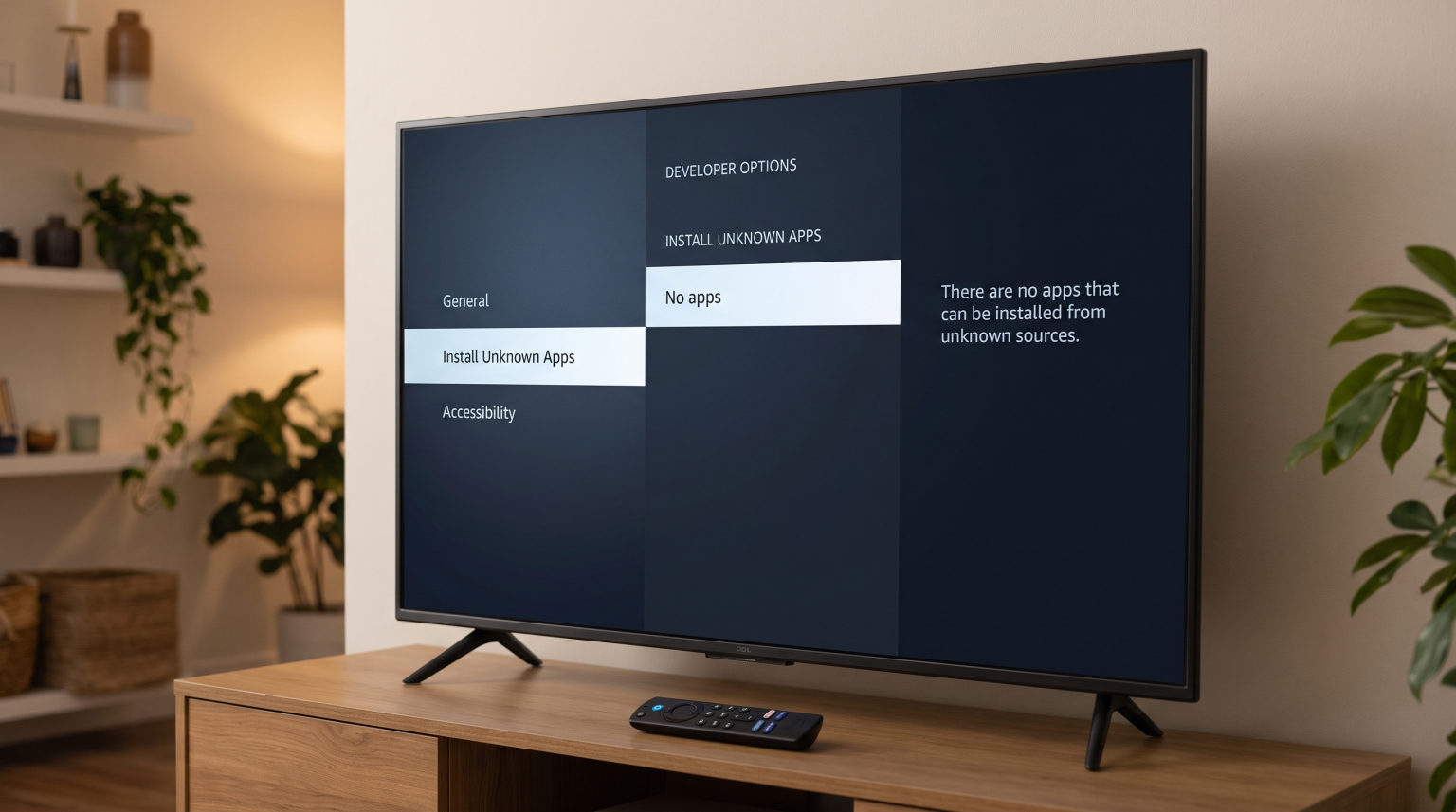
Many Amazon Fire TV users experience a problem where the “Install Unknown Apps” list is completely empty. This issue prevents users from installing third-party applications. Amazon changed the Fire OS interface in recent software updates. The system no longer uses a single master switch for unknown applications. Instead, Fire OS requires users to grant installation permission to specific apps, such as the Downloader app.
If the permission list is empty, you cannot authorize any application to install third-party software. This problem usually happens because Amazon hides the Developer Options menu by default on new Fire TV devices. It can also happen if the downloading application has not requested permission from the operating system yet. This guide explains the exact causes of this problem and provides clear steps to fix the empty list on your Fire TV device.
Quick Answer
The Fire TV install unknown apps empty error usually happens because Developer Options are hidden, or the downloading app has not requested permission yet. To fix this, open the Fire TV Settings and go to My Fire TV. Select About, then click your device name seven times to reveal Developer Options. Next, download and open your preferred downloader application so the app registers on the system. Finally, return to the Install Unknown Apps menu. The application will now appear on the list.
Why is the Install Unknown Apps List Empty?
The empty list problem occurs for three main reasons on Amazon Fire OS.
Hidden Developer Options
Amazon hides the Developer Options menu on modern Fire TV devices. If you do not activate this menu first, the system will not populate the Install Unknown Apps list correctly.
The App Has Not Triggered the Request
Fire OS uses a dynamic permission system. The system will not add an application to the Install Unknown Apps list until that specific application attempts to download a file. If you install a downloading app but never open the app, the list will remain empty.
Software Glitches
Sometimes, the Fire TV operating system experiences a temporary memory error. This glitch prevents the settings menu from displaying the registered applications.
How to Fix the Empty List on Fire TV
Follow these exact steps to populate the empty list and allow third-party app installations.
Step 1: Reveal Developer Options
You must unhide the developer settings first.
Go to the Fire TV home screen.
Select the Settings icon (the gear symbol).
Select My Fire TV.
Select About.
Highlight the first item on the list (your device name, such as Fire TV Stick 4K).
Press the Select button on your remote control exactly seven times.
A message will appear saying: “No need, you are already a developer.”
Step 2: Trigger the Application
You must force the downloading application to register with the operating system.
Go to the Amazon Appstore.
Download a file management application (such as Downloader).
Open the application.
Allow any standard storage permissions the application asks for.
Close the application.
Step 3: Grant the Permission
Now you can return to the settings menu to grant the installation permission.
Go to Settings.
Select My Fire TV.
Select Developer Options.
Select Install Unknown Apps.
You will now see your downloading application on the list.
Click the application to change the status from OFF to ON.
Troubleshooting Summary Table
| Problem | Cause | Solution |
| Developer Options missing | Amazon hides the menu by default | Click the device name 7 times in the About menu |
| Menu says ON but app fails | Temporary Fire OS glitch | Restart the Fire TV device from the settings menu |
| List remains totally empty | App has not requested access | Open the downloading app before checking the list |
| Storage error appears | Device has no remaining space | Delete unused apps to free internal storage |
Using IPTV Players on Fire TV
Fire TV devices are very popular for IPTV services. Once you fix the empty list error, you can install various third-party IPTV players. These players require an active subscription to function.
When choosing an IPTV application, look for software that supports M3U playlists and Xtream Codes. A good IPTV player should also process Electronic Program Guide (EPG) data quickly. The Fire TV remote control works well with most modern IPTV interfaces. However, television operating systems manage memory differently. If you are comparing devices, our guide to Best Smart TV OS for IPTV in 2026 explains the differences between Android-based systems, Tizen, and webOS.
Always ensure your Fire TV has at least 1GB of free storage space. IPTV applications need internal storage to download and display the EPG data correctly.
Watching Live Football on Fire TV
Many users watch live football through streaming applications on Fire TV devices. Sports streaming requires consistent hardware performance and a stable internet connection.
For the best live football experience, connect your Fire TV device to your internet router using an Ethernet cable. An Ethernet connection provides better stability than a Wi-Fi connection. Football broadcasts contain fast camera movements. If your internet connection drops data packets, the football will look blurry or the video will pause.
The television screen also affects the picture quality during live football. Fire TV devices output the video signal, but the television must process the motion. If you notice motion problems, you can read our guide explaining Why Does IPTV Look Blurry on a New 4K TV?] for hardware troubleshooting tips.
Conclusion
The Fire TV install unknown apps empty problem is easy to fix. The issue occurs because Amazon updated the Fire OS interface to hide developer settings for security reasons. By clicking your device name seven times in the About menu, you can reveal the necessary options. Remember to open your downloading application at least once so it registers with the system. Once the application appears on the list, you can grant the permission and install your preferred software, including players for TV Shadow IPTV.
Frequently Asked Questions
Why did Amazon hide the Developer Options menu?
Amazon hid the Developer Options menu to prevent inexperienced users from changing critical system settings by accident. Hiding the menu is a standard security practice on Android-based operating systems.
Why does my downloading app still not appear after revealing Developer Options?
The app will not appear if it has never been opened. You must open the downloading application at least one time so the app can register its permission request with Fire OS.
Does this fix apply to Fire TV Cube and Fire TV Stick?
Yes. This solution applies to all modern Amazon Fire TV devices, including the Fire TV Stick, Fire TV Cube, and televisions with built-in Fire OS.