
Many users connect a USB drive to their television to record live broadcasts. Often, the IPTV player displays an error message. The screen may say the application cannot access the USB storage. This prevents the user from recording shows or pausing live video.
This error happens for two main reasons. First, the USB drive uses the wrong file format. Second, the television operating system blocks the application from writing data to the external drive.
This guide explains how to fix the IPTV USB storage permission error. You will learn how to format your USB drive correctly. You will also learn how to change the storage permissions on your Smart TV or streaming device. These steps will help you record content on TV Shadow IPTV and other platforms smoothly.
Quick Answer
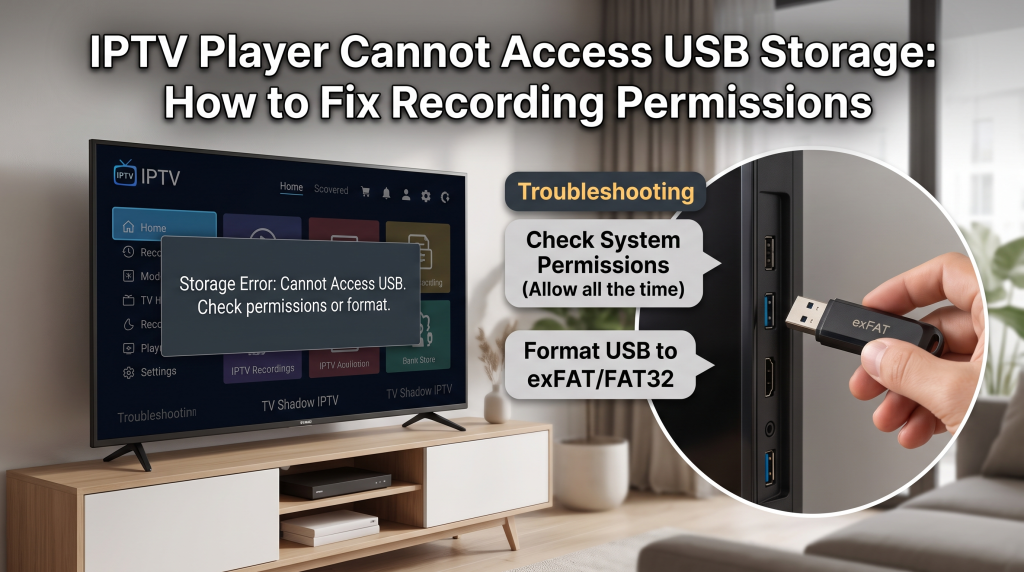
To fix the IPTV USB storage permission error, you must verify the USB drive format and the device permissions. First, format your USB drive to FAT32 or exFAT. Most Smart TVs do not support NTFS. Second, open your television settings. Navigate to the application permissions menu. Find your IPTV player and grant the application full permission to read and write files. If you use Android 11 or a newer version, you must use the System Picker option inside the IPTV application to select the correct recording folder.
Common Causes of USB Storage Errors
When an IPTV application fails to record video, the problem is usually related to software rules.
Incorrect File System Format
Every USB drive has a specific file system. The file system controls how data is saved. Windows computers often format USB drives using the NTFS file system. However, many Smart TVs and streaming devices cannot read NTFS drives. If the television cannot read the drive, the IPTV application cannot save the recording.
Android Scoped Storage Rules
Google changed how storage works in recent Android versions. Devices with Android 11 or Google TV use a system called Scoped Storage. Scoped Storage stops applications from accessing the entire USB drive automatically. The user must manually grant the application permission to use a specific folder.
Hardware Connection Problems
Sometimes the problem is physical. The USB port on the television may not provide enough power for a large external hard drive. Flash drives require less power than external hard drives. A loose connection can also cause a write error during recording.
How to Format Your USB Drive Correctly
The first step is to format your USB drive. Formatting will erase all data on the USB drive. You must save important files to a computer before you format the drive.
Connect the USB drive to a computer. Choose the correct file format based on your television operating system.
| File System Format | Compatibility | Maximum File Size | Best Use Case |
| FAT32 | Very high | 4 Gigabytes | Older Smart TVs and small flash drives |
| exFAT | High | Practically unlimited | Modern Android TVs and recording long broadcasts |
| NTFS | Low | Practically unlimited | Windows computers (Avoid for Smart TVs) |
FAT32 vs exFAT
FAT32 works on almost all devices. However, FAT32 has a strict file size limit. A single video file cannot be larger than 4 Gigabytes. A high-definition football match will easily exceed 4 Gigabytes. The recording will stop automatically when the file reaches this limit.
For modern recording, exFAT is the better choice. Most new devices support exFAT. This format allows the IPTV application to save very large video files.
Fixing Android TV and Google TV Permissions
If you use an Android TV or a device with Google TV, you must check the system permissions. The application needs explicit permission to access the connected storage.
Follow these steps to grant the correct IPTV USB storage permission:
Connect the formatted USB drive to the television.
Open the main Settings menu on the Android TV or Google TV.
Select Apps.
Select See all apps.
Find and select your IPTV player from the list.
Select Permissions.
Select Storage or Files and media.
Change the setting to Allow all the time or Allow management of all files.
If you want to compare different operating systems for streaming, our guide to the Best Smart TV OS for IPTV in 2026: Tizen vs Google TV vs webOS] explains the differences between Tizen, Google TV and webOS.
How to Set Up Recording in IPTV Apps
After you grant the device permission, you must configure the IPTV application. The application needs to know exactly where to save the video files.
Many popular applications require the user to select a folder manually.
Open the IPTV application.
Open the application settings menu.
Find the Recording or DVR section.
Look for the option to set the recording path or recording folder.
Choose the System Picker option if it is available.
The television will open a system menu. Select the connected USB drive.
Create a new folder named “Recordings”.
Select this folder and grant the final access request.
Smart TV Operating Systems and USB Recording
Not all Smart TVs allow USB recording for third-party applications. The operating system determines what the IPTV application can do.
Google TV and Android TV
These operating systems offer the best support for USB recording. Applications can request storage access easily. Users can connect large external drives and format them as device storage. If you want to know more about Sony devices that use Google TV, read our article asking Is Sony BRAVIA Good for IPTV in 2026?].
Samsung Tizen
Samsung Tizen is a closed operating system. Tizen restricts how third-party applications use USB ports. Many IPTV applications on the Samsung store do not have a recording feature. The Tizen operating system often reserves the USB recording function for the official Samsung live television tuner.
LG webOS
LG webOS operates similarly to Samsung Tizen. The system limits external storage access for unofficial applications. Users can play local video files from a USB drive, but recording live IPTV streams directly to a USB drive is very difficult on standard webOS televisions.
Recording Live Football on TV Shadow IPTV
Recording live football requires special attention. Football broadcasts contain fast motion and high-quality video data.
A standard 90-minute football match in 4K resolution requires a large amount of storage space. You must use an exFAT formatted USB drive to avoid the 4 Gigabyte file limit.
The write speed of the USB drive is also important. If the USB drive is very slow, the recording will fail or the video will stutter. You should use a modern USB 3.0 flash drive. Connect the flash drive directly to a blue USB 3.0 port on your television or streaming device.
For the best live football experience, the television hardware is also important. If you are comparing different televisions for sports, our comparison of Samsung vs LG Smart TV for IPTV: Tizen vs webOS provides more hardware details.
Conclusion
Fixing the IPTV USB storage permission error is a straightforward process. You must ensure the hardware and the software communicate correctly. First, format the USB drive to exFAT using a computer. Second, connect the drive to the television and use the device settings menu to grant full storage permissions to the application. Finally, use the application settings to select the correct recording folder. Devices running Android TV or Google TV provide the easiest method for recording broadcasts. By following these steps, you can successfully save live events and football matches while using TV Shadow IPTV.
Frequently Asked Questions (FAQ)
Why does my IPTV app say "Cannot access storage"?
The application does not have permission from the television operating system to read the USB drive. You must open the television settings and grant the storage permission to the application.
What is the best USB format for IPTV recording?
The exFAT format is the best choice for modern devices. The exFAT format allows the application to save large video files without the 4 Gigabyte limit of FAT32.
Why does my recording stop after a few minutes?
If your USB drive uses the FAT32 format, the recording will stop when the video file reaches 4 Gigabytes. You must reformat the drive to exFAT to record longer videos.
Can I record IPTV on a Samsung Smart TV?
Recording IPTV directly to a USB drive is very difficult on Samsung Tizen. The Samsung operating system usually restricts the recording feature to the official antenna television tuner.
Do I need a special USB drive for recording?
You do not need a special brand. However, you should use a USB 3.0 flash drive. A USB 3.0 drive writes data fast enough to record high-definition live television smoothly.