
If you own an Amazon Fire TV Stick, you already have one of the best streaming devices on the market. But if you’re still paying for traditional cable, you aren’t using it to its full potential.
Millions of users are switching to Internet Protocol Television (IPTV) to access live TV, on-demand movies, and global sports without the rigid contracts and high monthly costs. However, because the setup process involves a few steps outside the standard Amazon Appstore, it can feel a bit intimidating at first.
Here is exactly how to navigate the world of IPTV for Firestick from choosing the right player to getting your channels loaded and running flawlessly.
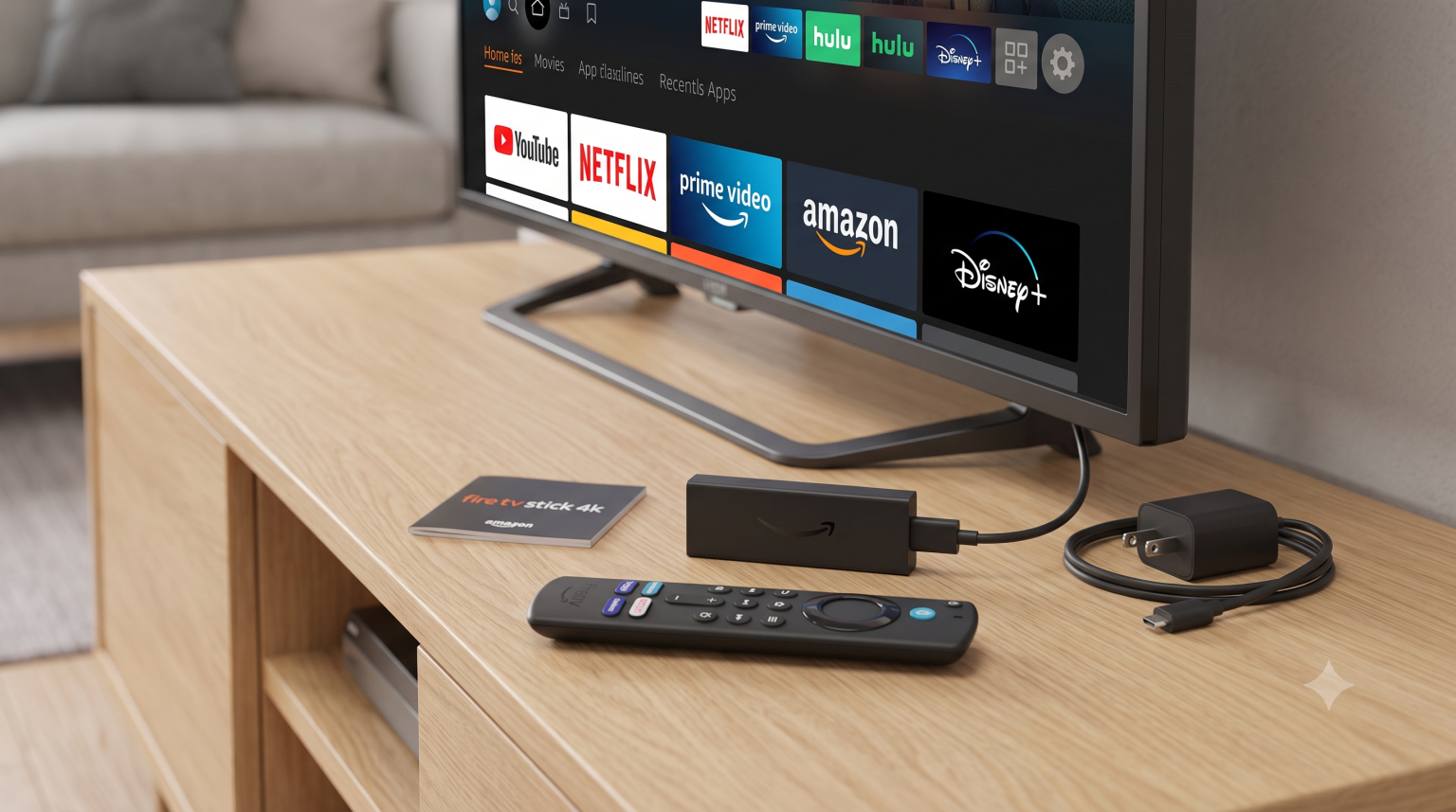
Why the Firestick Dominates IPTV
The reason the Fire TV Stick is the go-to device for IPTV setups comes down to its operating system. Because it runs on a modified version of Android, it allows users to easily “sideload” applications that aren’t officially listed in the Amazon ecosystem.
Combined with its low price point and portability, it’s basically built for internet-based streaming.
The Best IPTV Apps for Firestick
It is important to understand that an IPTV service and an IPTV player are two different things. The service is what you subscribe to (they provide the channels). The player is the app you install on your Firestick to actually watch those channels.
Here are the top apps worth your time:
TiviMate: Widely considered the absolute best overall player. It offers a premium, cable-like interface, handles massive channel playlists without lagging, and features an excellent Electronic Program Guide (EPG).
IPTV Smarters Pro: The best choice for beginners seeking the easiest setup. Its interface is heavily categorized into Live TV, Movies, and Series, making it incredibly simple to navigate.
Max Player: A great lightweight option if you are running an older, slower generation of the Firestick.
How to Setup IPTV on Firestick
Because top-tier IPTV players like TiviMate and Smarters Pro are often not available directly in the standard app store, you will need to use a tool called Downloader to get them. Here is the step-by-step process.
1.Enable Developer Options :Allows third-party app installation.
From your Firestick home screen, navigate to Settings (the gear icon) > My Fire TV. Scroll down and select Developer Options. Turn on Apps from Unknown Sources. (Note: If you don’t see Developer Options, click on “About,” then click on your Fire TV Stick’s name 7 times to unhide the menu).
2.Install the Downloader App :
Return to the home screen, click the search icon, and type Downloader. Find the orange Downloader app and install it. This app acts as a basic web browser that lets you pull files directly onto your device.
3.Download Your IPTV Player :
Open Downloader and enter the direct URL or shortcode for the APK file of your chosen player (e.g., TiviMate). Once the file downloads, an on-screen prompt will appear—click Install.
4.Enter Your Credentials :Xtream Codes API is the easiest method.
Launch your newly installed IPTV player. Most modern apps offer a Login with Xtream Codes API option. Select this, and enter the details provided by your IPTV subscription: your Username, Password, and the Server URL. Be careful with typos here, especially in the URL!
5.Load the Guide (EPG) :
After clicking login, give the app a minute to download the channel list and TV guide (EPG). Once the live TV dashboard populates, your setup is complete.
Pro Tips for a Buffer-Free Experience
Having thousands of channels doesn’t mean much if the stream constantly freezes. To keep your viewing smooth, optimize your Firestick environment:
Check your internet speed: IPTV requires a highly stable connection. For smooth HD streaming, you need a bare minimum of 10-15 Mbps. If you want to stream in 4K, aim for at least 25 Mbps.
Switch to 5GHz Wi-Fi: If your home router is dual-band, make sure your Firestick is connected to the 5GHz network rather than the 2.4GHz one. It handles the heavy, sustained bandwidth of live video much better.
Clear your cache: If your player app starts feeling sluggish or channels are taking too long to load, navigate to Settings > Applications > Manage Installed Applications. Select your IPTV app and click Clear Cache to free up memory.