
If you’ve recently decided to cut the cord, you already know that your smart-tv is capable of a lot more than just Netflix and YouTube. Watching IPTV (Internet Protocol Television) directly on your television without an external Android box or Firestick is entirely possible, especially if you own a Samsung of LG.
Because Samsung uses the Tizen operating system and LG uses WebOS, they don’t support standard Android apps (APK files). This confuses a lot of new users who try to download Android-specific players. However, both brands have excellent built-in app stores with dedicated IPTV players that make loading your M3U-afspeellijsten incredibly easy.
Here is a complete breakdown of the best IPTV apps for Samsung and LG TVs, along with the exact steps to get your subscription up and running in minutes.
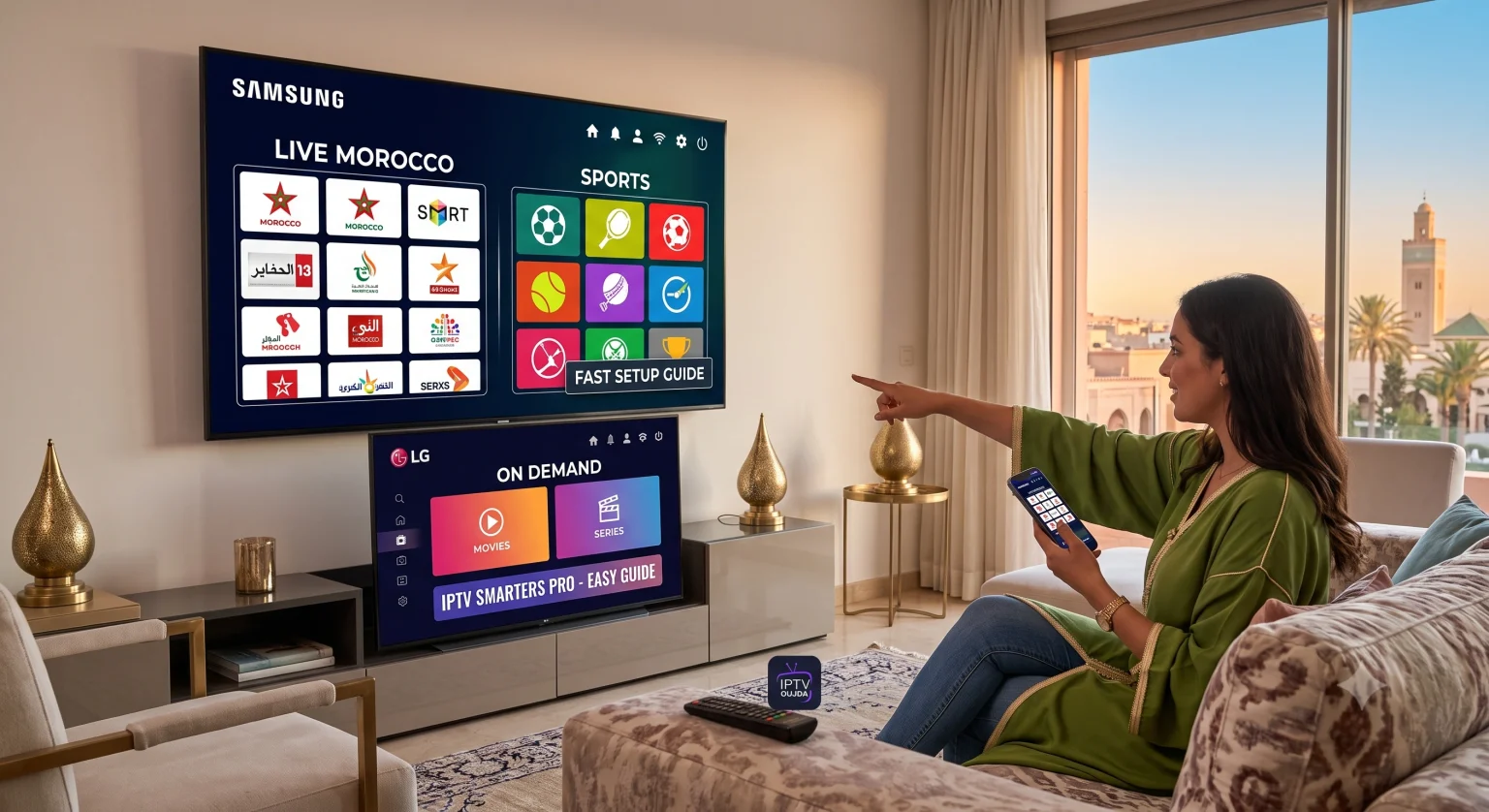
The Best IPTV Apps for Samsung and LG
When searching the LG Content Store or Samsung Smart Hub, you’ll see dozens of player apps. Most of them do the exact same thing: they act as an empty media player to read the M3U link your IPTV provider gave you.
Here are the top three apps that are consistently reliable, receive regular updates, and handle large playlists without crashing:
1. IPTV Smarters Pro
This is arguably the most popular IPTV player globally. It’s completely free to download on both Samsung and LG TVs.
Why it’s great: It supports the Xtream Codes API (which means you just enter a username, password, and portal URL instead of a massive M3U link). The interface is highly organized, separating Live TV, Movies, and Series into distinct, easy-to-navigate categories.
Availability: Free on both LG Content Store and Samsung Smart Hub.
2. Smart IPTV (SIPTV)
If you’ve been in the IPTV space for a while, you know this app. It has a slightly older, more basic interface, but it is incredibly lightweight and fast—perfect for older television models that might lag with heavier apps.
Why it’s great: It loads massive playlists incredibly fast and rarely buffers if your connection is stable.
Availability: You get a 7-day free trial. After that, it requires a one-time activation fee of about €5.49 per TV (tied to your TV’s MAC address).
3. IBO Player
A newer entry that has quickly become a favorite for WebOS and Tizen users because of its sleek, modern user interface.
Why it’s great: It handles EPGs (Electronic Program Guides) much better than many older apps, meaning your TV guide will actually show what’s playing accurately.
Availability: Usually comes with a 7-day trial, followed by a small one-time activation fee.
Step-by-Step Setup Guide (How to Load Your Playlist)
Because you are using a TV remote, typing out a massive M3U URL on the screen is frustrating and prone to errors. Almost all modern IPTV apps use a “Remote Upload” system.
Here is the universal method for getting your channels onto your TV:
Step 1: Download the App and Find Your MAC Address
Turn on your TV, connect to the internet, and open your respective app store (Samsung Smart Hub or LG Content Store).
Search for your chosen app (e.g., Slimme IPTV of IBO Speler) and install it.
Open the app. Right on the main screen, it will display a MAC-adres (a 12-character code that looks like
a1:b2:c3:d4:e5:f6). Write this down.
Step 2: Upload Your Playlist via Phone or Computer
Grab your smartphone or laptop and open a web browser.
Go to the app’s official website (the URL will be displayed on your TV screen next to the MAC address).
Look for the “Upload Playlist” of “My List” section.
Enter your TV’s MAC address in the designated field.
Paste the M3U-link provided by your IPTV service into the URL field. (If you are using IPTV Smarters, you can often just log in directly on the TV using the Xtream Codes login).
Klik Verzenden of Uploaden.
Step 3: Restart and Watch
Once the website confirms the playlist was added successfully, simply restart the app on your TV (or press the ‘Reload’ button on your remote, usually the ‘0’ key depending on the app). Your channels, movies, and VODs will now populate the screen.
Quick Troubleshooting: How to Stop Buffering
Even with the best IPTV service, you might experience occasional buffering. If your streams are freezing on your Samsung or LG TV, check these three things before blaming your provider:
Laat de wifi maar zitten: Smart TV Wi-Fi receivers are notoriously weak. If your router is nearby, plug an Ethernet cable directly into the back of your TV. This solves 90% of buffering issues instantly.
Check your ISP throttling: Some Internet Service Providers block or throttle IPTV servers during peak hours (especially during major sports events). If your TV buffers but the same playlist works perfectly on your phone using mobile data, your ISP is the culprit. You may need to look into configuring a VPN on your home router.
Clear the TV cache: TVs run out of memory just like phones. Unplug your TV from the wall for two minutes, then plug it back in. This clears the temporary cache and gives the operating system a fresh start.