
Je gaat lekker zitten om je favoriete livewedstrijd of -serie te kijken, streamt de beelden van je telefoon naar je smart-tv, en binnen vijf minuten loopt het scherm vast of valt het helemaal uit. Als je IPTV-uitzendingen worden stopgezet Als dit tijdens het afspelen herhaaldelijk gebeurt, heb je te maken met een veelvoorkomende onderbreking van het afspelen die wordt veroorzaakt door het energiebeheer van het apparaat, een onstabiel netwerk of protocolbeperkingen.
In deze handleiding wordt precies uitgelegd waarom de stream van je telefoon naar je smart-tv onderbreekt en hoe je ervoor kunt zorgen dat je ononderbroken kunt kijken.
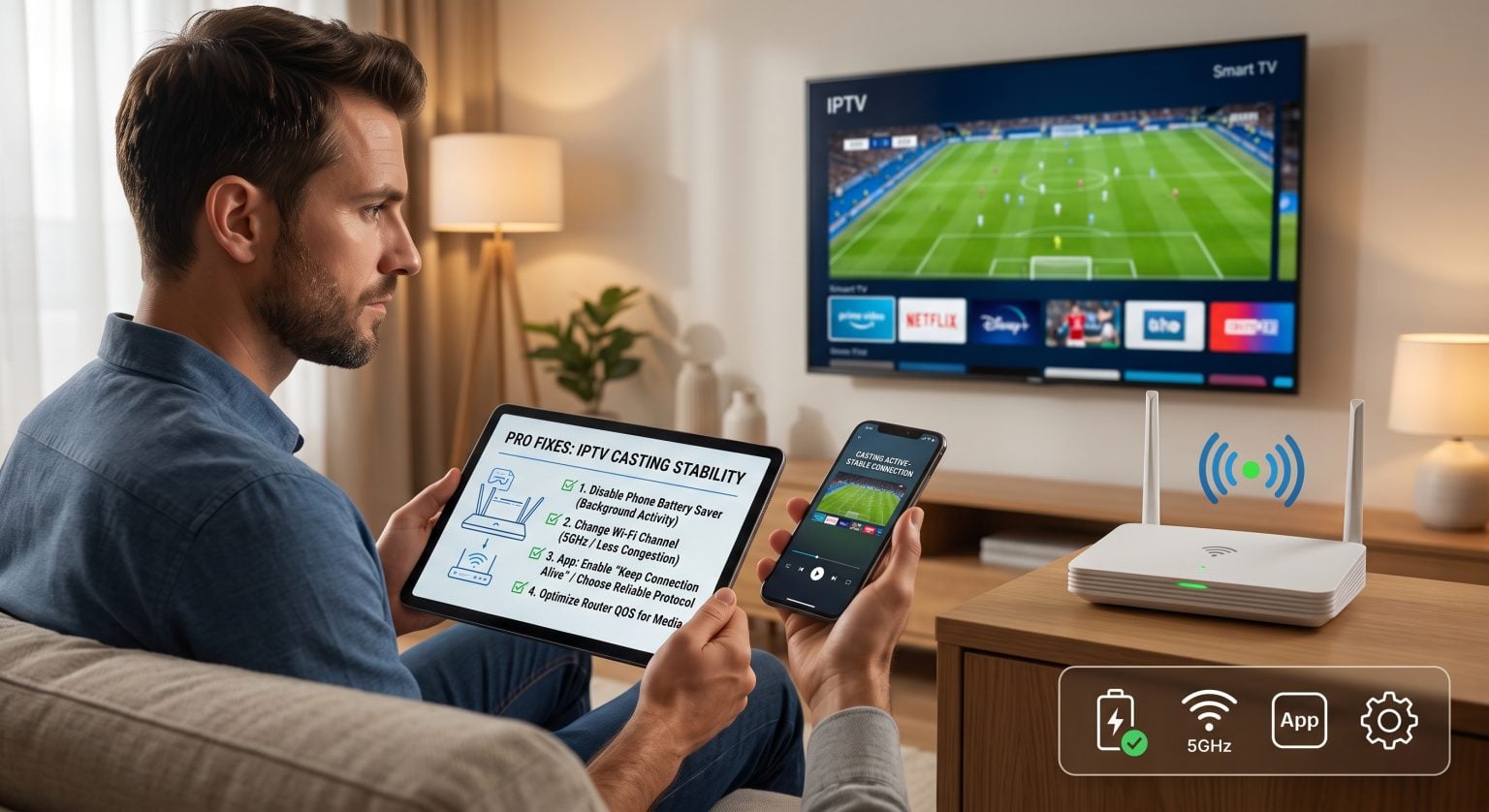
Waarom je IPTV-uitzending na een paar minuten stopt
Wanneer je een IPTV-stream cast, communiceren je telefoon en tv via protocollen zoals Google Cast, Apple AirPlay of DLNA. De onderbreking is meestal terug te voeren op vier belangrijke oorzaken:
Agressieve batterijoptimalisatie: Mobiele besturingssystemen zetten achtergrondapps in de slaapstand om de batterij te sparen, waardoor de verbinding met het lokale netwerk wordt verbroken.
Niet-overeenkomende Wi-Fi-banden: De smartphone maakt gebruik van de 5 GHz-band, terwijl de tv of streamingdongle verbinding maakt via 2,4 GHz.
Architectuur van de IPTV-app: Sommige apps leiden de stream actief via de hardware van de telefoon, in plaats van de media-URL rechtstreeks door te sturen naar de tv-ontvanger.
Beperking van de bandbreedte door internetproviders en het wegvallen van pakketten: Het streamen van live IPTV-protocollen (zoals HLS of MPEG-TS) zonder lokale buffermarges leidt bij een klein pakketverlies tot een onmiddellijke onderbreking van de stream.
4 beproefde oplossingen wanneer het streamen via IPTV niet meer werkt
1. Schakel ‘Agressieve batterijoptimalisatie’ uit
Zowel Android als iOS beperken netwerkactiviteit op de achtergrond aanzienlijk zodra je scherm wordt vergrendeld.
Op Android: Ga naar Instellingen > Apps, kies je IPTV-speler, tik op Accu, en wijzig de instelling naar Zonder beperkingen.
Op iOS: Open Instellingen > Algemeen > App-vernieuwing op de achtergrond en ervoor zorgen dat deze ingeschakeld blijft Op voor je streaming-app.
2. Standaardiseer je wifi-frequentiebanden
Dual-band-routers voor thuisgebruik wijzen vaak aparte SSID’s toe of scheiden apparaten tussen de verschillende frequenties. Als je mobiele apparaat tijdens het streamen schakelt tussen 2,4 GHz en 5 GHz, wordt de verbinding verbroken.
Open de instellingen van je router en schakel het volgende uit: AP-isolatie (Access Point Isolation), en zorg ervoor dat zowel je mobiele telefoon als je tv verbinding maken met hetzelfde speciale 5 GHz-netwerk.
3. Schakel over van ‘Screen Mirroring’ naar ‘Native Casting’
Voor schermspiegeling (AirPlay Mirroring of Smart View) moet de grafische chip van je telefoon het scherm continu coderen. Als het scherm in de slaapstand gaat, wordt de stream onderbroken. Gebruik de cast-pictogrammen in de app (Chromecast of DLNA) in plaats van schermspiegeling op volledig scherm, zodat je scherm in de slaapstand kan gaan zonder dat het afspelen wordt onderbroken.
4. De lengte van de streambuffer vergroten
Voor live IPTV-streams is een stabiele pakketstroom vereist. Open de geavanceerde instellingen van je mobiele speler en verhoog de Weergavebuffer van de standaardwaarde van 0–1 seconde tot 5–10 seconden om kleine schommelingen in het wifi-signaal op te vangen.
Casting versus directe weergave versus speciale hardware
Als je begrijpt hoe je afspeelomgeving omgaat met netwerkstreams, kun je aanhoudende onderbrekingen voorkomen:
| Afspeelmethode | Stabiliteitsbeoordeling | Is het gebruik van de telefoon tijdens de les toegestaan? | Veelvoorkomend storingspunt |
| Mobiel streamen (Chromecast / DLNA) | Matig | Ja (als de energie-instellingen dit toestaan) | De batterijbespaarmodus van de telefoon onderbreekt de verbinding met het lokale stopcontact |
| Screen Mirroring (AirPlay / Smart View) | Laag | Nee (het scherm moet actief blijven) | Scherm in slaapstand, binnenkomende meldingen |
| Native TV-app (Android TV / Fire TV) | Hoog | Volledig onafhankelijk | Weinig RAM-geheugen op de tv of een zwakke interne wifi-verbinding |
| Speciale hardware (Apple TV / Shield) | Maximum | Volledig onafhankelijk | Komt zelden voor; beperkt tot ISP-routing |
Waarom streaminghardware van Native beter is dan mobiel streamen
Hoewel casting een handige manier is om snel inhoud te delen, zijn mobiele besturingssystemen nooit ontworpen om 24 uur per dag, 7 dagen per week als mediaservers te fungeren voor live tv-uitzendingen met een hoge bitsnelheid.
Je afspeellijst rechtstreeks afspelen op een besturingssysteem zoals Google TV, Fire OS of tvOS maakt de koppeling met de telefoon volledig overbodig. Door je favoriete speler te installeren (zoals TiviMate, Smarters Pro, of iPlayTV) rechtstreeks op de tv-hardware voorkomt dat de batterij in de slaapstand gaat, dat je wordt gestoord door inkomende oproepen en dat de lokale wifi-overdracht mislukt.
Klaar voor betrouwbaar entertainment zonder buffering? Stap vandaag nog over op onze eersteklas, supersnelle streaminginfrastructuur. [Ontdek onze krachtige streamingabonnementen] en geniet van kristalheldere live-televisie met een uptime van 99,9% en zonder onderbrekingen.
Veelgestelde vragen
Waarom stopt het streamen via IPTV pas als het scherm van mijn telefoon wordt uitgeschakeld?
Je telefoon gaat kort nadat het scherm is uitgeschakeld over in een diepe slaapstand (zoals de Doze-modus van Android). Hierdoor wordt actieve Wi-Fi-datatransmissie op de achtergrond voor apps van derden uitgeschakeld, tenzij het batterijgebruik is ingesteld op “Onbeperkt”.
Voorkomt het gebruik van een VPN dat de verbinding bij het streamen via IPTV wegvalt?
Een VPN voorkomt dat IPTV-streams op ISP-niveau worden afgeremd, maar het kan het casten bemoeilijken. Als je telefoon is verbonden met een VPN en je tv niet, bevinden ze zich op verschillende virtuele netwerken en kunnen ze niet met elkaar communiceren. Schakel ‘lokaal netwerk delen’ in je VPN-instellingen in om te kunnen casten terwijl je beschermd bent.
Waarom werken apps zoals YouTube prima via Cast, maar valt IPTV weg?
Apps zoals YouTube sturen een instructietoken naar je tv, waardoor de tv de stream rechtstreeks van cloudservers kan ophalen. Veel IPTV-apps van derden leiden de mediastream eerst via de telefoon voordat deze naar de tv wordt doorgestuurd, waardoor de benodigde bandbreedte verdubbelt en de stream onderhevig is aan de slaapcycli van het apparaat.