
Autrefois, « se passer du câble » revenait à acheter une simple antenne numérique. Aujourd’hui, la diffusion télévisuelle s’effectue presque exclusivement via Internet. La télévision par protocole Internet (IPTV) vous permet de regarder en streaming des émissions de télévision en direct, des événements sportifs et des contenus à la demande, directement via une connexion réseau active.
Cependant, la mise en place d'un système IPTV pour la première fois peut sembler compliquée. De nombreux débutants confondent Acteurs IPTV (l'interface du logiciel) avec Services IPTV (le fournisseur de contenu).
Un Lecteur IPTV Il n'héberge ni ne fournit aucun contenu en propre. Il fait plutôt office de moteur multimédia numérique, à l'instar de VLC Media Player ou d'un navigateur Web. Pour diffuser vos chaînes en streaming, vous devez saisir les identifiants de la liste de lecture de votre fournisseur (généralement une URL M3U ou les identifiants de connexion à l'API Xtream Codes) dans le lecteur.
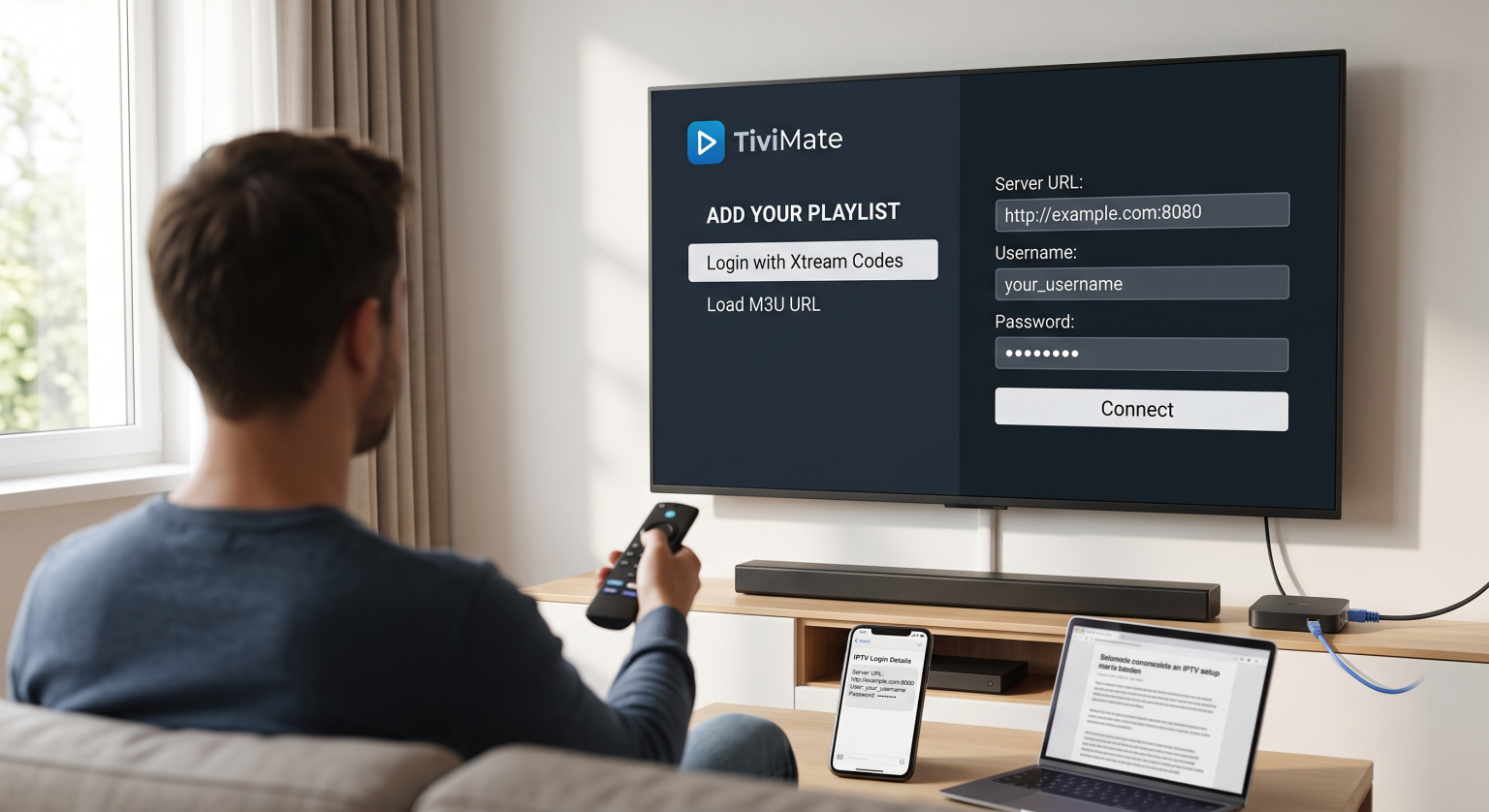
1. Comprendre les formats de listes de lecture : M3U et Xtream Codes
Avant d'installer une application, vous devez comprendre comment les lecteurs interprètent les données des chaînes. Lorsque vous vous abonnez à un service, votre fournisseur vous fournit généralement l'un des deux formats d'identifiants suivants :
API Xtream Codes (recommandée)
Il s'agit de la méthode de connexion la plus stable et la plus simple d'utilisation. Au lieu de saisir une adresse Web interminable, il vous suffit de taper :
URL du serveur / Portail : (par exemple, (http://service-domain.com:8080))
Nom d'utilisateur : Le nom d'utilisateur attribué à votre compte
Mot de passe : Le mot de passe attribué à votre compte
Xtream Codes organise automatiquement votre guide électronique des programmes (EPG), les catégories de chaînes et la vidéo à la demande (VOD) les bibliothèques de manière ordonnée.
URL M3U / Fichier de liste de lecture
Un fichier M3U est un format de liste de lecture au format texte qui contient les liens directs de diffusion en continu et les métadonnées de chaque chaîne de votre bouquet. Vous recevrez soit :
Un lien web long (par exemple, (http://service-domain.com/get.php?username=…&type=m3u_plus))
Un fichier .m3u ou .m3u8 téléchargeable à importer directement dans le lecteur
2. Choisir le lecteur IPTV adapté à votre appareil
Les différents systèmes d'exploitation prennent en charge différents lecteurs. Choisir une application optimisée pour votre matériel garantit une lecture fluide, un changement rapide de chaîne (zapping) et un chargement précis du guide électronique des programmes (EPG).
| Nom du joueur | Idéal pour | Systèmes d'exploitation pris en charge | Caractéristiques principales | Modèle de tarification |
| TiviMate | Une expérience télévisuelle haut de gamme | Android TV, Fire TV | Interface utilisateur moderne, multi-écrans, rattrapage, groupes de chaînes personnalisés | Freemium (version premium payante) |
| IPTV Smarters Pro | Polyvalence et débutants | Android, iOS, Windows, Mac, Firestick | Connexion simplifiée, prise en charge multi-utilisateurs, lecteur intégré | Gratuit (achats intégrés) |
| Joueur IBO | Téléviseurs connectés | Samsung Tizen, LG webOS, Android | Léger, chargement rapide, activation directe par adresse MAC | Essai de 7 jours, paiement unique |
| XCIPTV | Personnalisation et simplicité d'utilisation | Android TV, Fire TV | Mise en page par défaut épurée, test de vitesse intégré, double lecteur | Gratuit |
| OTT Navigator | Utilisateurs avancés et filtrage | Android, Firestick | Personnalisation avancée des codecs, filtrage de qualité studio, PiP | Freemium |
3. Installation étape par étape : Android TV et Amazon Firestick
Étant donné que les clés de streaming sous Android constituent la grande majorité des installations de streaming, voici le processus standard utilisant les deux méthodes de déploiement les plus courantes.
Méthode A : installation directe via les boutiques d'applications officielles
Ouvrir le Google Play Store (Android TV / Google TV) ou le Amazon Appstore (Firestick).
Recherchez un joueur certifié, tel que IPTV Smarters Pro ou TiviMate.
Sélectionner Installer ou Obtenir.
Lancez l'application une fois l'installation terminée.
Méthode B : Installation manuelle via l'application Downloader (Firestick / Shield)
Certaines applications dédiées à l'IPTV ne figurent pas dans les boutiques d'applications classiques en raison de restrictions régionales.
Accéder à Paramètres > Ma Fire TV > Options pour les développeurs.
Activer Installer des applications inconnues pour l'application Downloader.
Ouvrir Téléchargeur, saisissez le code numérique direct ou l'URL du lecteur de votre choix
.apkfichier, puis appuyez sur Aller.Une fois le téléchargement terminé, cliquez sur Installer, puis Terminé, puis désinstallez le programme
.apkpour libérer de l'espace de stockage sur l'appareil.
4. Configuration de votre lecteur (guide étape par étape)
Une fois l'application lancée, associez votre abonnement en suivant la procédure de configuration suivante :
[Ouvrir le lecteur] ➔ [Ajouter un utilisateur / Nouvelle liste de lecture] ➔ [Sélectionner des codes Xtream ou M3U] ➔ [Saisir les informations du serveur et les identifiants] ➔ [Synchroniser le guide électronique des programmes (EPG) et les chaînes]
Lancer l'application : Sur l'écran d'accueil, sélectionnez Ajouter une liste de lecture, Ajouter un utilisateur, ou Se connecter avec l'API Xtream Codes.
Détails de la connexion d'entrée :
Nom de la playlist : Attribuez-lui un nom descriptif (par exemple, « Téléviseur principal »).
URL du serveur : Collez l'URL exacte fournie par votre fournisseur d'accès (vérifiez qu'il n'y a pas de barres obliques finales, d'espaces, ni de différence entre http:// et https://).
Identifiant et mot de passe : Saisissez vos identifiants avec soin (ils sont sensibles à la casse).
Télécharger les données : Cliquez ici Ajouter un utilisateur ou Enregistrer. L'application mettra entre 10 secondes et quelques minutes pour récupérer la liste des chaînes en direct, les films, les séries et les données du programme TV.
Configurer le guide des programmes (EPG) : Si votre guide ne s'affiche pas automatiquement, rendez-vous sur Paramètres > Guide des programmes / Guide TV dans l'application, puis configurez le Fréquence de mise à jour du guide électronique des programmes (EPG) à mettre à jour toutes les 24 heures.
5. Optimisation des performances et dépannage des erreurs courantes
Éliminer la mise en mémoire tampon et les saccades
Configurez votre connexion par câble : Dans la mesure du possible, utilisez un câble Ethernet plutôt que le Wi-Fi à 2,4 GHz. Si le Wi-Fi est indispensable, passez sur la bande 5 GHz.
Régler la taille de la mémoire tampon : Dans les paramètres de lecture de votre lecteur, augmentez la taille de la mémoire tampon de diffusion de Aucun/Petit à Moyen ou Grand (3 à 5 secondes). Cela permet au flux de compenser les brèves baisses de débit du réseau.
Décodage matériel ou logiciel : Si une chaîne affiche un écran noir avec le son, accédez aux paramètres du décodeur de votre lecteur et basculez entre Matériel (HW) et Logiciels (SW) décodage.
Résolution du problème “ Échec du rechargement de la liste de lecture ” ou des délais d'attente de connexion
Vérifiez bien la date d'expiration et les limites d'appareils actifs auprès de votre opérateur.
Vérifiez que votre fournisseur d'accès à Internet (FAI) ne bloque pas les ports utilisés pour la diffusion de contenu multimédia en continu.
Redémarrez votre routeur et votre boîtier de streaming afin de vider les caches DNS locaux.
Réflexions finales
Mise en place d'un Lecteur IPTV C'est un processus très simple dès lors que vous séparez le logiciel de lecture multimédia de la source de la liste de lecture. En choisissant une application adaptée à votre système d'exploitation — qu'il s'agisse de TiviMate pour les interfaces TV dédiées ou d'IPTV Smarters pour une flexibilité multi-appareils — et en utilisant le API Xtream Codes, vous profiterez d'une expérience de streaming fluide, comparable à celle de la télévision par câble, sur votre installation domestique.