
Wenn Sie sich kürzlich einen LG OLED- oder QNED-Fernseher zugelegt haben, wissen Sie bereits, dass die Bildqualität unglaublich ist. Aber wenn es ums Streamen geht 4K-IPTV auf WebOS, kann es schon mal etwas chaotisch werden. Der LG Content Store ist dafür berüchtigt, beliebte IPTV-Apps über Nacht zu löschen, und herauszufinden, wie man eine M3U-Playlist auf den Fernseher überträgt, ohne dabei den Verstand zu verlieren, ist so etwas wie eine Initiationsprobe.
Lassen wir das Geschwafel beiseite. Hier erfahren Sie genau, wie Sie eine einwandfreie, ruckelfreie 4K-IPTV-Einrichtung auf Ihrem LG WebOS-Fernseher vornehmen, welche Apps sich derzeit wirklich lohnen und wie Sie Ihr Netzwerk so konfigurieren, dass Sie während einer Live-Sportübertragung nicht auf ein sich drehendes Rad starren müssen.
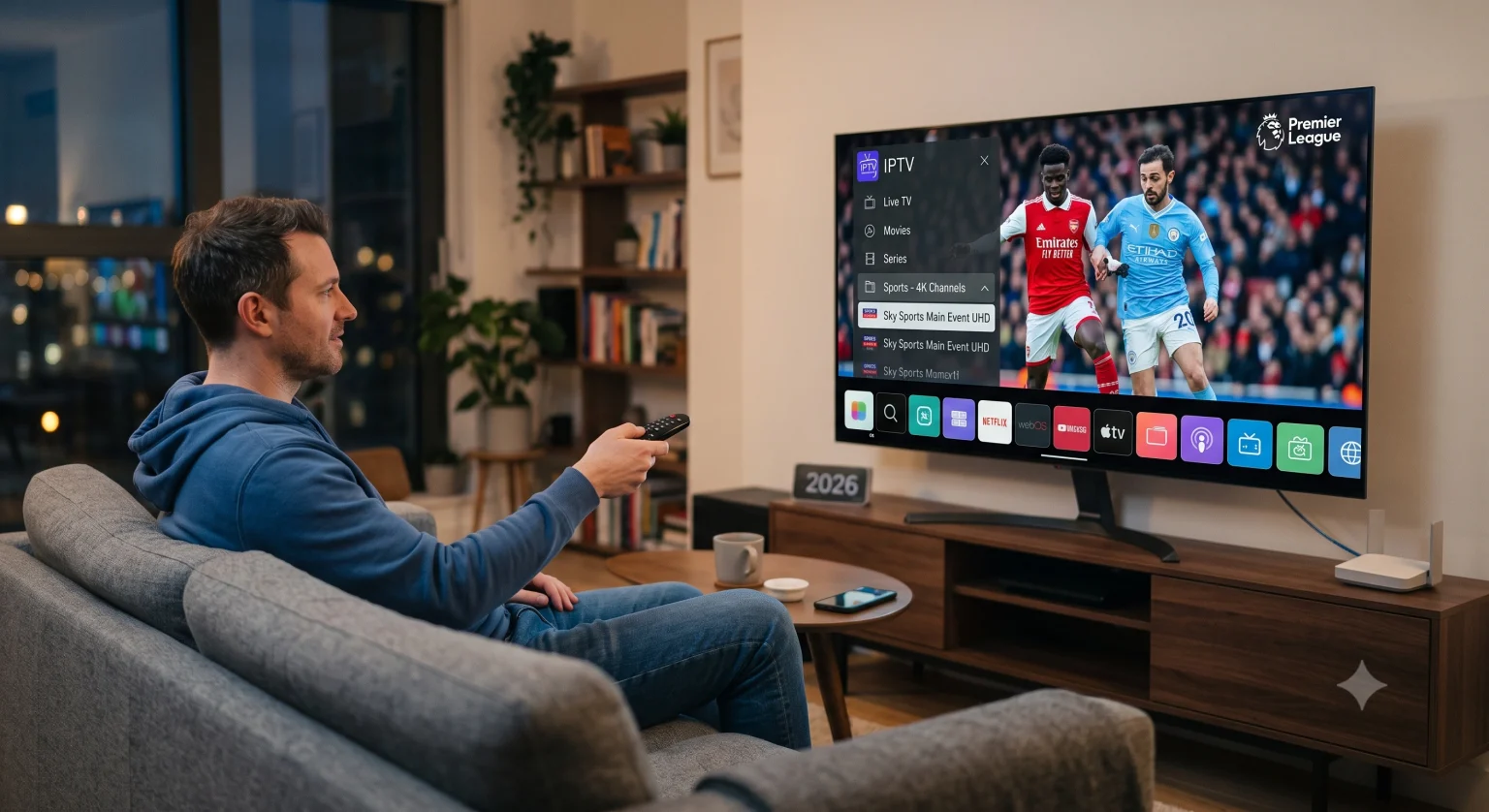
1. Die derzeit besten IPTV-Apps für LG WebOS
Da WebOS ein geschlossenes System ist (im Gegensatz zu Android TV, wo man einfach TiviMate installieren und es dabei belassen kann), beschränkt sich die Auswahl an Apps auf das, was LG derzeit in seinem Store zulässt. Hier sind die besten Apps, die auch anspruchsvolle 4K-Streams bewältigen, ohne abzustürzen.
| Name der App | Einrichtungsmethode | Beste Funktion | Preisgestaltung |
| IPTV Smarters Pro | Xtream Codes API | Die benutzerfreundlichste Oberfläche | Kostenlos (mit der Premium-Version stehen zusätzliche Funktionen zur Verfügung) |
| Smart IPTV (SIPTV) | Hochladen der MAC-Adresse über die Website | Extrem leicht und stabil | ~5,49 € einmalige Gebühr |
| SET IPTV | Hochladen der MAC-Adresse über die Website | Schnelles Laden von Wiedergabelisten bei umfangreichen Bibliotheken | ~15 € einmalige Gebühr |
| HotPlayer | Hochladen der MAC-Adresse über die Website | Hervorragende Suchfunktion und Kindersicherung | ~15 € einmalige Gebühr |
Ein kurzer Tipp zur Verfügbarkeit der App: Wenn Sie nach “Smarters” im LG Content Store und können sie nicht finden? Keine Panik. LG entfernt diese Apps je nach Region regelmäßig und stellt sie wieder zur Verfügung. Falls Ihre bevorzugte App fehlt, probieren Sie einfach eine andere aus der obigen Liste aus. Sie alle fungieren als Mediaplayer (das heißt, sie bieten standardmäßig keinerlei Inhalte – Sie müssen Ihre eigene Wiedergabeliste mitbringen).
2. So richten Sie Ihr IPTV-Abonnement ein (richtig)
Die meisten IPTV-Anbieter senden Ihnen zwei Dinge zu: ein M3U-Link (eine sehr lange URL) und Xtream-Codes (ein Benutzername, ein Passwort und die URL des Portals).
Wann immer möglich, Xtream-Codes verwenden. M3U-Links zwingen Ihren Fernseher dazu, bei jedem Öffnen der App die gesamte Kanalliste herunterzuladen, was unter WebOS enorm viel Speicherplatz beansprucht und dazu führt, dass die App nur sehr langsam geladen wird. Xtream Codes fragt lediglich die Kategorien ab, auf die Sie klicken, wodurch die Navigation um ein Vielfaches schneller wird.
Einrichtung über Xtream Codes (z. B. IPTV Smarters Pro)
Öffnen Sie die App auf Ihrem LG-Fernseher und wählen Sie Mit der Xtream Codes-API anmelden.
Geben Sie einen beliebigen Namen in das erste Feld ein (z. B. “Mein Fernseher”).
Geben Sie den folgenden Text sorgfältig ein: Benutzername, Passwort, und Portal-URL die von Ihrem Dienst bereitgestellt werden.
Treffer Benutzer hinzufügen. Es dauert eine Minute, bis die Kategorien „Live-TV“, „VOD“ und „Serien“ geladen sind.
Einrichtung über die MAC-Adresse (z. B. Smart IPTV, SET IPTV)
- Öffnen Sie die App auf Ihrem Fernseher. Auf dem Bildschirm wird eine MAC-Adresse angezeigt (sie sieht etwa so aus: 00:aa:11:bb:22:cc).
- Gehen Sie auf Ihren Computer oder Ihr Smartphone und rufen Sie die offizielle Website der App auf (z. B. siptv.eu/mylist für Smart IPTV).
Geben Sie die MAC-Adresse Ihres Fernsehers in das dafür vorgesehene Feld ein.
Fügen Sie die M3U-URL Ihres Anbieters in das URL-Feld ein.
Aktivieren Sie das Kontrollkästchen “Ich bin kein Roboter” und klicken Sie auf Senden oder Hochladen.
Starten Sie die App auf Ihrem LG-Fernseher neu. Ihre Sender werden nun geladen.
3. Behebung von 4K-Pufferungsproblemen und Netzwerkverzögerungen
Das Live-Streaming von 4K-Videos erfordert eine konstante, hohe Bandbreite. Wenn Ihr Stream alle 30 Sekunden ruckelt, liegt das selten am Fernseher. So stellen Sie eine stabile Verbindung her:
WLAN abschalten: LG-Fernseher verfügen zwar über ordentliche WLAN-Chips, doch für Live-IPTV ist eine konstante Paketübertragung erforderlich. Schließen Sie ein Ethernet-Kabel direkt von Ihrem Router an die Rückseite Ihres Fernsehers an. Hinweis: Die meisten Ethernet-Anschlüsse von LG-Fernsehern erreichen maximal 100 Mbit/s. Falls Ihr 4K-Stream mehr als diese Geschwindigkeit benötigt (selten, aber möglich), benötigen Sie möglicherweise einen Gigabit-USB-zu-Ethernet-Adapter.
Beenden Sie die Drosselung durch Ihren Internetanbieter mit einem VPN: Internetdienstanbieter drosseln den IPTV-Datenverkehr regelmäßig zu Spitzenzeiten (z. B. bei Fußballspielen am Wochenende). Wenn Ihr Stream am Dienstagmorgen einwandfrei funktioniert, am Samstagabend aber ständig ruckelt, wird Ihre Verbindung gedrosselt. Durch die Nutzung eines VPN wird Ihr Datenverkehr verschleiert. Zwar können Sie VPN-Apps wie PureVPN oder Surfshark direkt aus dem LG Content Store installieren, doch ist es für das Streaming im ganzen Haus oft wesentlich effektiver, das VPN auf Router-Ebene zu nutzen.
Passen Sie die Einstellung “Reload Plist” an: Wenn Sie Smart IPTV nutzen, drücken Sie die blaue Taste auf Ihrer Fernbedienung, um die Einstellungen aufzurufen, und stellen Sie sicher, dass der Timer für das Neuladen der Wiedergabeliste auf 12 oder 24 Stunden eingestellt ist. Wenn er so eingestellt ist, dass die Wiedergabeliste bei jedem Öffnen der App neu geladen wird, verlangsamt dies den gesamten Vorgang.
4. Optimierung der WebOS-Bildeinstellungen für IPTV
IPTV-Streams sind im Vergleich zu einer 4K-Blu-ray oder der nativen Netflix-App stark komprimiert. Wenn Sie Ihren LG-Fernseher einfach im Modus “Standard” oder “Vivid” belassen, 4K-IPTV-Streams könnten künstlich scharf oder grobkörnig wirken oder unter dem “Seifenopern-Effekt” leiden.”
So erhalten Sie das schärfste Bild:
Drücken Sie die Einstellungen Zahnrad auf Ihrer Magic Remote.
Weiter zu Bild > Modus auswählen und wählen Sie Filmemacher-Modus oder Kino.
Gehe zu Erweiterte Einstellungen > Schärfe.
TruMotion deaktivieren Völlig. IPTV-Sportübertragungen laufen standardmäßig mit 50 fps oder 60 fps; wenn man den Fernseher dazu zwingt, die Bewegung künstlich zu glätten, entstehen seltsame Artefakte um die Spieler herum.
Behalten MPEG-Rauschunterdrückung auf “Niedrig”, um die für Live-Streams typischen Kompressionsartefakte zu glätten.
Damit IPTV unter WebOS einwandfrei funktioniert, sind etwa zehn Minuten für die Ersteinrichtung erforderlich – und die Bereitschaft, eine kabelgebundene Internetverbindung herzustellen. Nach der Konfiguration verfügen Sie über ein System, das es mit jeder dedizierten Set-Top-Box aufnehmen kann.