
There is nothing more frustrating than watching a striker break toward goal only for your screen to freeze on a spinning loading icon. If Champions League stream buffering is ruining match day on your Smart TV, you cannot afford to waste time troubleshooting through trial and error.
For soccer fans across the United States tuning into Paramount+ or the CBS Sports app during Tuesday and Wednesday afternoons, sudden lag spikes are all too common. Heavy server loads combined with local network congestion during peak hours can bring even high-end televisions to a crawl.
Use this step-by-step troubleshooting guide to eliminate live sports stuttering and get your broadcast running smoothly before halftime.
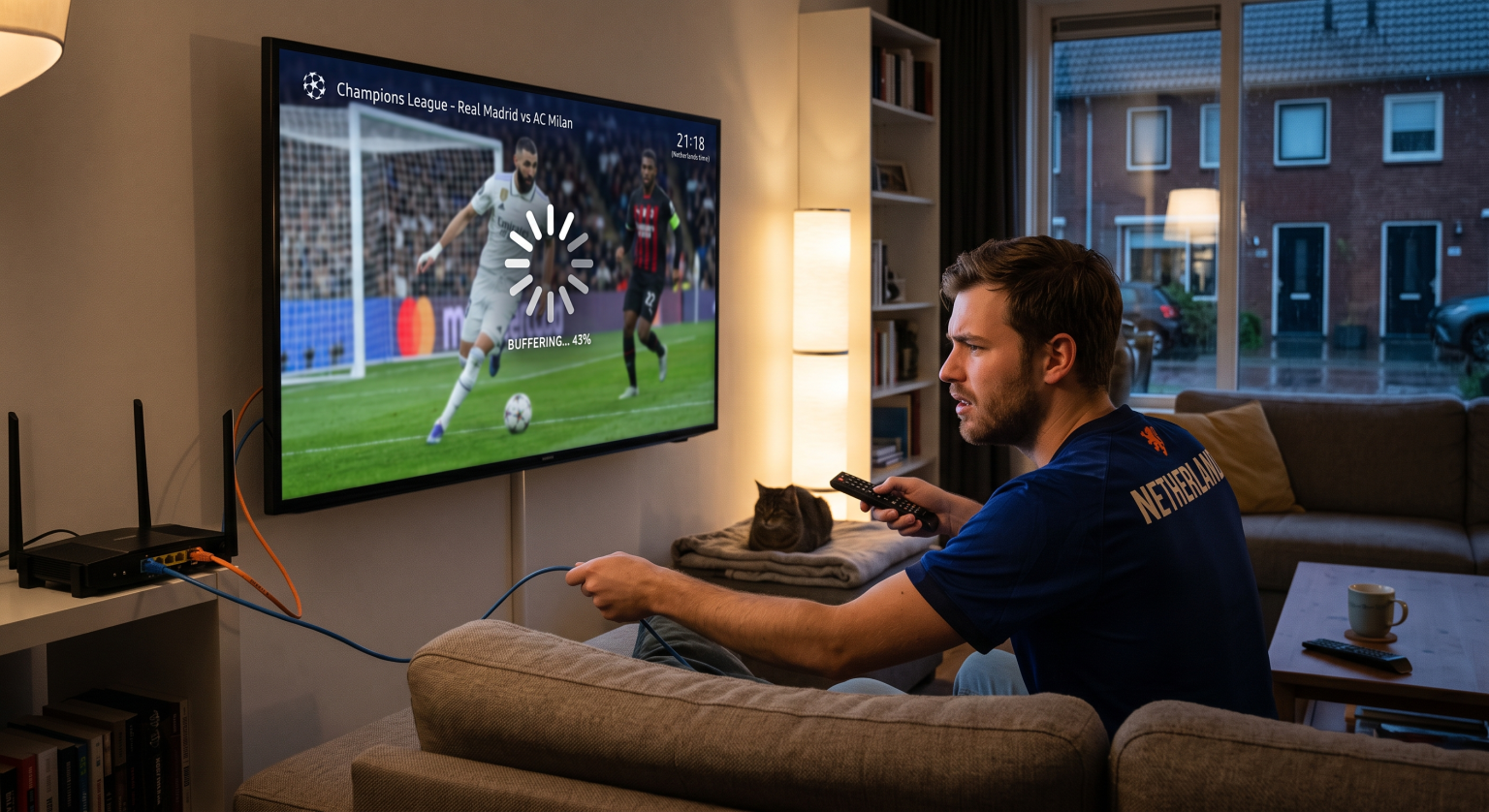
Why Champions League Stream Buffering Happens on Smart TVs
Live sports streaming requires significantly more bandwidth and local hardware performance than watching on-demand movies. When millions of US viewers access a live broadcast simultaneously, Content Delivery Networks (CDNs) experience massive traffic surges.
Smart TVs also come equipped with relatively modest processors and limited system memory. When background services consume RAM, your television cannot process incoming video packets quickly enough, causing the stream to drop frames or freeze entirely.
Understanding whether the bottleneck stems from your home network, your television hardware, or the broadcaster’s servers is key to finding the right fix.
10 Proven Smart TV Fixes to Stop Champions League Stream Buffering
1. Perform a Cold Power Cycle on Your Smart TV
Most users simply put their televisions into a low-power standby mode rather than fully shutting them down. Over time, cached memory leaks degrade system performance and introduce video playback errors.
Unplug your Smart TV power cord directly from the wall outlet.
Press and hold the physical power button on the TV chassis for 15 to 30 seconds to drain residual power.
Wait a full minute, plug it back in, and relaunch your streaming application.
2. Switch from Wi-Fi to a Hardwired Ethernet Cable
Wi-Fi signals are susceptible to interference from household appliances, walls, and competing devices on the 2.4 GHz and 5 GHz frequency bands. A wired connection guarantees consistent packet delivery for jitter-free live video.
Run a standard Cat6 Ethernet cable from your router directly into the LAN port of your Smart TV. If running a long cable is impractical, a powerline Ethernet adapter kit can deliver wired stability through your existing electrical wiring.
3. Clear the App Cache and Data
Streaming apps like Paramount+, YouTube TV, and Hulu hoard temporary cached files every time you watch a game. Corrupted cache files are a leading cause of sudden playback crashes and endless loading screens.
Navigate to Settings > Apps > See All Apps, select your sports streaming platform, and click Clear Cache. Avoid clicking “Clear Data” unless you are prepared to re-enter your login credentials.
4. Force Close Unused Background Apps
Modern television operating systems (such as Google TV, Samsung Tizen, and LG webOS) keep recently opened applications suspended in background memory. This starves your live streaming app of the CPU and RAM cycles it needs to decode HD video.
Access your television’s application switcher or device manager and manually force-stop non-essential apps like Netflix, Spotify, and YouTube before starting the match.
5. Manually Drop Stream Resolution from 4K to 1080p
While a 4K UHD HDR feed looks stunning, it demands a sustained broadband speed of at least 25 to 50 Mbps without fluctuation. If your home network experiences momentary bandwidth drops, the stream will instantly stutter.
Go into the in-app player settings during the match and manually switch the video quality from Auto / 4K to 1080p at 60fps. A stable, smooth full HD stream is vastly superior to a freezing 4K broadcast.
6. Change Your DNS Address to Cloudflare or Google
Your internet service provider (ISP) automatically assigns default Domain Name System (DNS) servers that can be slow, congested, or poorly routed to streaming CDNs. Changing your Smart TV DNS settings improves server response times dramatically.
In your TV’s advanced network settings, switch the DNS configuration from Automatic to Manual and enter:
Cloudflare DNS: Primary 1.1.1.1 | Secondary 1.0.0.1
Google Public DNS: Primary 8.8.8.8 | Secondary 8.8.4.4
7. Update Your TV Firmware and Broadcast App
Outdated operating systems lack critical performance patches and DRM decryption updates required by modern live sports providers. An unpatched bug can trigger Champions League stream buffering even if your connection speed is exceptional.
Check your television’s system menu for pending software updates and install them immediately. Afterward, open the on-screen app store to ensure your sports app is running its latest build.
8. Restart Your Cable Modem and Wi-Fi Router
Broadband modems accumulate line noise and packet errors after weeks of continuous operation. Restarting your network hardware resets your internal routing tables and clears your local IP leases.
Unplug both your modem and wireless router for 60 seconds. Power the modem on first, wait until all status lights turn solid green, and then boot your Wi-Fi router.
9. Prioritize Your TV with Router Quality of Service (QoS)
If other household members are downloading large files, playing online games, or streaming 4K video simultaneously, your television gets choked out of bandwidth.
Log in to your router’s admin dashboard via a web browser and look for Quality of Service (QoS) settings. Assign your Smart TV MAC address as the highest priority client on the network to protect your sports stream.
10. Upgrade to an External Streaming Media Player
Built-in Smart TV operating systems often become sluggish after two or three years on the market. Dedicated streaming hardware features substantially faster processors, superior Wi-Fi antennas, and longer software support.
Plugging an Apple TV 4K, Roku Streaming Stick 4K, or Amazon Fire TV Stick 4K Max into your HDMI port will almost always outperform a native Smart TV app.
Comparison: Troubleshooting Options for Live Sports Buffering
| Troubleshooting Fix | Setup Time | Impact Level | Best Suited For |
| Ethernet Cable Connection | 2–5 Minutes | High | Eliminating Wi-Fi packet drops & signal dead zones |
| Clear App Cache & RAM | 1 Minute | Medium | App-specific sluggishness, crashes, and interface lag |
| Change DNS (Cloudflare/Google) | 3 Minutes | Medium | Faster CDN routing and reduced connection handshakes |
| Drop Video from 4K to 1080p | 30 Seconds | Immediate | Bandwidth limits during high-traffic ISP hours |
| External Streaming Stick | 10 Minutes | Permanent | Aging Smart TVs with sluggish factory hardware |
How to Prevent Live Sports Buffering on US Broadband Networks
For viewers in the United States, UEFA matches kick off during standard working hours typically 3:00 PM Eastern / 12:00 PM Pacific. This frequently overlaps with peak home-office bandwidth consumption, video conferencing calls, and afternoon ISP neighborhood throttling from providers like Comcast Xfinity, Spectrum, and AT&T.
To maintain an interruption-free viewing experience across US markets, adopt these preventative measures:
Audit your real-time speeds: Run a fast speed test via your TV’s built-in web browser right before kickoff to ensure you are receiving at least 25 Mbps.
Disconnect unused smart devices: Temporarily toggle off Wi-Fi on laptops, tablets, and smart home cameras that silently run cloud backups in the background.
Select the 5 GHz band: If you must use Wi-Fi, ensure your television is paired to your router’s 5 GHz band instead of the slower, crowded 2.4 GHz channel.
Never Miss Another Critical Match Moment
Eliminating Champions League stream buffering comes down to cutting out Wi-Fi interference, freeing up your Smart TV’s system memory, and securing dedicated bandwidth for the match. By making a few quick adjustments to your network setup, you can enjoy crystal-clear 4K sports with zero lag from the opening whistle to the final trophy celebration.
Frequently Asked Questions (PAA)
Why does my Champions League stream buffer when other apps work fine?
Lorem ipsum dolor sit amet, consectetur adipiscing elit. Ut elit tellus, luctus nec ullamcorper mattis, pulvinar dapibus leo.
What internet speed do I need to stream Champions League matches without lag?
You need a minimum sustained download speed of 10 Mbps for standard 1080p HD broadcasts and 25 to 50 Mbps for 4K Ultra HD streams. Consistency and low latency (ping under 30 ms) matter far more than raw theoretical speeds.
Can a VPN stop live sports stream buffering on my Smart TV?
Yes, in situations where your local internet provider intentionally throttles high-bandwidth streaming protocols during major sporting events. A premium VPN encrypts your traffic so your ISP cannot detect or throttle your live sports video stream.