
It is incredibly frustrating when you’re ready to watch your favorite stream, but finding your IPTV Cast controls not working suddenly ruins the experience. Whether the casting icon has vanished or the media notifications have disappeared from your phone, this is a common issue for streaming households across the United States. Fortunately, restoring your connection is usually just a few taps away.
Let’s explore exactly how to get your smart home entertainment setup back on track so you can get back to watching.
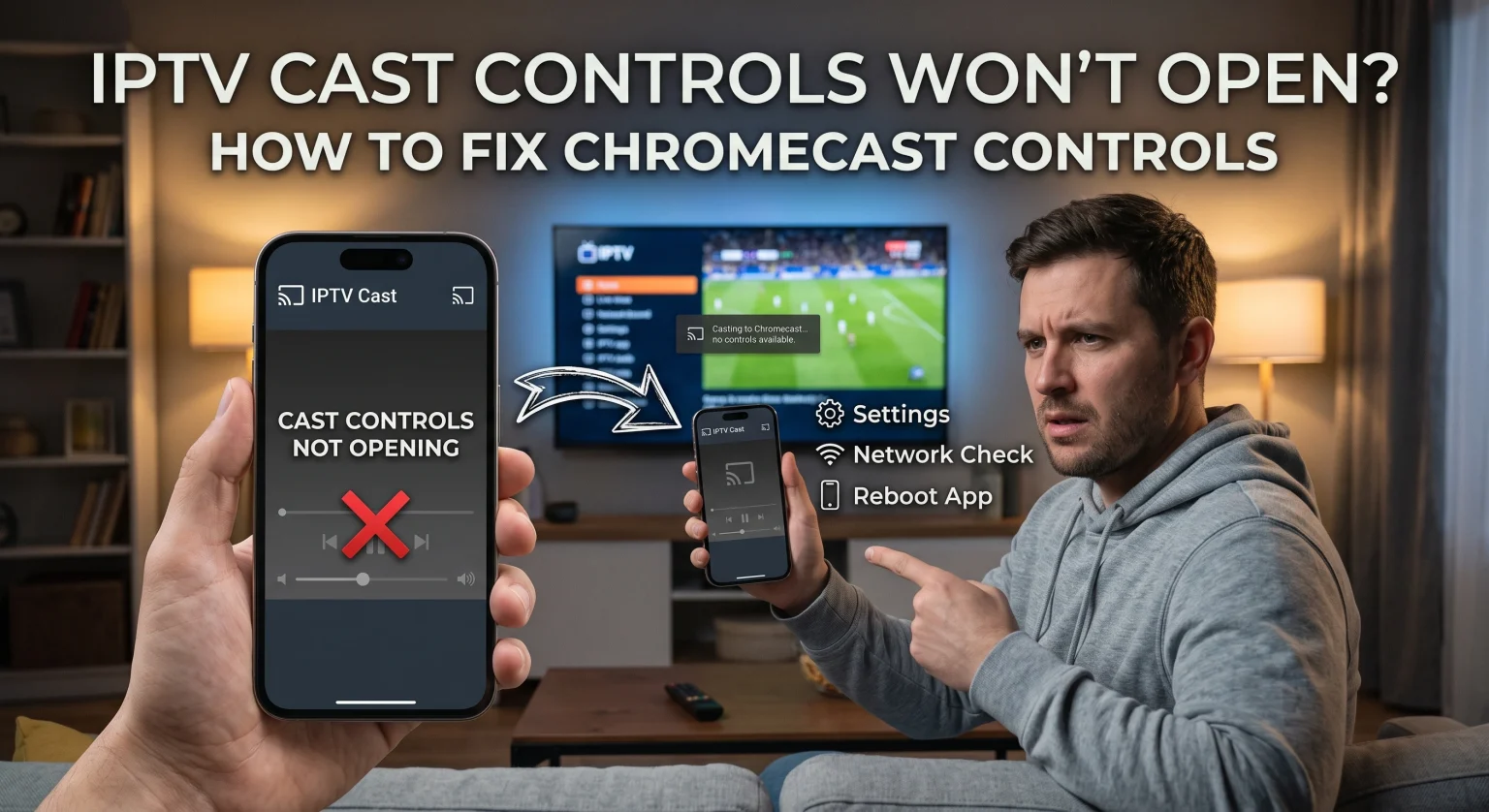
Why Are My IPTV Cast Controls Not Working in the US?
When you encounter IPTV Cast controls not working, the root cause usually boils down to network communication failures or disabled background permissions. Many internet service providers (ISPs) in the United States provide dual-band routers, which can easily split your devices onto different Wi-Fi networks. If your smartphone is on a 5GHz network and your Chromecast is on 2.4GHz, your Cast media control notifications will fail to appear.
Additionally, recent Android updates sometimes automatically restrict background casting permissions for third-party IPTV apps. This forces the missing cast icon issue or completely hides your notification bar controls.
Top Troubleshooting Steps to Restore Missing Cast Controls
If your device is refusing to cooperate, follow these tested steps for reliable Chromecast troubleshooting.
1. Enable Media Controls in Android Settings
If your on-screen notifications have vanished, your operating system might be blocking them. You need to verify that your Google settings are allowing media controls.
Open your phone’s Settings and navigate to Google.
Select Devices and sharing, then tap Cast options.
Ensure that Media controls for cast devices is toggled ON.
2. Check the Google Home App Permissions
Sometimes the restriction comes from the Chromecast itself. You must allow other devices on the network to control your cast media.
Open the Google Home app and locate your streaming device.
Tap the Settings gear icon, then choose Recognition and sharing.
Toggle on Let others control your cast media to restore functionality.
3. Reset the Chromecast Remote
If you are relying on a physical remote and dealing with a Google TV remote not working, a quick reset often resolves pairing glitches. Remove both batteries and wait five minutes to clear the hardware cache.
Reinsert the batteries while holding down the Home button.
Keep holding until the LED light begins to pulse, signaling that the device is ready to pair.
Comparing the Best Casting Methods for IPTV
To avoid running into frequent IPTV stream casting issues, it helps to understand the different ways you can push media to your television. Below is a quick comparison of the most popular methods.
| Casting Method | Connection Reliability | Media Control Flexibility |
| Native Chromecast Integration | High | Excellent; full lock-screen media notifications via Google Home. |
| Android Screen Mirroring | Medium | Low; controls are limited to device volume, and your screen must stay on. |
| Direct Smart TV App | Exceptional | Total control utilizing your standard physical TV remote. |
Network Syncing and Local US Wi-Fi Issues
One of the biggest culprits behind cast disconnects is network isolation. Ensure that your smartphone and your Chromecast device are connected to the exact same Wi-Fi band. If your router uses “Band Steering,” try disabling it in your router’s admin panel to keep your devices locked on the same frequency.
Restarting your physical router and simply unplugging your Chromecast for one minute can also clear out temporary IP assignment bugs. This quick reboot is often the fastest way to refresh the connection between your mobile app and the TV.
Conclusion: Upgrade Your Streaming Experience Today
Dealing with your IPTV Cast controls not working doesn’t have to ruin your movie night. By checking your Android settings, aligning your Wi-Fi bands, and ensuring your Google Home permissions are active, you can eliminate these connectivity headaches for good. For users in the United States looking for the most stable and feature-rich viewing experience, maintaining an updated and optimized network is essential.
Tired of constant buffering and casting glitches? Take your home entertainment to the next level. Click here to explore our premium IPTV subscription plans and enjoy flawless, high-definition streaming with 100% reliable cast support today!
People Also Ask (FAQ)
How do I get my Cast icon back on my phone?
First, ensure your phone and Chromecast are on the exact same Wi-Fi network. If the icon is still missing, force stop your IPTV application, clear the app cache, and restart your mobile device.
Why is my Chromecast not showing up on my network?
This usually happens if your router has AP Isolation (Guest Mode) turned on, which prevents devices from seeing each other. Log into your router settings and ensure AP/Client Isolation is disabled.
How do I completely reset my Chromecast remote?
To reset your Chromecast remote, pull out the batteries, wait a few minutes, and hold the Home button while reinserting them. Wait for the LED indicator to pulse, which means it has entered pairing mode.